How to Like and Comment on LinkedIn Posts via API: A Developer's Guide


TL;DR
Learn how to programmatically add reactions (like, love, insightful) and post comments on LinkedIn using the Publora API. Complete code examples in JavaScript, Python, and cURL.
Why Automate LinkedIn Engagement?
LinkedIn engagement — liking posts and leaving thoughtful comments — is one of the most effective ways to grow your professional network. But doing it manually at scale is time-consuming.
With the Publora API, you can programmatically:
- React to posts with any of LinkedIn's 6 reaction types
- Comment on posts in your network
- Reply to existing comments (nested threads)
- Remove reactions and comments when needed
This guide walks you through every endpoint with working code examples.
Prerequisites
Before you start, you'll need:
- A Publora account with an API key (starts with
sk_) - A LinkedIn account connected via the Publora dashboard
- Your LinkedIn
platformId(find it via the List Connections endpoint)
Part 1: Reacting to LinkedIn Posts
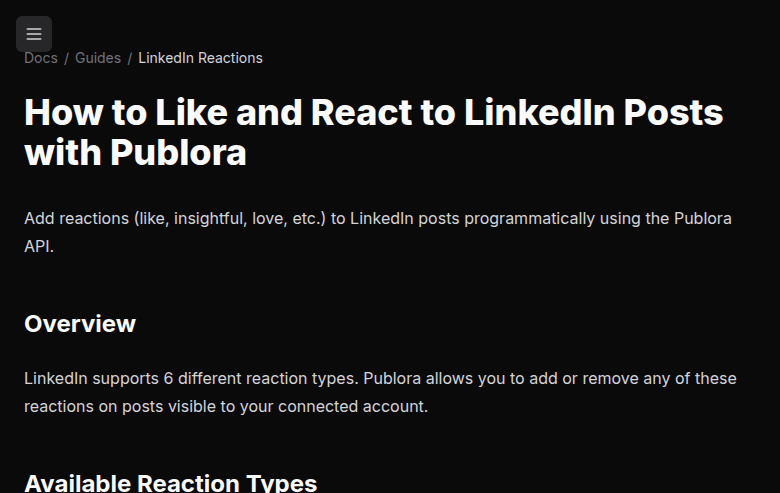
LinkedIn supports 6 reaction types:
| Reaction | API Value | Icon |
|---|---|---|
| Like | LIKE |
Thumbs up |
| Celebrate | PRAISE |
Fire |
| Love | EMPATHY |
Heart |
| Insightful | INTEREST |
Lightbulb |
| Support | APPRECIATION |
Clapping hands |
| Funny | ENTERTAINMENT |
Laughing face |
| Error | Cause | Fix |
|---|---|---|
"postedId is required" |
Missing post URN | Include postedId in request body |
"Invalid postedId" |
Wrong URN format | Use urn:li:share:xxx or urn:li:ugcPost:xxx |
"Invalid reactionType" |
Typo in reaction | Use one of: LIKE, PRAISE, EMPATHY, INTEREST, APPRECIATION, ENTERTAINMENT |
"LinkedIn connection not found" |
Wrong platformId | Check your connections via List Connections |
"Invalid API key" |
Bad API key | Verify your key at publora.com/dashboard |
Tips for LinkedIn Engagement at Scale
- Add delays between requests — LinkedIn has rate limits. Add at least 1 second between API calls.
- Use meaningful comments — Generic comments get flagged. Write substantive, relevant responses.
- Mix reaction types — Don't just "like" everything. Use "Insightful" for thought leadership posts, "Celebrate" for announcements.
- Track engagement with MCP — If you use Claude, Cursor, or another AI assistant, Publora's MCP server lets you engage with LinkedIn posts conversationally.
Bonus: Use Claude Code or Cursor Instead of Writing Code
Don't want to write API calls? Publora's MCP server lets you like, comment, and mention people on LinkedIn using plain English — directly from Claude Code or Cursor.
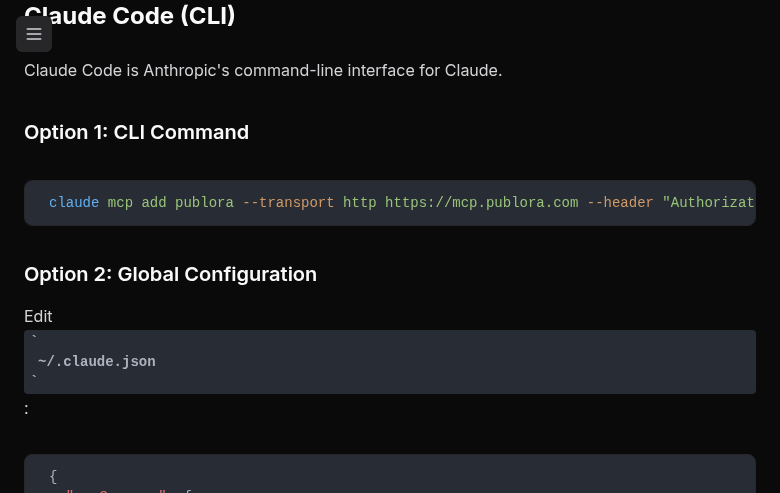
Step 1: Connect Publora MCP to Claude Code
Run this single command in your terminal:
claude mcp add publora --transport http https://mcp.publora.com --header "Authorization: Bearer sk_YOUR_API_KEY"Or add it to your global config at ~/.claude.json:
{
  "mcpServers": {
    "publora": {
      "type": "http",
      "url": "https://mcp.publora.com",
      "headers": {
        "Authorization": "Bearer sk_YOUR_API_KEY"
      }
    }
  }
}
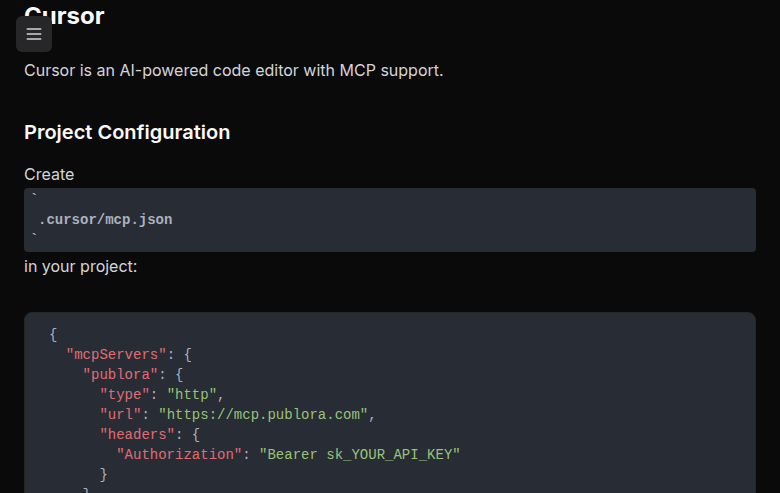
Step 1 (alt): Connect Publora MCP to Cursor
Create .cursor/mcp.json in your project root:
{
  "mcpServers": {
    "publora": {
      "type": "http",
      "url": "https://mcp.publora.com",
      "headers": {
        "Authorization": "Bearer sk_YOUR_API_KEY"
      }
    }
  }
}
Restart Cursor, and Publora's 20 tools (32 with an Agency account) will appear in the AI chat.
Step 2: Like and React to Posts in Natural Language
Once connected, just talk to Claude or Cursor's AI chat:
You: Like this LinkedIn post urn:li:ugcPost:7429953213384187904
Claude: Done! I've added a LIKE reaction to the post.
You: React with "insightful" to my colleague's latest LinkedIn post
Claude: Done! I've added an INTEREST (lightbulb) reaction to the post.
Step 3: Comment on Posts Conversationally
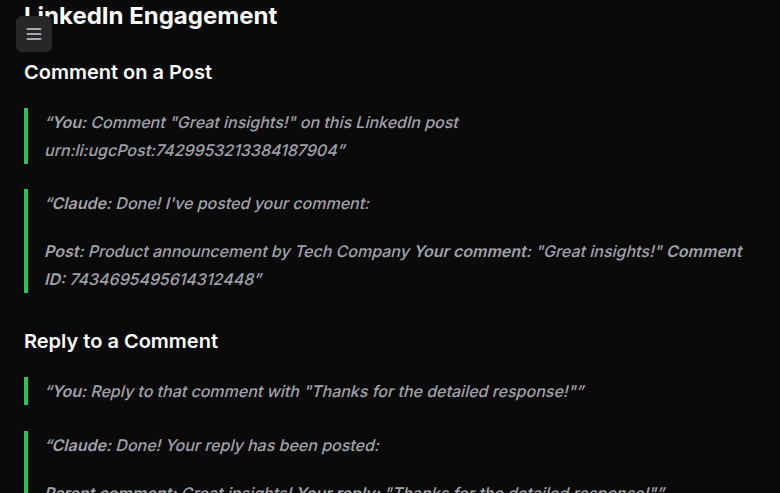
You: Comment "Great insights! This is exactly what our team has been discussing." on this LinkedIn post urn:li:ugcPost:7429953213384187904
Claude: Done! I've posted your comment:
Post: Product announcement by Tech Company
Your comment: "Great insights! This is exactly what our team has been discussing."
Comment ID: 7434695495614312448
You: Reply to that comment with "Thanks for the detailed response!"
Claude: Done! Your reply has been posted as a nested comment.
Step 4: Mention People and Companies
You can @mention LinkedIn members and companies in posts created via MCP. The mention syntax is @{urn:li:person:ID|Display Name} for people and @{urn:li:organization:ID|Company Name} for companies.
You: Schedule a LinkedIn post for tomorrow at 9am thanking John Smith (urn:li:person:123456) for his help on our project
Claude: Done! I've scheduled the post with the mention:
Content: "Thanks to @John Smith for the amazing collaboration on this project!"
Scheduled: Tomorrow at 9:00 AM
The mention will appear as a clickable link to John's profile, and he'll receive a notification.
You: Post to LinkedIn announcing our partnership with Acme Corp (urn:li:organization:789012) and mention Jane Doe (urn:li:person:456789)
Claude: Posted! Both mentions will appear as clickable links:
• @Jane Doe → links to her profile
• @Acme Corp Inc → links to their company page
Important for mentions: The display name must exactly match the LinkedIn profile name (case-sensitive), including company suffixes like "Inc" or "LLC". If it doesn't match, the mention will render as plain text instead of a clickable link.
Why Use MCP Instead of Direct API Calls?
- No code required — just describe what you want in natural language
- Context-aware — Claude remembers previous posts, so you can say "reply to that comment" or "unlike that post"
- Multi-step workflows — "React with insightful and leave a comment" in a single message
- Works in your IDE — engage with LinkedIn without leaving Claude Code or Cursor
- 32 tools available (20 on every plan, 12 more for Agency) — beyond reactions and comments, you can schedule posts, check analytics, manage connections, and more
What's Next?
- Full API Reference — All parameters and error codes
- LinkedIn Mentions Guide — Tag people and companies in posts
- MCP Integration — Use AI assistants to manage LinkedIn engagement
- LinkedIn Analytics — Track your engagement performance
Related Articles
Can You Schedule Posts on Instagram? (2026 Guide)
Yes, you can schedule Instagram posts, with limits. What Instagram allows natively, what it doesn't, and how to schedule feed posts, Reels, and Stories properly.
How Do I Schedule Posts on Facebook? (2026 Guide)
How to schedule Facebook posts in 2026: what you can queue on a Page, why personal profiles don't work, and how to schedule several Pages at once or from an API.
The Best Time to Post on X (Twitter) in 2026
Four published studies agree on Tuesday to Thursday mornings for X. The exact windows, the sample sizes behind them, and how to find your own best time.
The Best Time to Post on Threads in 2026
Buffer's analysis of 2.5 million Threads posts puts Thursday at 9am on top. The published windows, how much data sits behind them, and how to find your own.