How to Build a White-Label Social Media Workflow for Clients

· Updated
TL;DR
Build a white-label social media workflow where your product is the brand and Publora runs headless behind it, using the Workspace API's managed users and per-user keys.
"White-label" in social media usually means one thing to a SaaS or agency: your product is what the client sees, and whatever powers the posting stays out of sight. The client never learns there's a third-party scheduler in the loop. Publora is built to sit in exactly that position, headless, behind your brand. Here's how the Workspace API lets you build it.
What "White-Label" Actually Means Here
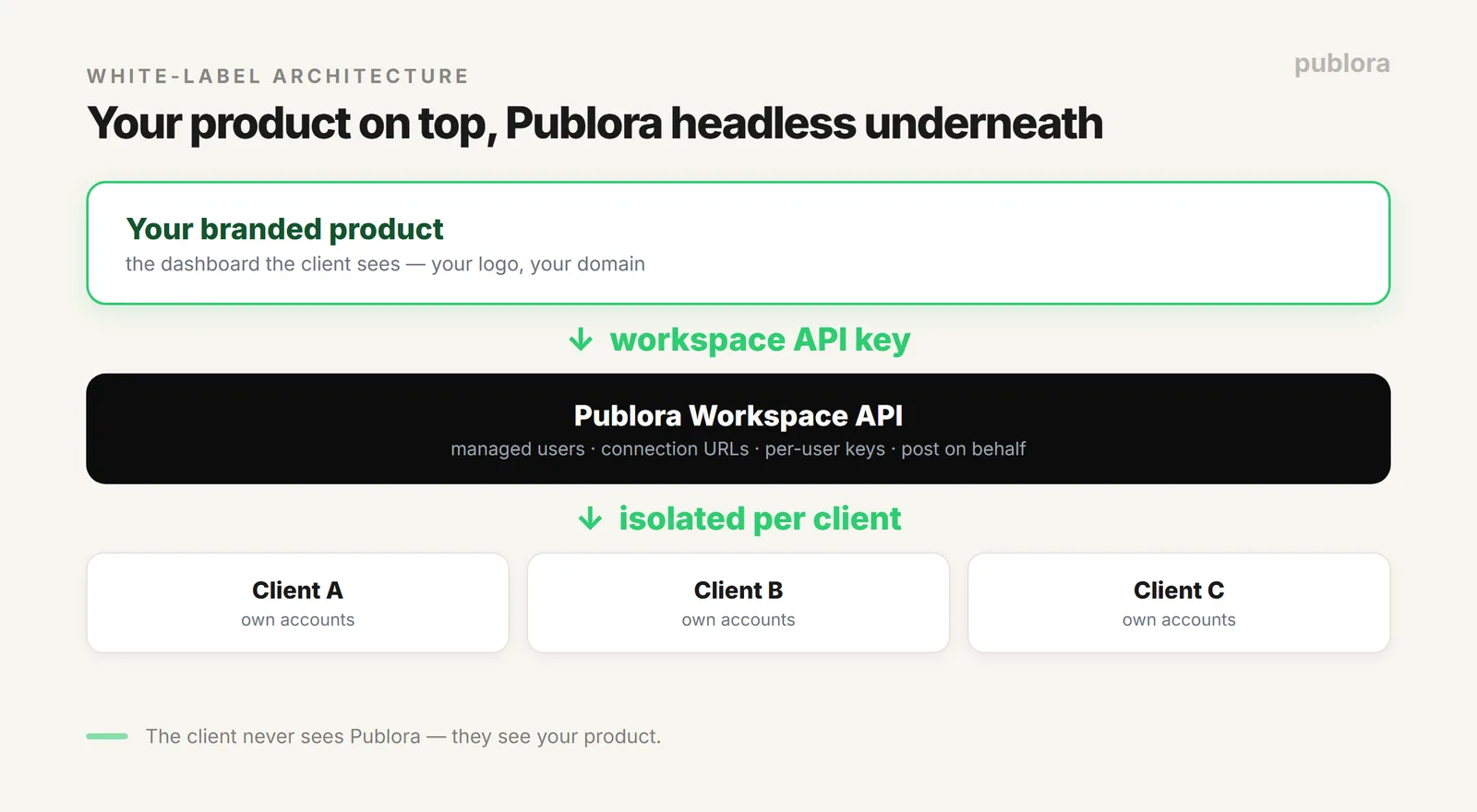
Be precise about it, because it's easy to oversell. The branding, the dashboard, the client-facing UI, all of that lives in your product. Publora doesn't reskin its dashboard for you. What it gives you is the engine: an API where each client is an isolated user with their own connections and posts, driven entirely by your workspace key. You build the face; Publora does the posting.
The Building Blocks
The Workspace API gives you four pieces, and a white-label workflow is just those four wired together:
| Piece | What it is |
|---|---|
| Managed user | One client, with an isolated environment, their own connections and posts |
| Connection URL | A temporary OAuth link you send the client to connect their accounts |
| Per-user API key | An optional key scoped to one client, for their own dashboard |
| Post on behalf | Publish for a client with the x-publora-user-id header |
Step 1: Create a Managed User Per Client
When a client signs up in your product, create a managed user for them under your workspace. You keep their returned ID in your own database, it's the handle for everything you do on their behalf.
POST https://api.publora.com/api/v1/workspace/users
x-publora-key: your_workspace_key

{ "username": "client@example.com", "displayName": "Acme Corp" }

# -> 201 Created, returns user._id  (store this)
Step 2: Send a Branded Connection Link
The client has to authorize their own social accounts, that's OAuth, and it has to be them. Generate a connection URL for their user ID and surface it inside your product ("Connect your accounts"). They click, they authorize, and the connections land under their managed user.
POST https://api.publora.com/api/v1/workspace/users/{userId}/connection-url
x-publora-key: your_workspace_key

# optional: { "expiresInDays": 30, "rotate": true }
# -> returns url + tokenExpiresAt (default 90-day TTL)
Send that link the moment you generate it, and rotate it if it lapses. The client never sees Publora's name in your flow, they just see your "connect accounts" screen.
Step 3: Post on the Client's Behalf
Once accounts are connected, publishing is a normal create-post call plus one header: x-publora-user-id set to the client's ID. That header is what scopes the post to their account.
POST https://api.publora.com/api/v1/create-post
x-publora-key: your_workspace_key
x-publora-user-id: {userId}

{
  "content": "Big news from Acme Corp today.",
  "platforms": ["linkedin-ABCDEF", "twitter-123456"],
  "scheduledTime": "2026-07-10T14:00:00Z"
}
Everything you already know about the create-post API, media uploads, scheduling, multi-platform, works the same; the user-id header just aims it at the right client.
Step 4 (Optional): Give Clients Their Own Key
If your clients need direct API access, say, their own developers want to integrate, generate a per-user API key scoped only to their data. Keep your workspace key server-side and never expose it; per-user keys are what you hand out.
POST https://api.publora.com/api/v1/workspace/users/{userId}/api-key
x-publora-key: your_workspace_key
# -> returns apiKey scoped to that user only
Isolation and Limits
Each managed user's connections and posts are isolated, one client's post can't land on another's account. Posting limits, though, come from your workspace plan, not per client: your plan's monthly and scheduled-post entitlements are what the system checks at schedule time. If you're building something high-volume, track those and queue accordingly. When a client leaves, detach their user with a DELETE; it removes the workspace link but preserves the record.
FAQ
What is a white-label social media workflow?
One where your product is the brand the client sees and the scheduling engine runs invisibly behind it. With Publora's Workspace API, each client is a managed user with an isolated environment, and you drive everything through your workspace key.
How do clients connect their accounts?
You generate a connection URL per managed user and surface it in your product. The client authorizes their own accounts through OAuth; the link is temporary (90 days by default) and can be rotated.
Does Publora have a white-label API?
The Workspace API is the building block, managed users, connection URLs, per-user keys, and posting on behalf. Your product is the branded face; Publora runs headless. Workspace access is enabled by contacting Publora support.
Your brand, our engine
Build a white-label social workflow on Publora's Workspace API, managed users, connection URLs, per-user keys. Contact support to enable Workspace access.
Start FreeFurther Reading
- How Agencies Set Up Client Accounts in Publora Workspace
- What Is a Social Media Scheduling API?
- Headless Social Media Publishing
About this article. Every endpoint shown is from the live Workspace / B2B API documented at docs.publora.com; Workspace access is enabled on request.
Related Articles
How to Publish to Social Media From Claude
Add the Publora connector from the Claude directory, then ask Claude to draft, schedule or publish to LinkedIn, X, Instagram and seven more networks.
How to Post a Figma Design to Social Media
Send a Figma frame to LinkedIn, Instagram, X and seven more networks without leaving Figma. Free plugin, works in Figma Design and Figma Slides.
How to Publish to Social Media From IFTTT
Connect Publora to IFTTT once, and anything IFTTT watches can go out to LinkedIn, X, Instagram and seven more networks. A feed, a webhook, your own code.
How to Auto-Share WordPress Posts to Social Media
Share every new WordPress post to Instagram, LinkedIn, X, Threads, Bluesky and five more networks automatically. Free plugin, about five minutes to set up.