Publora for Windows

Reviewed by Jane Ivanova, CEO, Publora
TL;DR
Publora has a free app for Windows in Microsoft Store. How to install it, sign in, pin it to the taskbar or Start, keep it updated and uninstall it.
Publora has a free app in Microsoft Store. It's the same Publora you use at app.publora.com, in its own window with its own icon and no address bar.
The app is for people who use Publora on a Windows PC and want to open it like any other program instead of looking for a browser tab. It doesn't add features the browser version lacks, so if you're happy in the browser, you aren't missing anything. Your channels, drafts and posts belong to your Publora account, so you'll see the same ones in both places.
Before you start
- A PC with Windows 11, or Windows 10 version 2004 or later. To see which version you have, right-click Start and choose Settings > System > About, as described in Microsoft's guide.
- A Microsoft account, if the Store asks for one. Microsoft's guide to downloading apps says to sign in before you download, and that creating an account is free. This account is separate from your Publora account.
- A Publora account. The free Starter plan includes 3 social accounts, 15 posts a month, 3 scheduled posts at a time, scheduling up to 7 days ahead, video uploads up to 50MB, and every network except X. See pricing.
- An internet connection. The app loads Publora from the web.
Step 1 — Find Publora in Microsoft Store
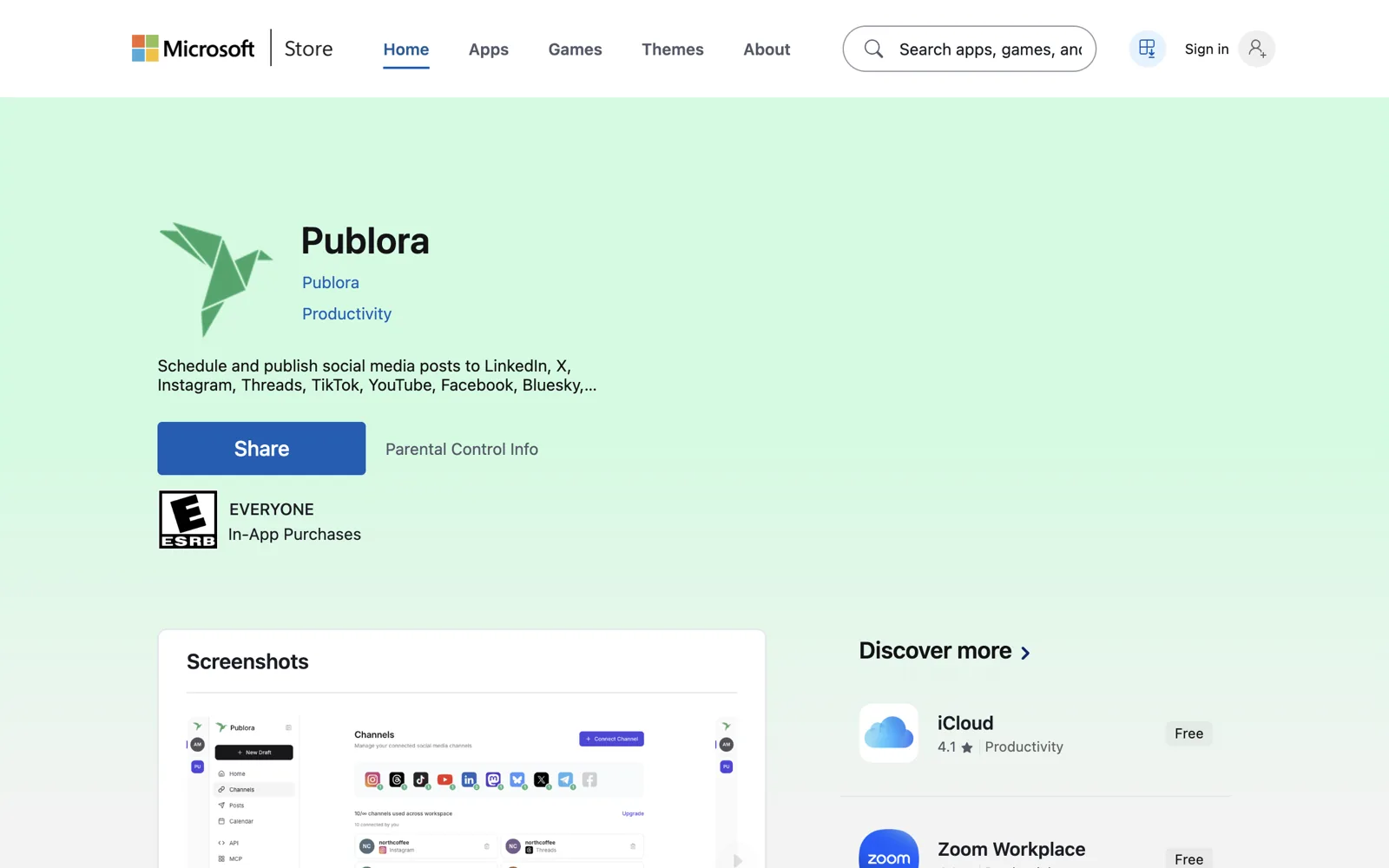
Select Start, then Microsoft Store. Search for Publora and open the app. Its listing shows Publora as the publisher.
You can also open the Publora listing directly in a browser on your PC.
Step 2 — Install the app
Select Get or Install. If the Store asks you to sign in, use your Microsoft account.
The app is free to install. If you later choose a paid Publora plan, Publora bills you for it directly, not Microsoft Store.
When the install finishes, select Start > All apps and open Publora.
Step 3 — Sign in
The app opens the same login page you see at app.publora.com. Log in with your email and password, or with the Google, Facebook or GitHub button. If you don't have an account yet, select Sign up.
Use the same login you use in the browser. Your channels, drafts and posts will be there.
Step 4 — Pin the app so it's easy to find
To the taskbar. On Windows 11, with Publora open, right-click its icon on the taskbar and select Pin to taskbar. On Windows 10, or when the app is closed, type Publora in the search box on the taskbar, right-click the app and select Pin to taskbar.
To Start. Type Publora in the search box on the taskbar or in the Start menu, right-click the app and select Pin to Start.
To undo either one, right-click the pinned icon and select Unpin from taskbar or Unpin from Start. Microsoft has more detail on the taskbar and the Start menu.
Find your way around
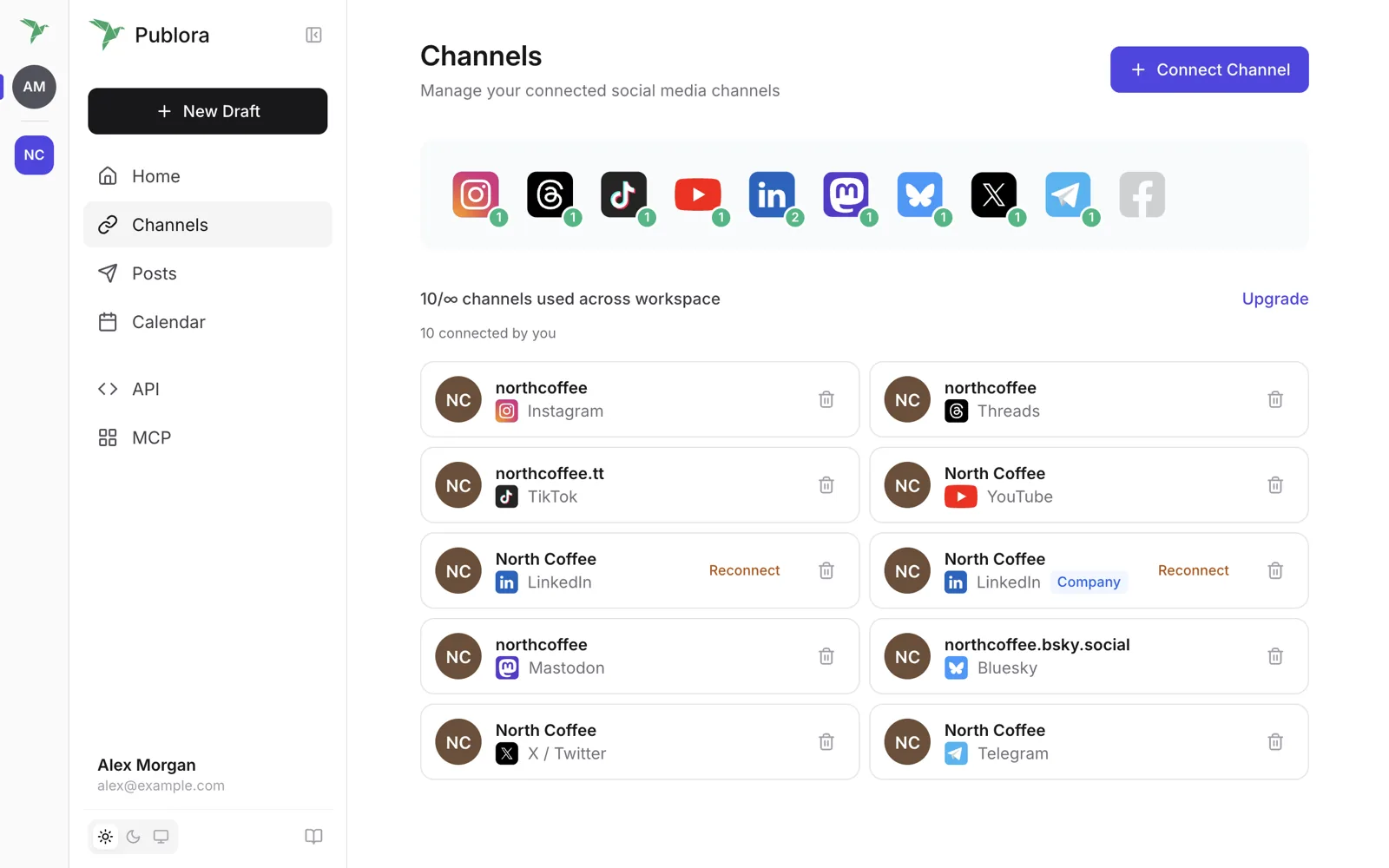
The pictures below show the Publora interface, captured in a web browser with sample names and posts. The app shows this same interface in its own window.
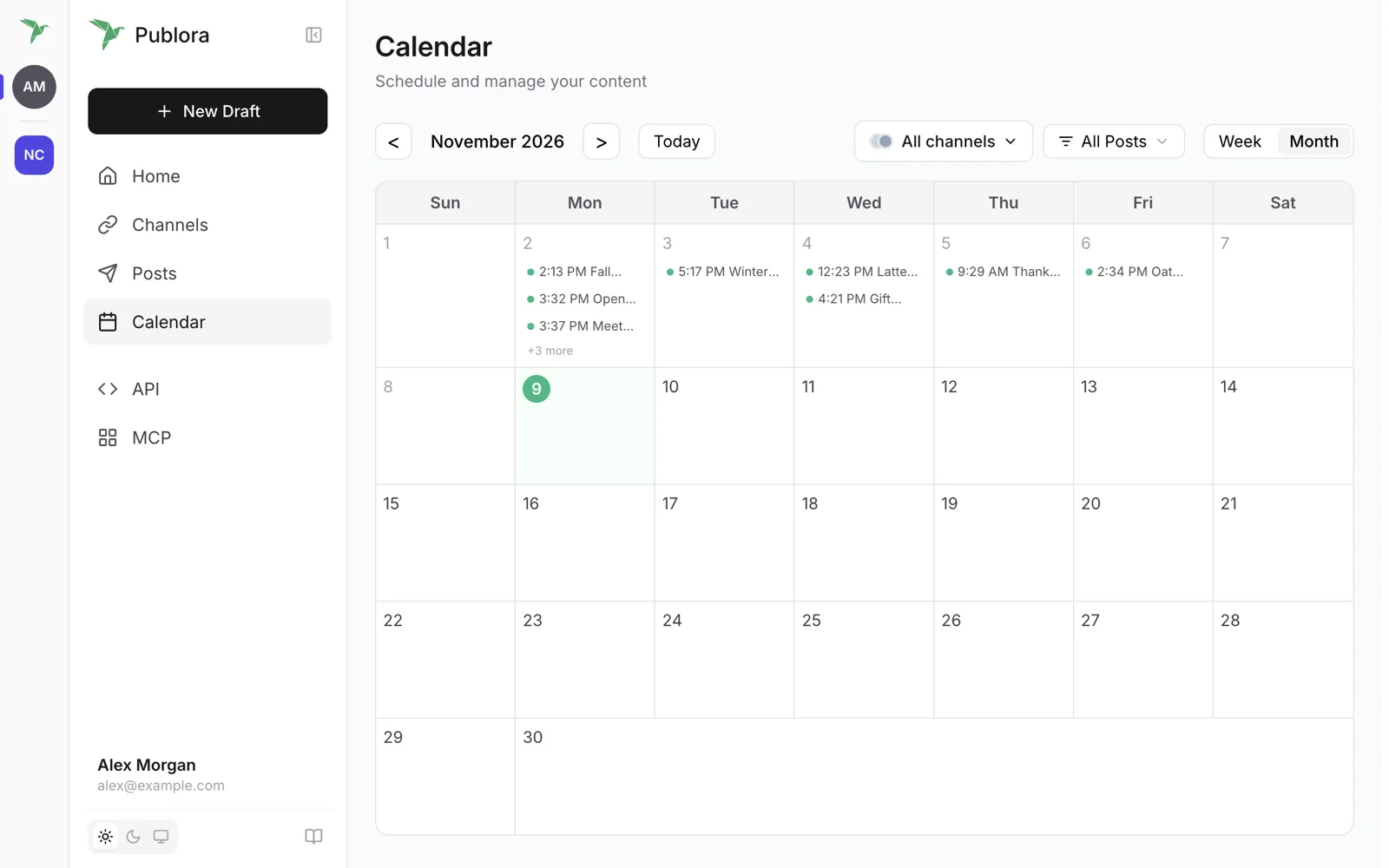
Calendar shows your posts by day. Switch between Week and Month at the top right.
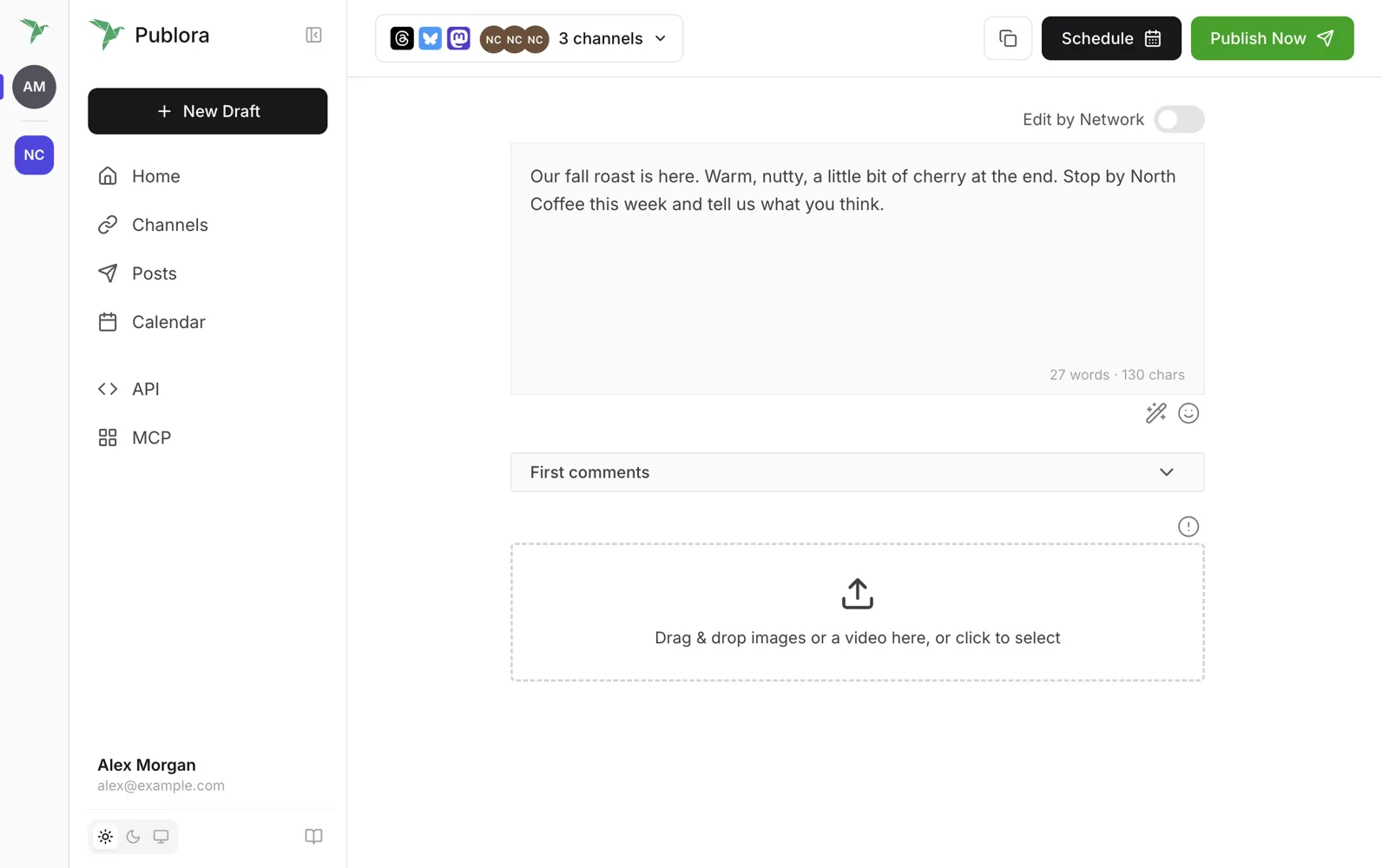
New Draft opens the editor. Write your post, pick the channels it goes to, then select Schedule or Publish Now. If you aren't ready, leave it as a draft and come back to it later, even after you close the app.
Channels lists your connected social accounts. Select Connect Channel to add one.
What's different from a browser tab
- It has its own window and no address bar.
- It acts like other Windows apps. It appears in the taskbar and the Start menu, and when you switch windows with Alt+Tab.
- Pages outside Publora are labeled. If a page outside app.publora.com opens in the app window, the app shows that page's address and title at the top, so you can see you've left Publora.
The pages and buttons inside the window are the same as in the browser, because it's the same Publora.
Updates
You don't need to update the app by hand.
Most changes to Publora reach the app the next time you open it, because the app loads Publora from the web. Now and then a change, like a new icon, needs a new version of the app itself. That comes through Microsoft Store.
The Store installs those updates for you when App updates is on. To check, select Start, search for and open Microsoft Store, select your profile picture, then Store Settings, and make sure App updates is On. To look for updates right away, open Library in the Store and select Get updates.
Uninstall
Select Start > All apps, find Publora, right-click it and select Uninstall.
You can also go to Start > Settings > Apps > Installed apps, find Publora, select More and then Uninstall.
Uninstalling only removes the app from this PC. Your Publora account, channels, drafts and scheduled posts stay as they are, and scheduled posts still go out at their scheduled times. You can keep using Publora at app.publora.com.
Troubleshooting
- Publora doesn't show up in Store search. Open the listing directly. Microsoft lists other reasons an app may be missing, such as family settings, in I can't find or install an app.
- The Store won't install it. Check that your Windows version meets the requirement under Before you start. If Windows installed updates recently, restart your PC first. Then follow Microsoft's steps in Fix problems with apps from Microsoft Store.
- The app opens but the page is blank or won't load. Check your internet connection, then close the app and open it again. If app.publora.com loads in your browser but the app still doesn't, write to support@publora.com.
- You can't log in. Select Forgot password? on the login page. If you signed up with Google, Facebook or GitHub, use that same button.
- A post or channel has a problem. Open Channels and look for a Reconnect button next to the account. If that doesn't help, write to support@publora.com.