How to Schedule Canva Designs to Social Media

TL;DR
Schedule Canva designs to Instagram, LinkedIn, TikTok and seven more networks from the Share menu. Carousels, video and drafts. Free app, free plan.
Add the Publora app from the Canva Apps Marketplace, sign in once, and schedule the design you are editing to Instagram, LinkedIn, TikTok and seven more networks. Multi-page designs go out as a carousel, video designs as video.
Many Publora users design their posts in Canva, and until now the next step was always the same: download the file, open a scheduler in another tab, upload it again, retype the caption. The Publora app removes that step. It lives in the Share menu, and the design goes straight from the editor to your social accounts.
Getting it into the Canva Apps Marketplace took four review rounds, from early August to late September. One of them was a single sentence from the reviewer: "Even if we use Add video, the exported file is always a PNG." So video export got the most attention of anything in this app.
Watch the walkthrough on YouTube. 2:19, no sound: sign-in, channels, a three-page carousel, a video, scheduling, a saved draft.
Before You Start
You need three things:
- a Canva account;
- a Publora account (the free plan covers 15 posts a month and three connected accounts on every network except X, no card);
- at least one social account connected inside Publora. The app publishes through connections you already made, it does not create them.
Step 1: Add Publora From the Canva Apps Marketplace
- Open any design in Canva.
- Click Share in the top right corner.
- Scroll to the apps and search for Publora (or open Publora in the Canva Apps Marketplace and click Open in a design).
- Open it. The Publora panel appears on the right.
Step 2: Connect Your Publora Account
Click Connect Publora. Canva opens a Publora sign-in window: log in, click Approve, and the window closes. There is no API key to copy.
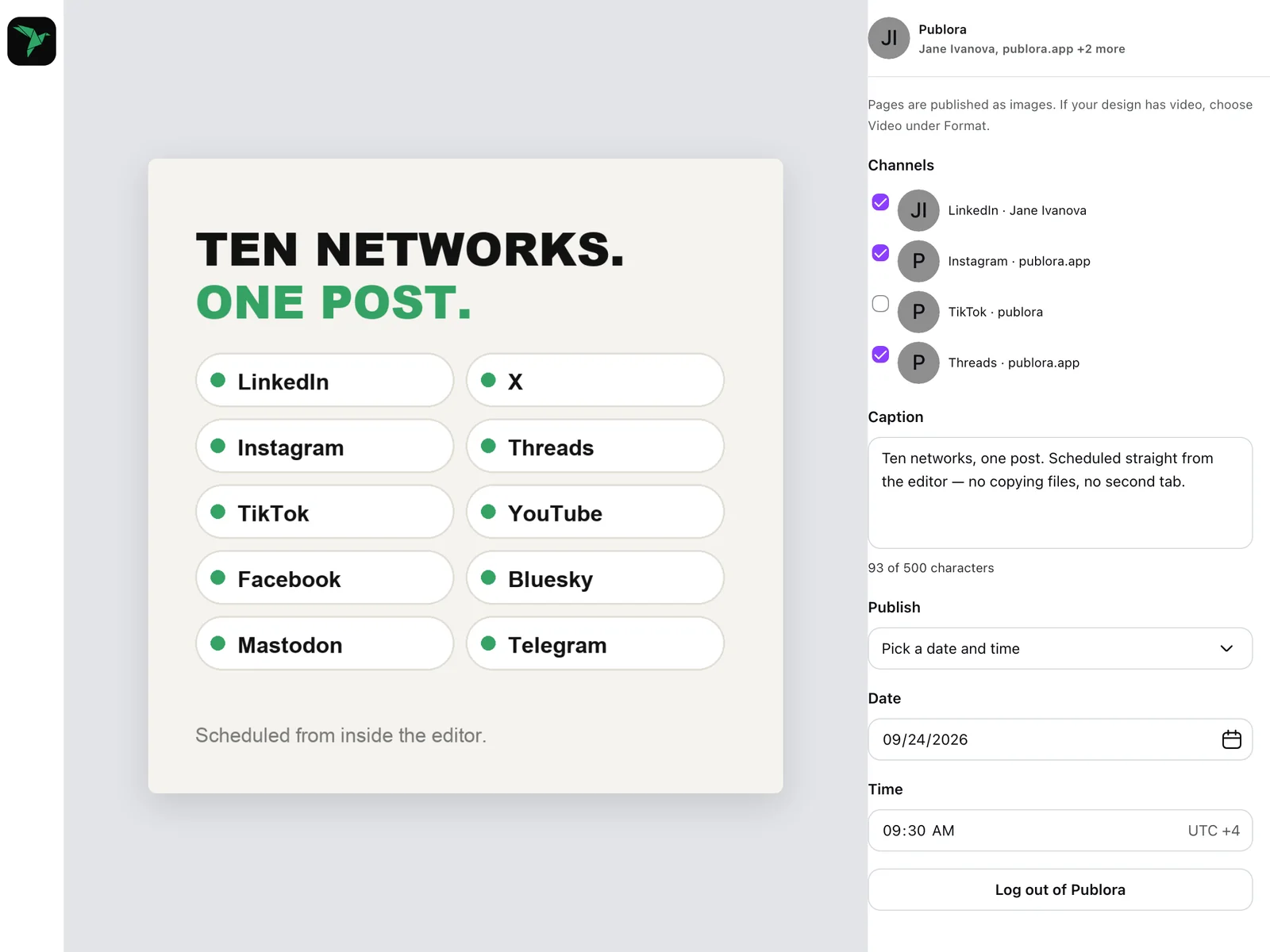
Once you are in, the top of the panel shows which account you are using, with your channel names under it, for example "Jane Ivanova, publora.app +2 more". That way you can see which account the post will go out from before you publish.
Step 3: Choose Channels
The panel lists every account connected in Publora, labelled by network and name: LinkedIn · Jane Ivanova, Instagram · publora.app, and so on. Tick the ones you want. One design can go to all ten networks at once.
Two states worth knowing:
- "Access expires in 2d 0h. Reconnect in Publora." The channel still works; reconnect it in Publora in the next day or two so the scheduled post does not fail.
- Greyed out with "Reconnect this channel in Publora". The network revoked access. Reconnect it in Publora, then reopen the app.
Step 4: Pick the Format: Carousel or Video
Canva exports the design for the app, so the format decides what reaches the network.
- Image or carousel. Each page becomes an image. Pick several pages under Media and they go out as one carousel, up to 10 pages. This is how you post a Canva carousel to Instagram or LinkedIn without exporting anything.
- Video. The page is exported as MP4. Choose this whenever the design has a video, an animation or music. Canva does not tell apps what is inside a design, so the app cannot switch this for you; it is the one choice you have to make yourself.
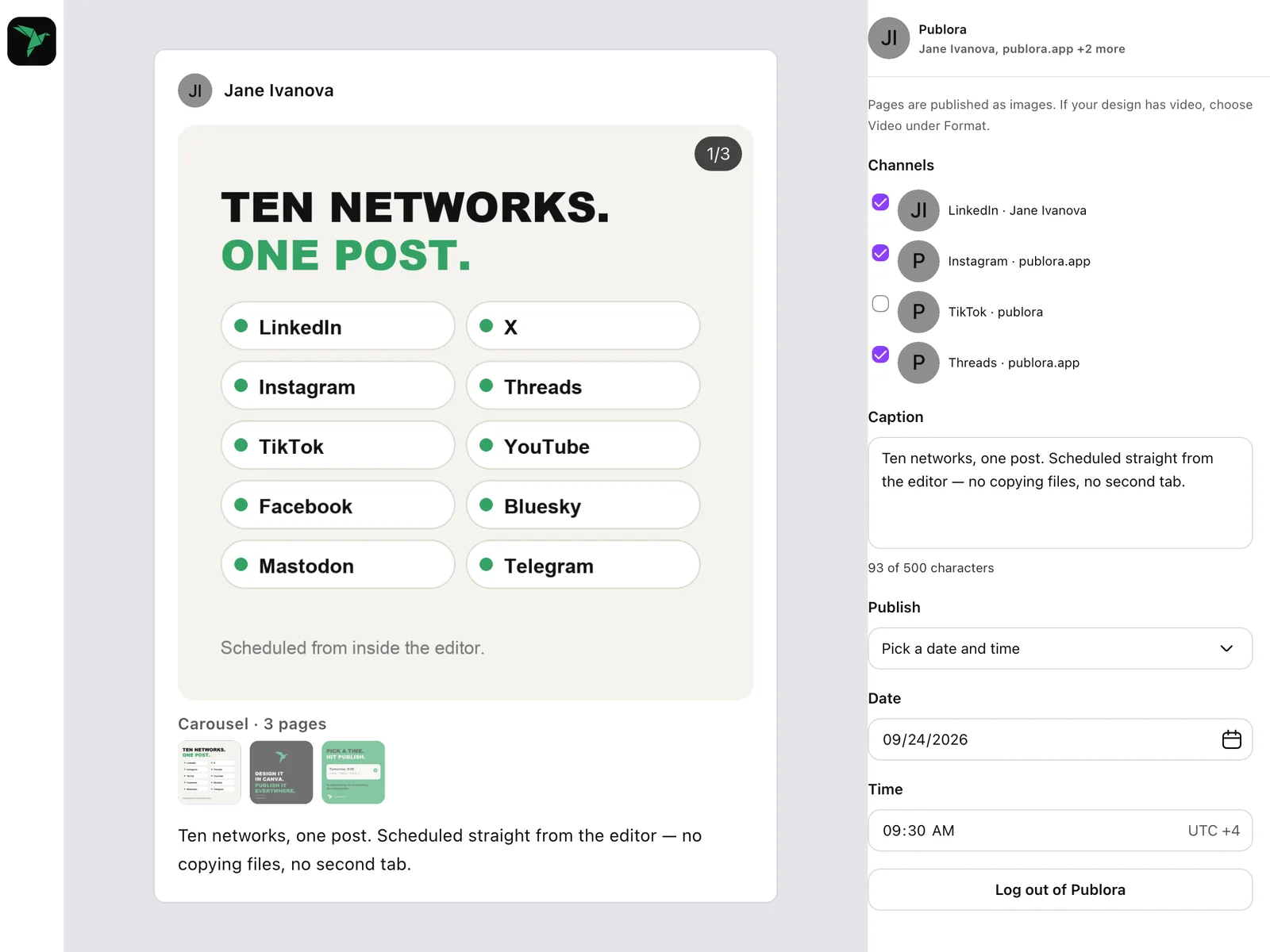
The preview on the left shows exactly what will be posted: the first page full size with a 1/3 badge, and under it a strip with every page of the carousel. While Canva is still rendering a page, its thumbnail shows a placeholder.
Step 5: Write the Caption
One caption goes to every channel you ticked. The counter under it reads "93 of 500 characters", and the limit is the strictest among your channels: tick X and it drops to 280. If the text is too long, the panel says "Caption is too long for a selected channel" before you publish, not after.
Step 6: Schedule or Save as a Draft
Under Publish:
- In 15 minutes
- In an hour
- Tomorrow, 9:00
- Pick a date and time: a calendar and a time field in your time zone. Past dates are disabled, and Publora needs at least five minutes' notice.
- Save as draft: the post waits in Publora, and you finish or schedule it there.
Click the button at the bottom, and Canva confirms the post was sent. It now sits in your Publora dashboard at app.publora.com, where you can edit, reschedule or publish it.
Publora App vs. Canva Content Planner
Canva has its own scheduler, Content Planner. Both are fine; they solve slightly different problems.
| Canva Content Planner | Publora app for Canva | |
|---|---|---|
| Threads, Bluesky, Mastodon, Telegram, YouTube | not in its list of supported platforms | yes |
| Posts outside Canva | only designs made in Canva | same queue for posts from Figma, Adobe Express, WordPress, the API, AI assistants |
| Price | included in Canva Pro, Business, Education and Nonprofits | free app; Publora free plan, paid from $2.99 a month per account, billed yearly |
Canva's Content Planner help page lists Facebook Pages, Instagram Business accounts, Twitter, LinkedIn, Pinterest, Slack and Tumblr. If Canva is the only place your posts come from and Content Planner covers your networks, it is enough. If you also post to Threads or Bluesky, or your posts come from more than one tool, one Publora queue is simpler.
When Something Does Not Work
- The video went out as a picture. Format was left on Image or carousel. Switch Format to Video and pick the page with the video.
- "No channels connected." Your Publora account has no social accounts yet. Connect one in Publora, then reopen the app.
- A channel is greyed out. Its access expired. Reconnect the channel in Publora.
- "Publora needs at least 5 minutes' notice." The chosen time is too close. Move it five minutes or more ahead.
- Wrong Publora account. Scroll to the bottom of the panel and click Log out of Publora, then connect again.
Send your next Canva design straight to social media
Connect three accounts and post 15 times a month on the free plan. No card.
Start FreeQuestions People Ask
Can you schedule posts directly from Canva?
Yes. Canva Pro has Content Planner, and scheduling apps from the Canva Apps Marketplace, such as Publora, appear in the Share menu.
How do I post from Canva to Instagram?
Add the Publora app, connect your Instagram account in Publora, then in Canva choose Share, then Publora, tick Instagram, write a caption and pick a time. Multi-page designs go out as a carousel.
Can I post a Canva carousel to LinkedIn?
Yes. Select the pages under Media with Format set to Image or carousel; up to 10 pages go out as one post.
Which networks does it cover?
Ten: LinkedIn, X, Instagram, Threads, TikTok, YouTube, Facebook, Bluesky, Mastodon and Telegram.
Does it cost anything?
The app is free. Publora's free plan covers 15 posts a month and three connected accounts; paid plans start at $2.99 a month per account, billed yearly.
Where does my design go?
Only the exported pages and the caption reach Publora. The design itself stays in Canva.
Further Reading
- How to Post a Figma Design to Social Media
- How to Publish to Social Media From Adobe Express
- Best Time to Post on Threads
If something behaves differently than described here, write to support@publora.com.
About the author. Written by the member of the Publora team who built the Canva app and took it through Canva's review, September 2026.