How to Post a Figma Design to Social Media

TL;DR
Send a Figma frame to LinkedIn, Instagram, X and seven more networks without leaving Figma. Free plugin, works in Figma Design and Figma Slides.
You finish a frame in Figma, and the post about it happens somewhere else: export, download, switch apps, upload, write the caption again. The Publora plugin removes that trip. Select the frame, write the caption, pick the accounts, and the post goes out now, later, or into drafts. It works in Figma Design and in Figma Slides.
Finding It in the Community
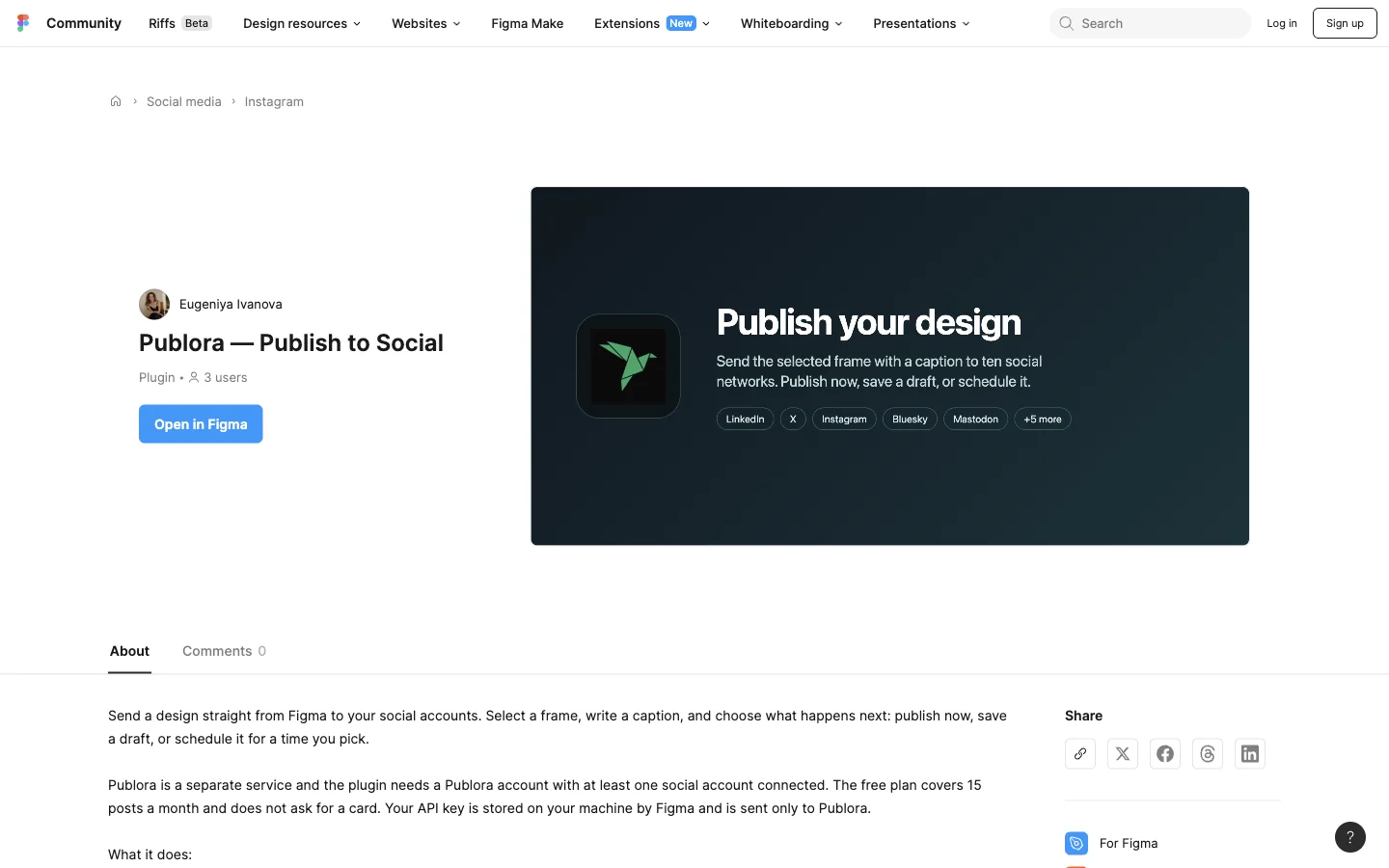
The listing is at figma.com/community/plugin/1673632240752253298. Browsing it takes no Figma account. You only need one to run the plugin.
If you would rather search, open figma.com/community and type publish to social.
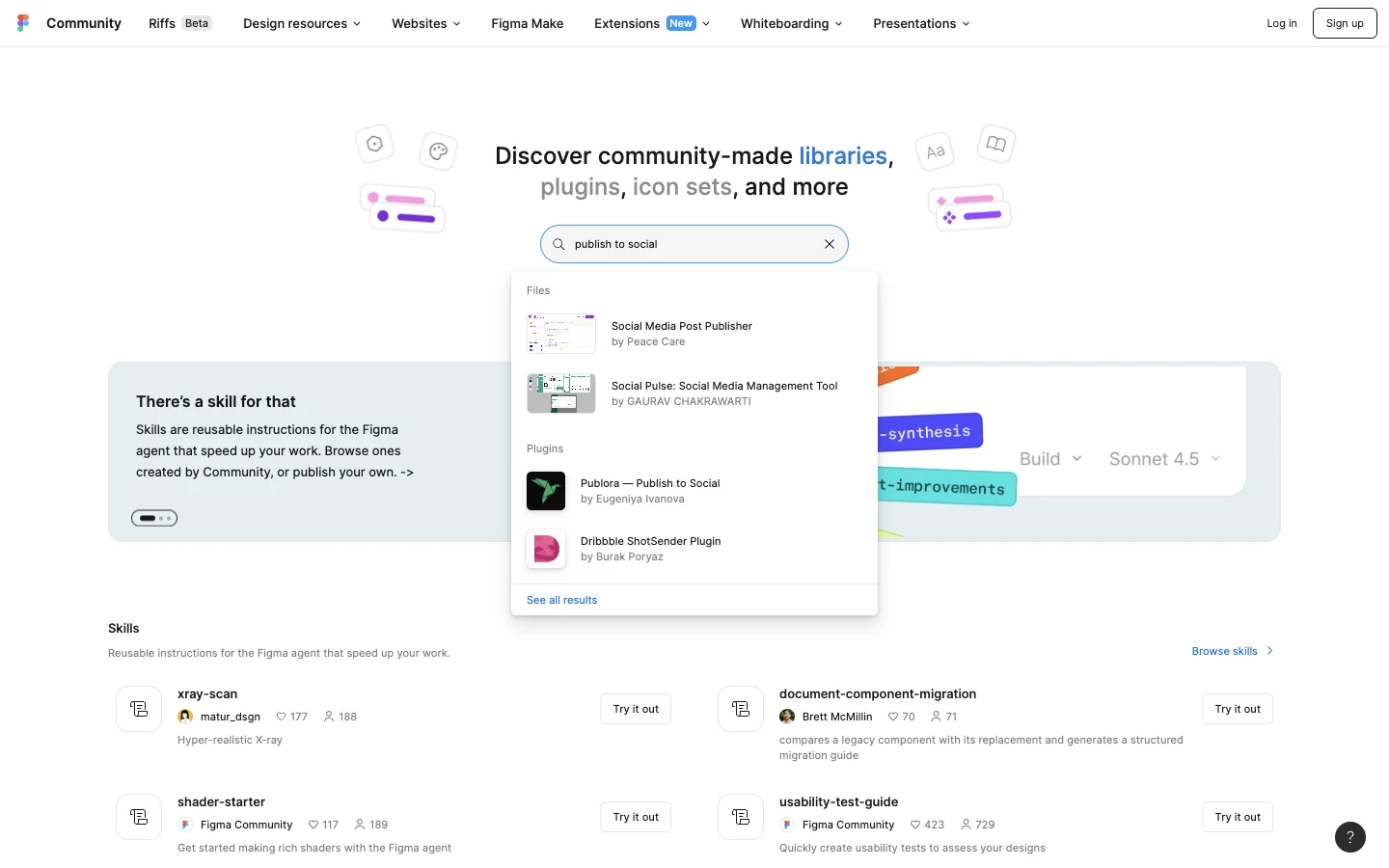
Here is the part that trips people up. Figma answers with the Files and templates tab, which for this query is sixty social-media mockups and no plugins at all.
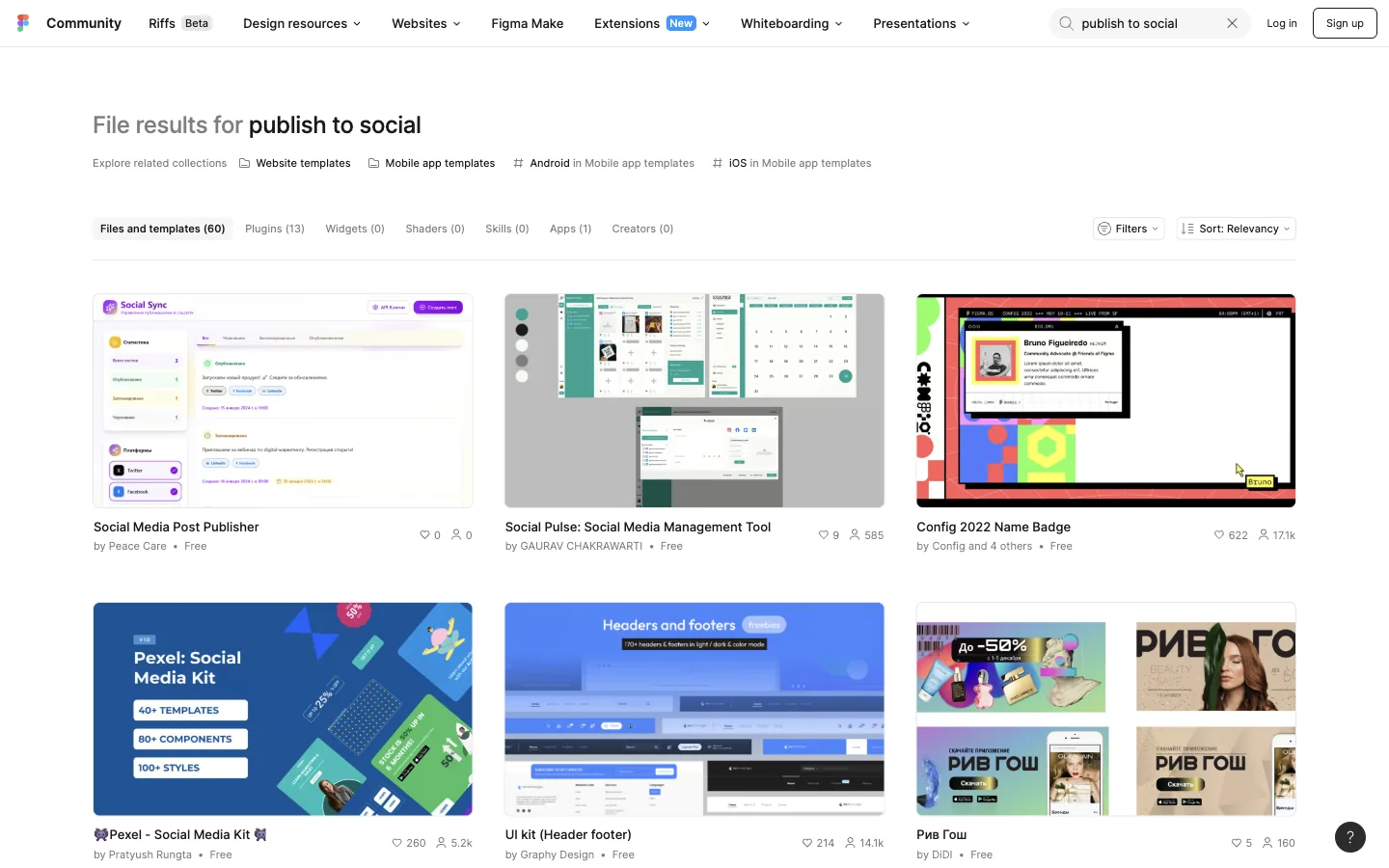
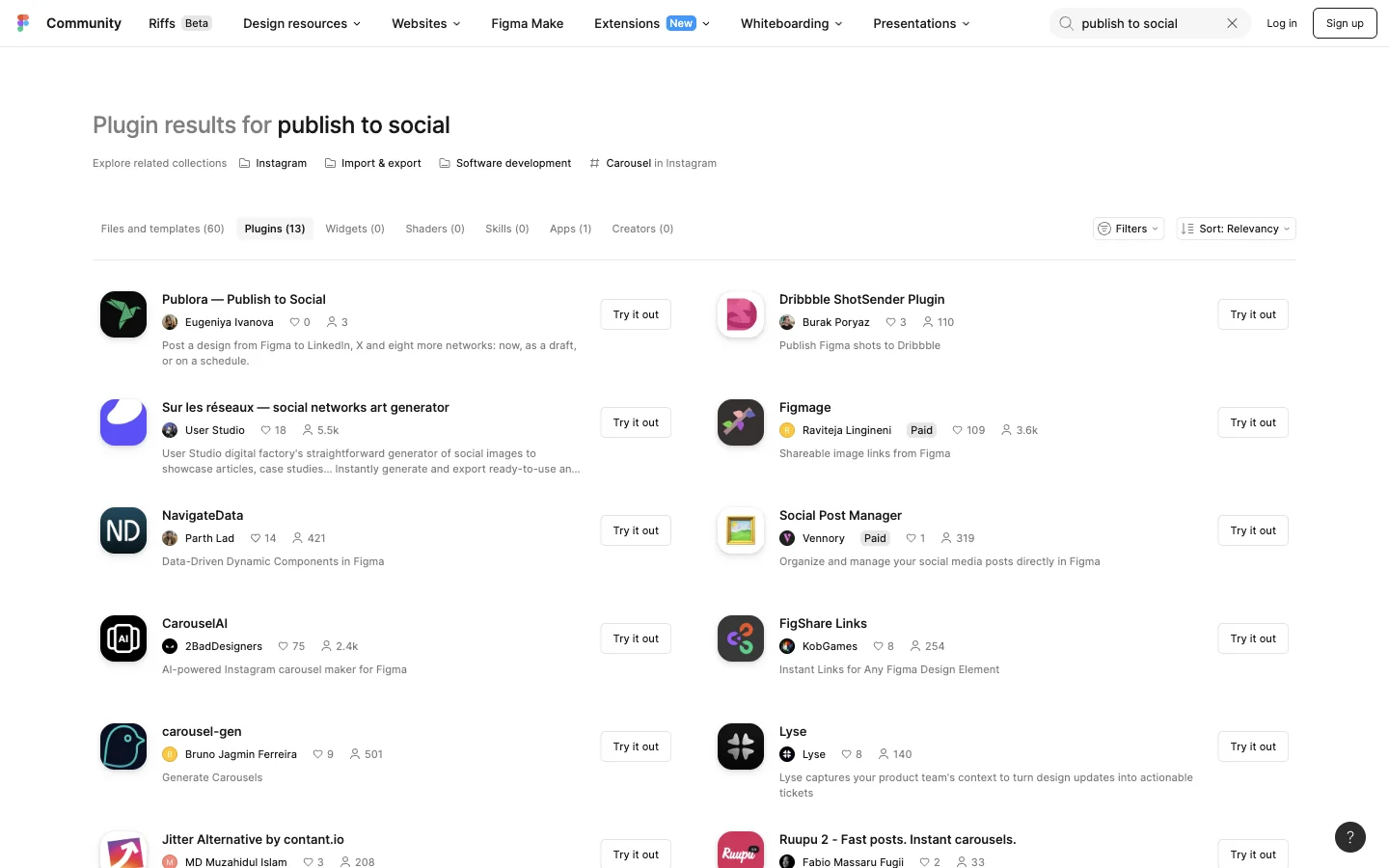
Switch to Plugins. Publora is the first of thirteen.
The same listing comes up for schedule posts, social media scheduler and post to linkedin. Positions checked 18 September 2026.
What You Need
- A Publora account with at least one social account connected.
- Your Publora API key, from the Publora dashboard. The plugin asks for it once.
The Starter plan is free: three social accounts, 15 posts a month, every network except X. X and unlimited posts come with Pro, which is priced per account. See pricing.
Step 1. Open the Plugin in a File
On the listing, press Open in Figma and choose a file, a recent one or a new one.
Figma opens the file with the plugin card on top. Press Run.
Step 2. Connect Your Publora Account
The panel asks for your API key. Paste it and press Connect.
Figma stores the key in clientStorage, on your own machine, and it leaves only as a header on calls to Publora. The key is remembered across files, so this screen appears once, not every time you open a document.
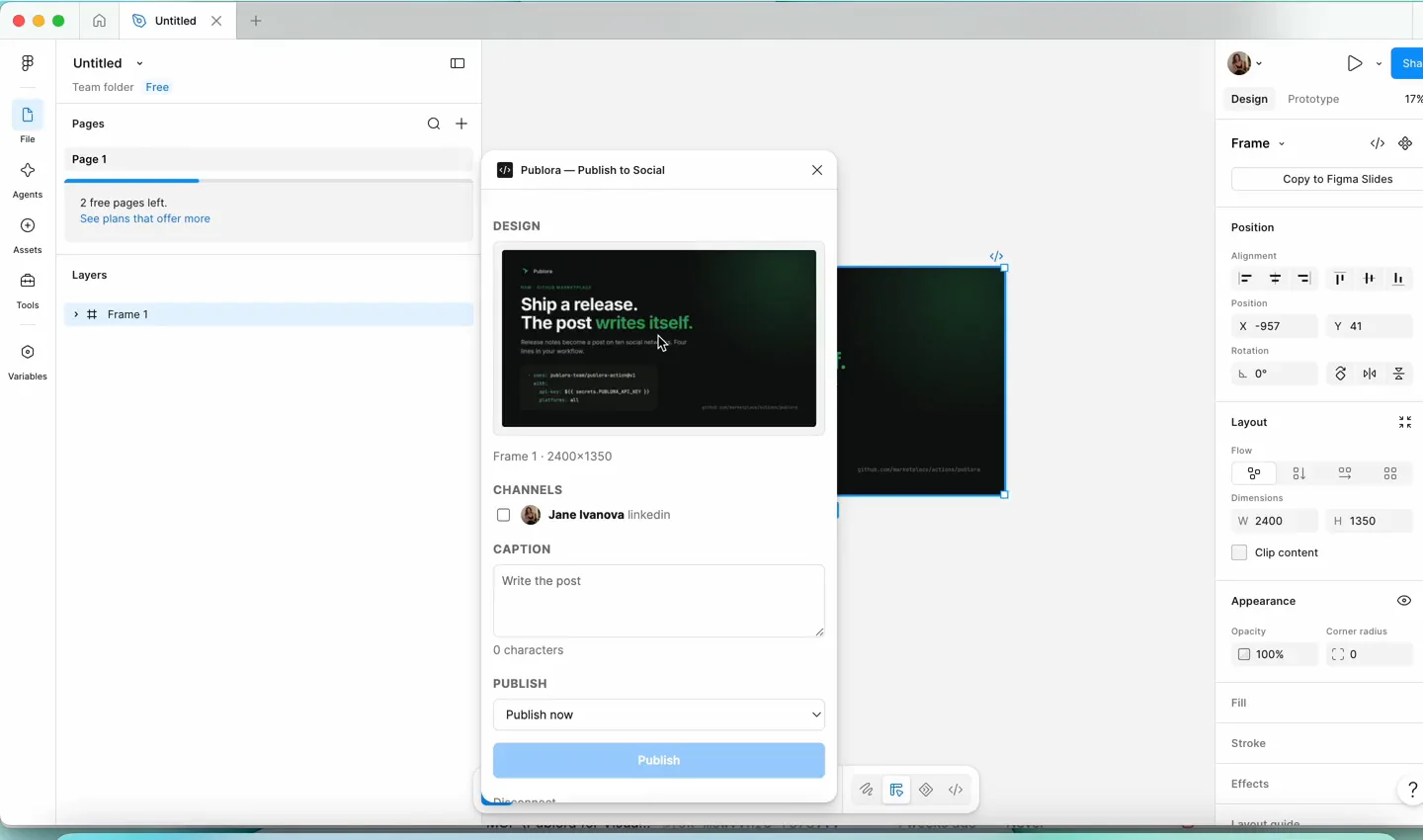
Step 3. Pick the Frame, Write the Caption, Choose Where It Goes
Select a frame on the canvas. The panel shows it with its dimensions, lists the accounts you connected in Publora, and gives you a caption box.
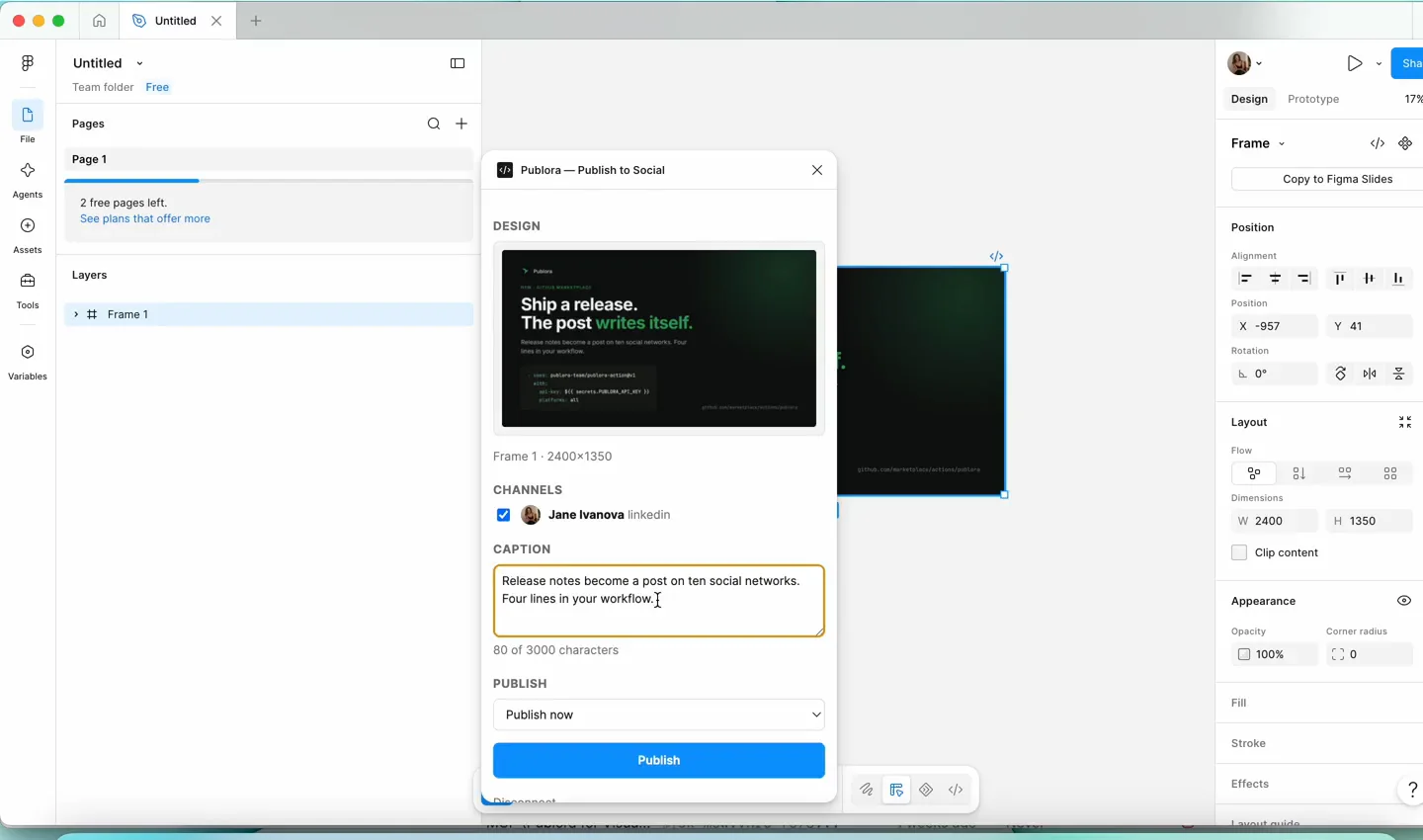
Three things the panel does while you type:
- Exports at double resolution. Networks compress images hard, and text exported at single resolution comes out blurry after they are done with it.
- Counts against the strictest limit among the networks you ticked. Pick X and the ceiling drops to 280, so a caption that is too long is caught before the post is sent, not after.
- Warns when a network needs an image and nothing is selected. Instagram, TikTok and YouTube will not take a post without one.
Then choose what happens next in the Publish dropdown: publish now, save a draft, or schedule it for a time you pick.
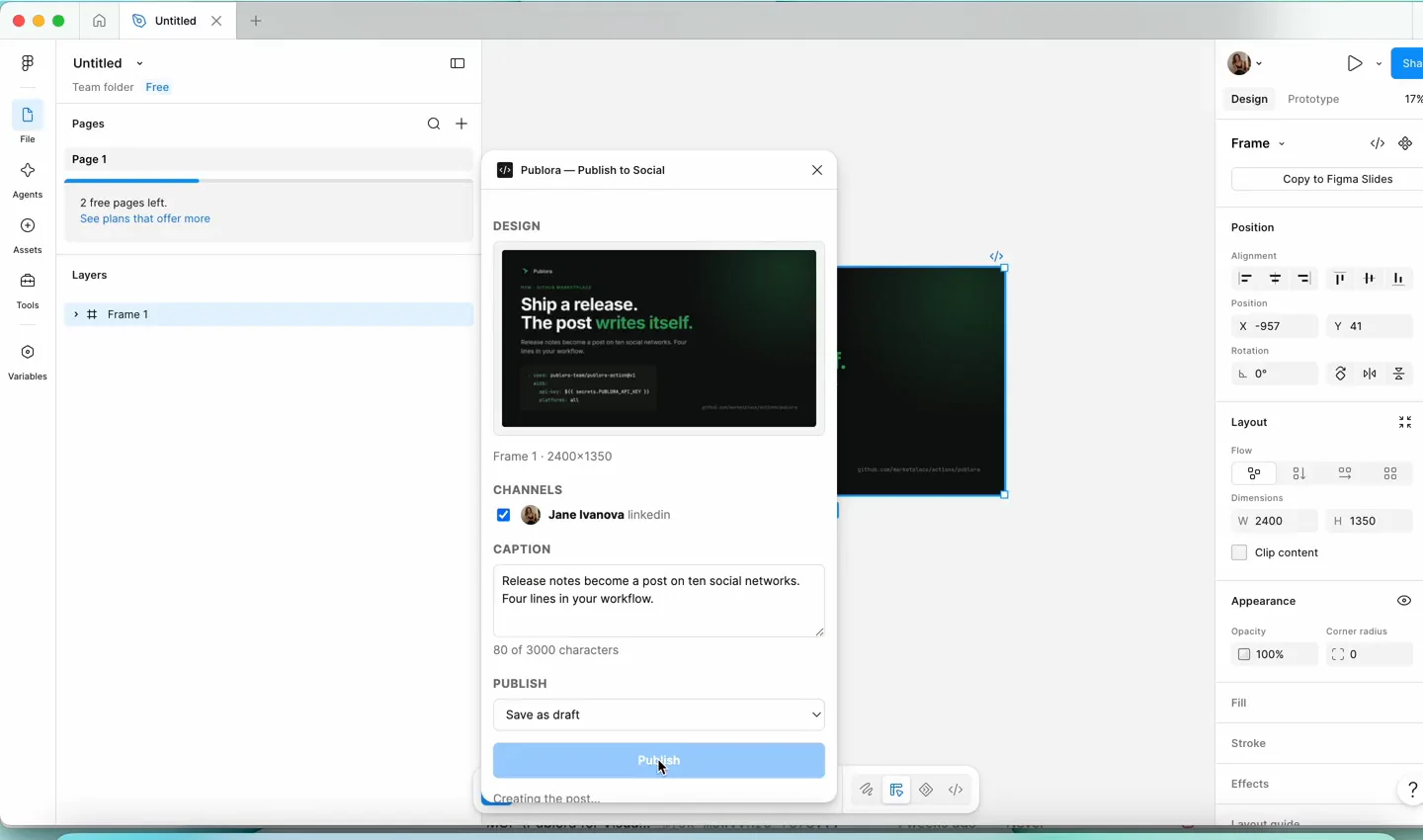
The panel confirms and stops there. It does not leave the button live for a second press, which is how you end up with the same post twice.
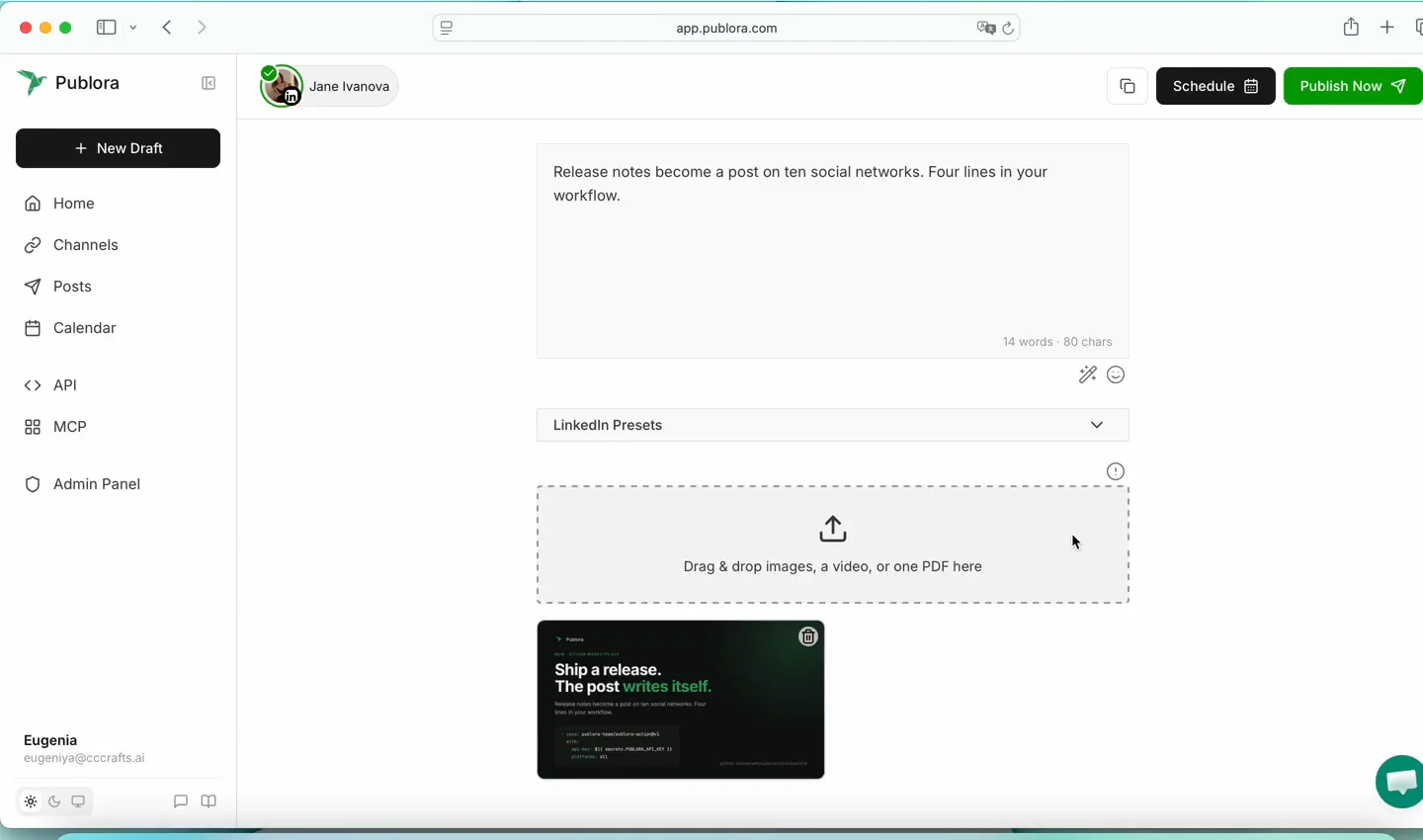
The post is now in Publora with the image attached, ready to edit or schedule from the dashboard.
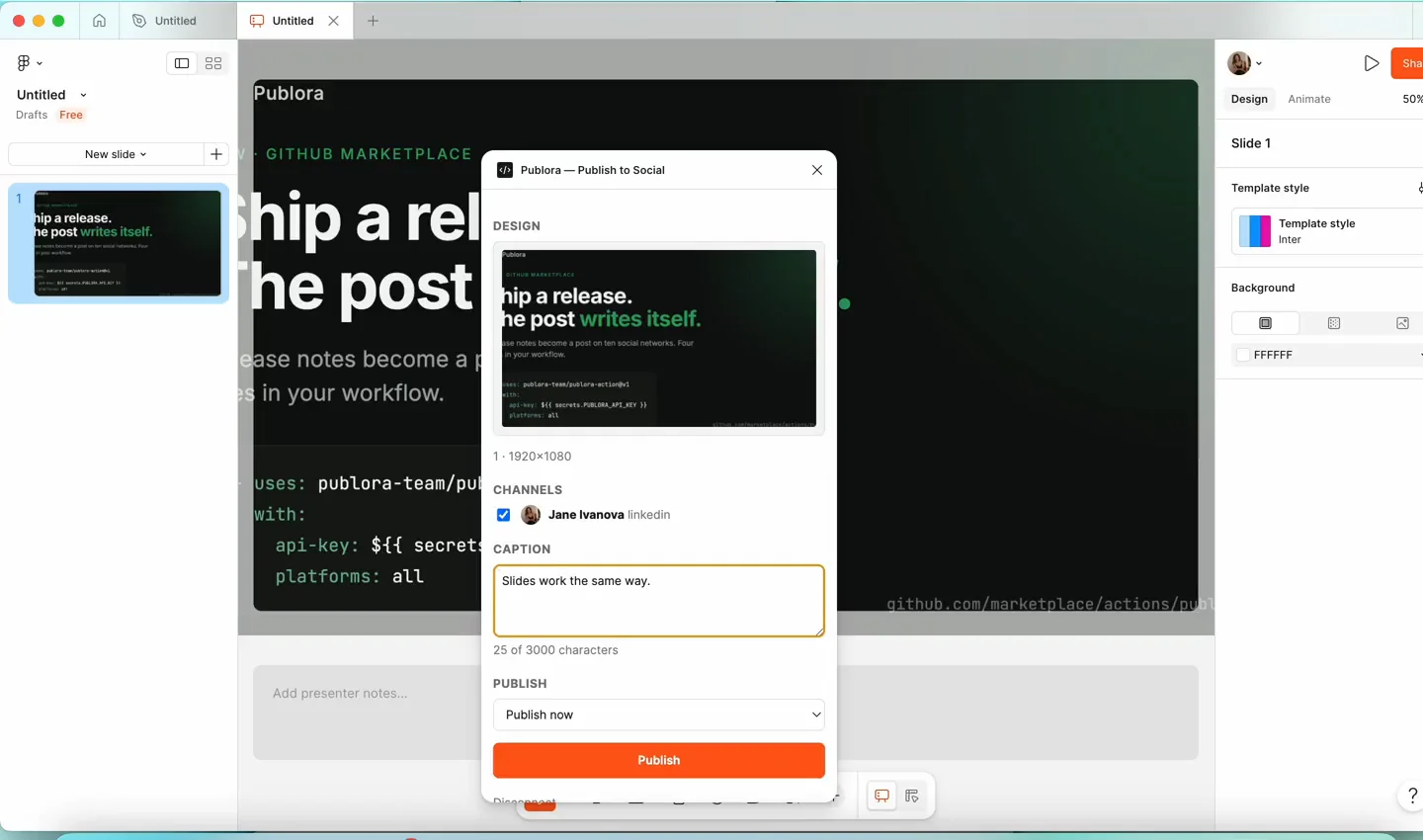
Figma Slides Works the Same Way
The plugin appears in the Slides plugin menu, exports the slide you are on, and creates the same post. The panel even picks up the editor's theme, so the button is orange in Slides and blue in Design.
What the Plugin Sends, and Where
When you connect: your API key, to Publora, to fetch the list of your connected accounts. When you publish: the exported PNG, the caption, the accounts you ticked and the time you chose. Nothing leaves Figma until you press the button.
Figma publishes the full list of domains a plugin may contact, and enforces it. Ours is four: the Publora relay, the media host and two storage hosts that receive the image.
Send the frame straight from Figma
The plugin is free. So is the Starter plan: three accounts, 15 posts a month, no card.
Start FreeQuestions People Ask
Is the plugin free? Yes. It needs a Publora account, and the Starter plan is free for three social accounts and 15 posts a month, on every network except X.
Which networks can it post to? Instagram, TikTok, YouTube, Facebook, Threads, Bluesky, X, Mastodon, LinkedIn and Telegram. You will see whichever of them you connected in Publora.
Do I need the desktop app? No. Open in Figma works from the listing, and the plugin runs in the file it opens.
Does it work in FigJam? No. Figma Design and Figma Slides.
Can I schedule instead of posting now? Yes, the Publish dropdown takes a date and a time.
Where is my API key kept? In Figma's clientStorage, on your machine. It is not stored on our side, and it is sent only to Publora's API.
I do not have a Publora account yet. Get started free, connect a social account, then copy your API key from the dashboard.
Further Reading
- The same thing from Adobe Express
- Auto-share your WordPress posts
- The same thing from ChatGPT
- Social Media API: The Complete Guide
Get the plugin. Publora, Publish to Social in the Figma Community.
About this article. Based on the live Figma Community listing and a recorded run of the plugin, September 2026. Search positions were checked on the day of writing, not taken from a tracker.
Related Articles
How to Publish to Social Media From Claude
Add the Publora connector from the Claude directory, then ask Claude to draft, schedule or publish to LinkedIn, X, Instagram and seven more networks.
How to Publish to Social Media From IFTTT
Connect Publora to IFTTT once, and anything IFTTT watches can go out to LinkedIn, X, Instagram and seven more networks. A feed, a webhook, your own code.
How to Auto-Share WordPress Posts to Social Media
Share every new WordPress post to Instagram, LinkedIn, X, Threads, Bluesky and five more networks automatically. Free plugin, about five minutes to set up.
How to Publish to Social Media From ChatGPT
Connect the Publora plugin once, then ask ChatGPT in plain language to draft, schedule or publish to LinkedIn, X, Instagram and seven more networks.