How to Auto-Share WordPress Posts to Social Media

TL;DR
Share every new WordPress post to Instagram, LinkedIn, X, Threads, Bluesky and five more networks automatically. Free plugin, about five minutes to set up.
Publish a post on your WordPress site, and a few minutes later it shows up on your social accounts with its title, a short excerpt, the link and the featured image. That is what the Publora plugin for WordPress does. Setup takes about five minutes. This guide covers the setup and the few rules worth knowing before your first post goes out.
It posts to ten networks: Instagram, TikTok, YouTube, Facebook, Threads, Bluesky, X, Mastodon, LinkedIn and Telegram. Any single post can go to its own set of accounts, or stay off social media entirely.
What You Need
- A WordPress site on version 6.0 or newer, with PHP 7.4 or newer. The block editor and the classic editor both work.
- A Publora account. The Starter plan is free: three social accounts, 15 posts a month, every network except X. X and unlimited posts come with the Pro plan. See pricing.
- The social accounts you want to post to, connected in Publora.
Step 1. Install the Plugin
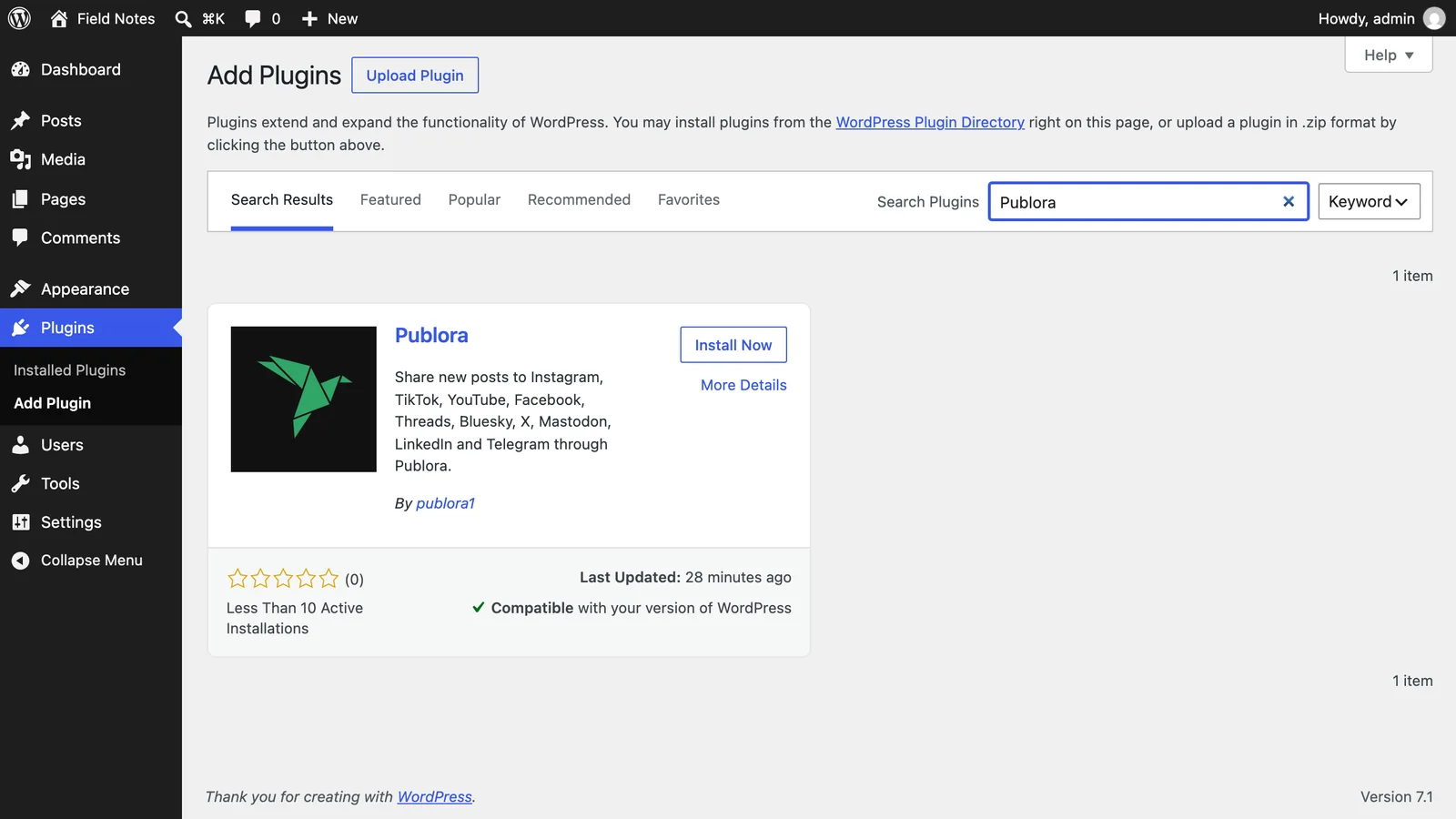
In your WordPress admin, go to Plugins → Add New Plugin, search for "Publora", click Install Now, then Activate. You can also download the zip from wordpress.org/plugins/publora and upload it.
Step 2. Connect Your Publora Account
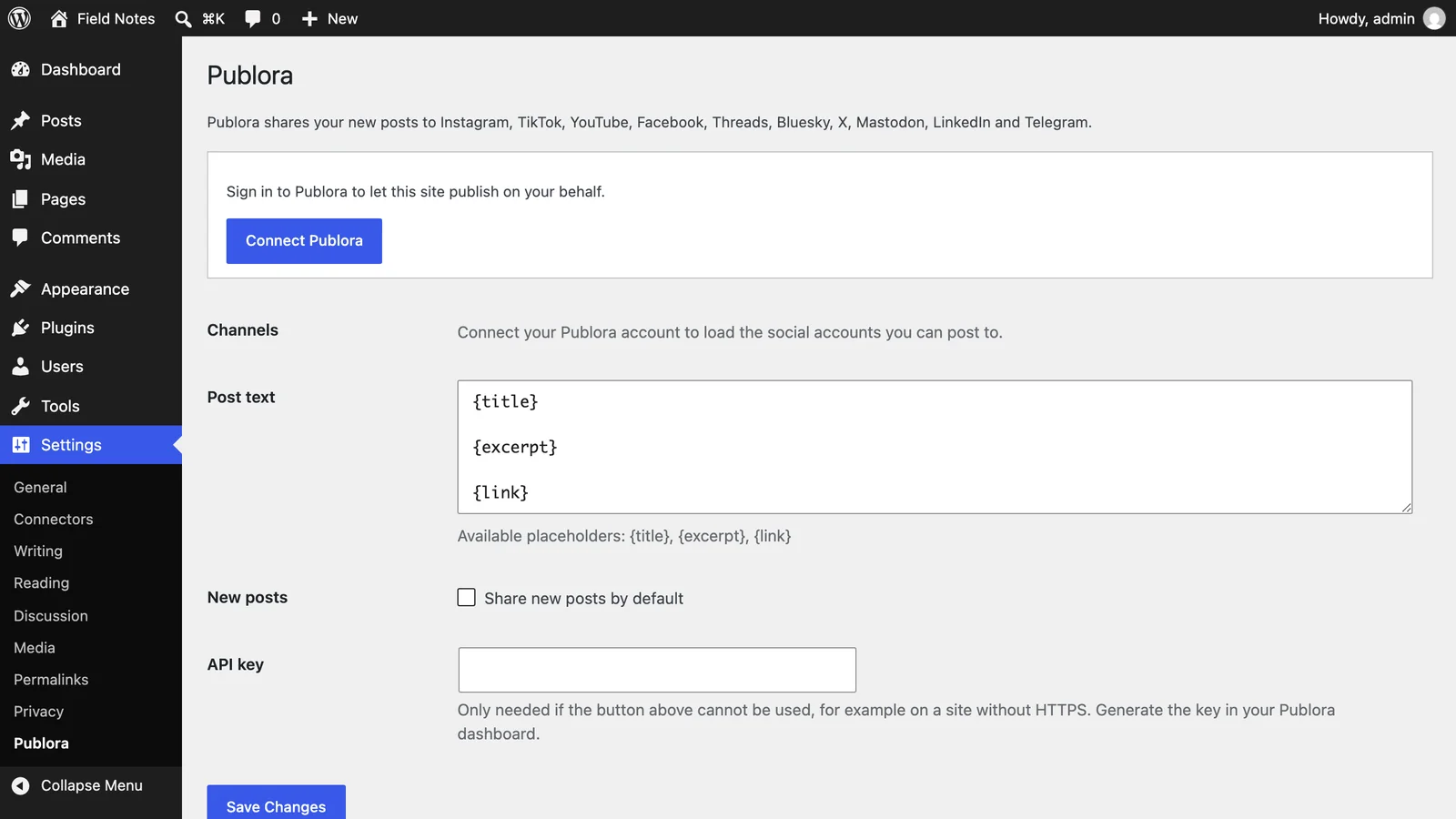
Open Settings → Publora and click Connect Publora. WordPress sends you to Publora to sign in and approve access for your site, then brings you back. Nothing to find or paste.
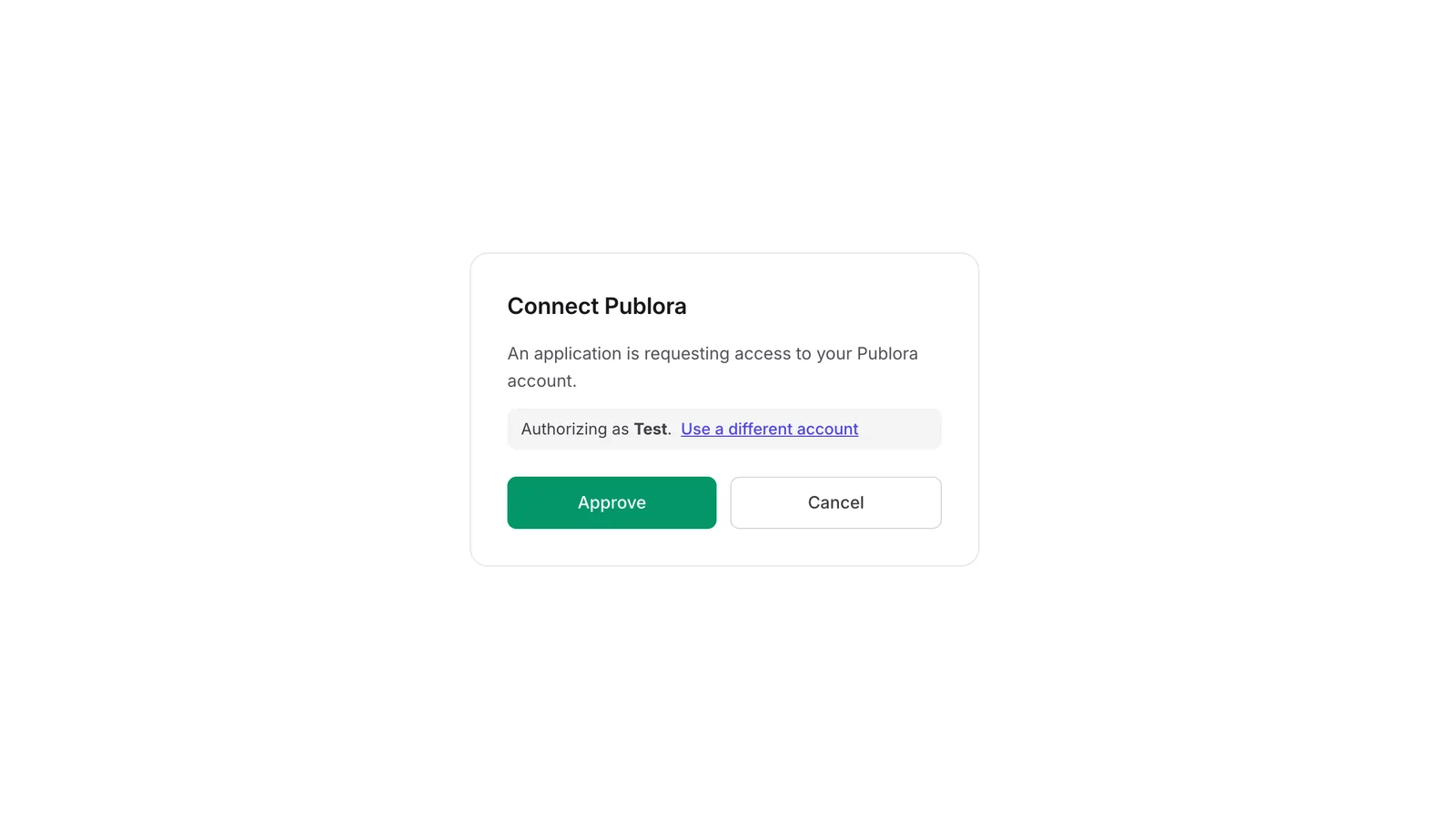
No Publora account yet? The sign-in screen has a Sign up link. Create the account, connect your social accounts in Publora, then come back to Settings → Publora and click Connect Publora again.
Step 3. Choose Where New Posts Go
Once you are connected, the settings screen lists the social accounts in your Publora account. Tick the ones that should get new posts by default.
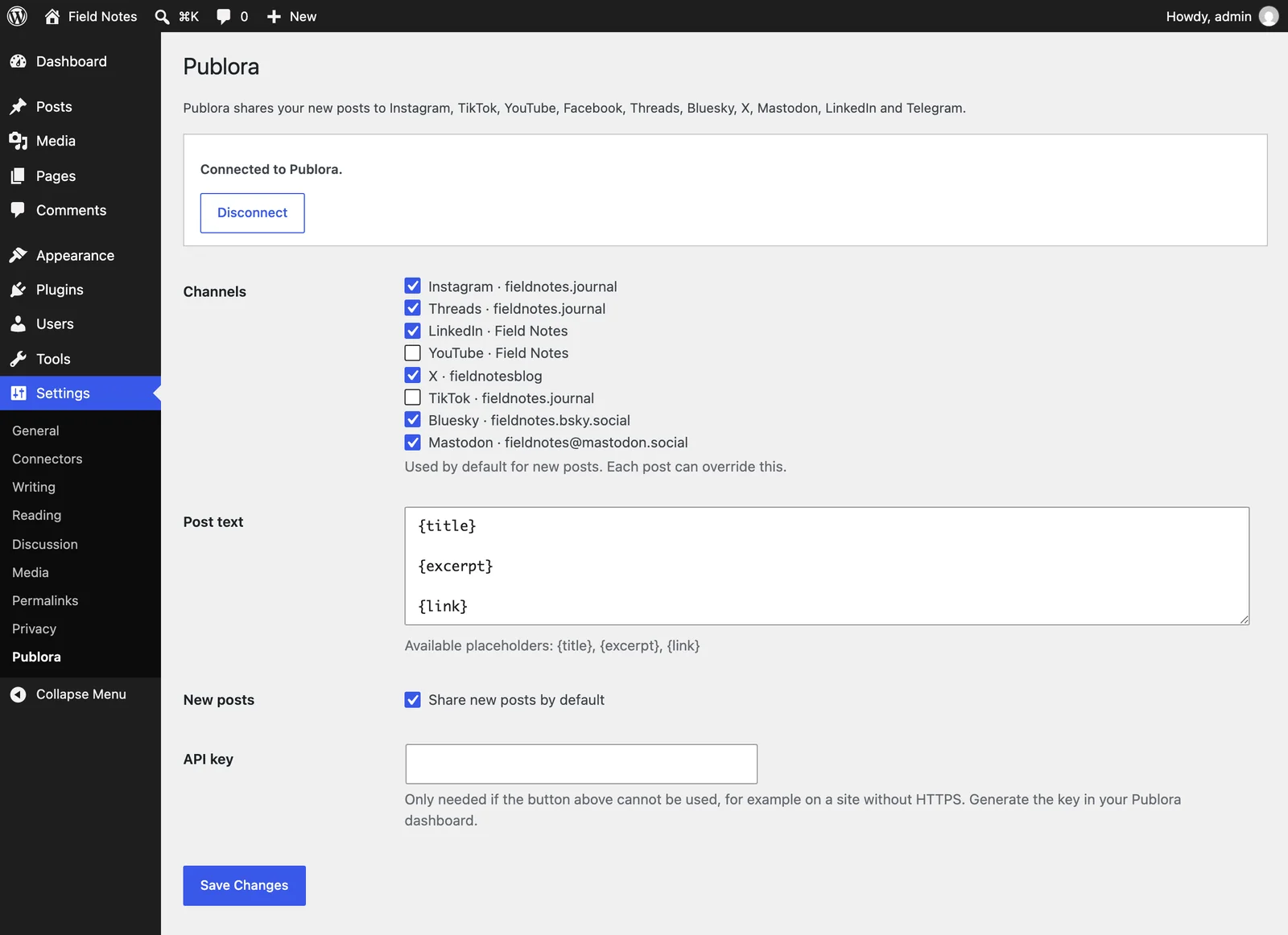
Two more settings on the same screen:
- Post text is the template for the announcement. It starts as the title, the excerpt and the link, each on its own line. You can rewrite it with the
{title},{excerpt}and{link}placeholders. - Share new posts by default. When it is on, every new post is shared unless you switch sharing off for that post. When it is off, you turn sharing on post by post.
Step 4. Write and Publish
Write the post the way you always do. Check two things before you click Publish.
The featured image. It goes out with the announcement. Instagram, TikTok and YouTube will not take a post without an image, so if the post has none, the plugin skips those three and posts to the rest. The Publora panel warns you about this before you publish.
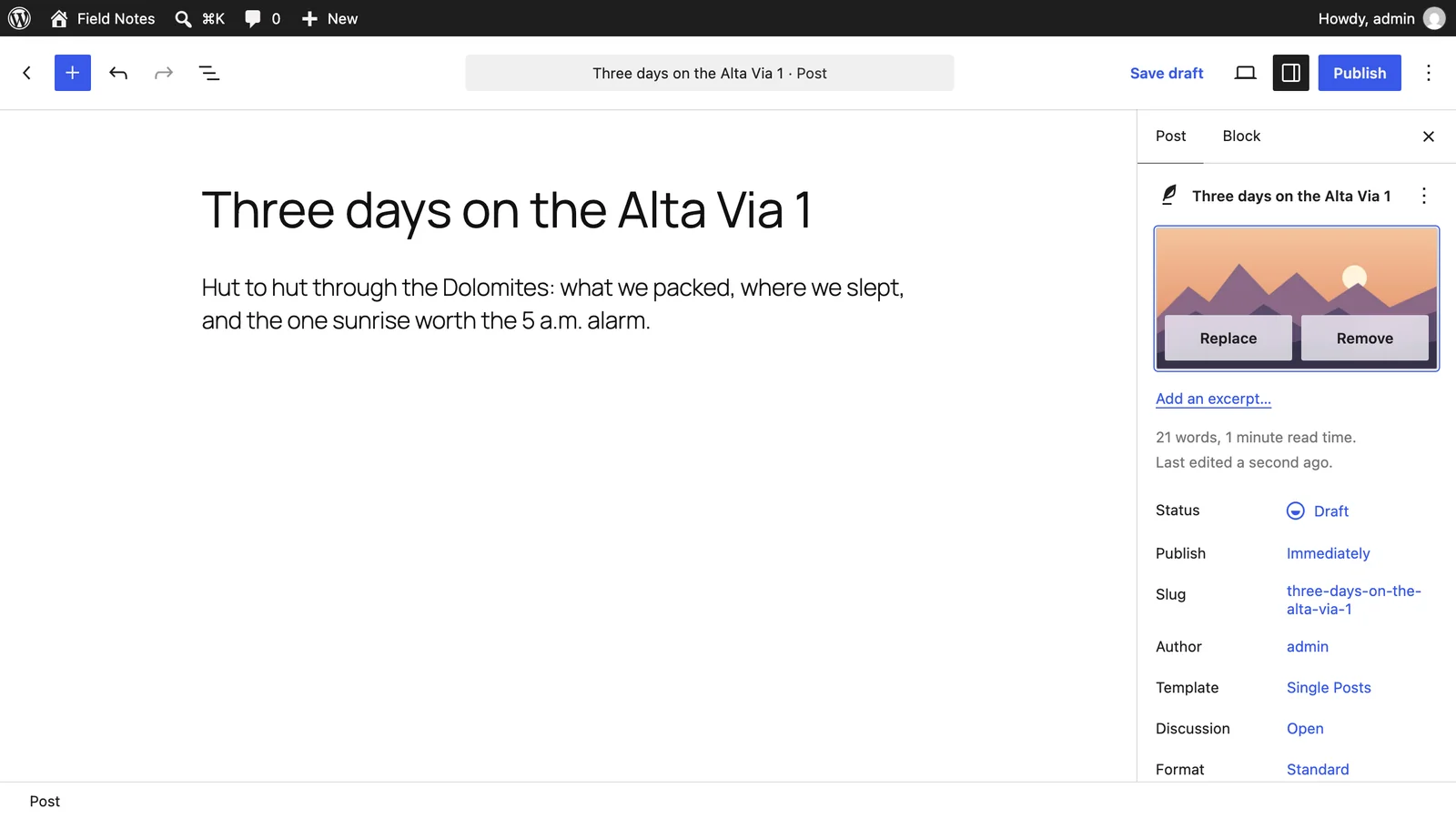
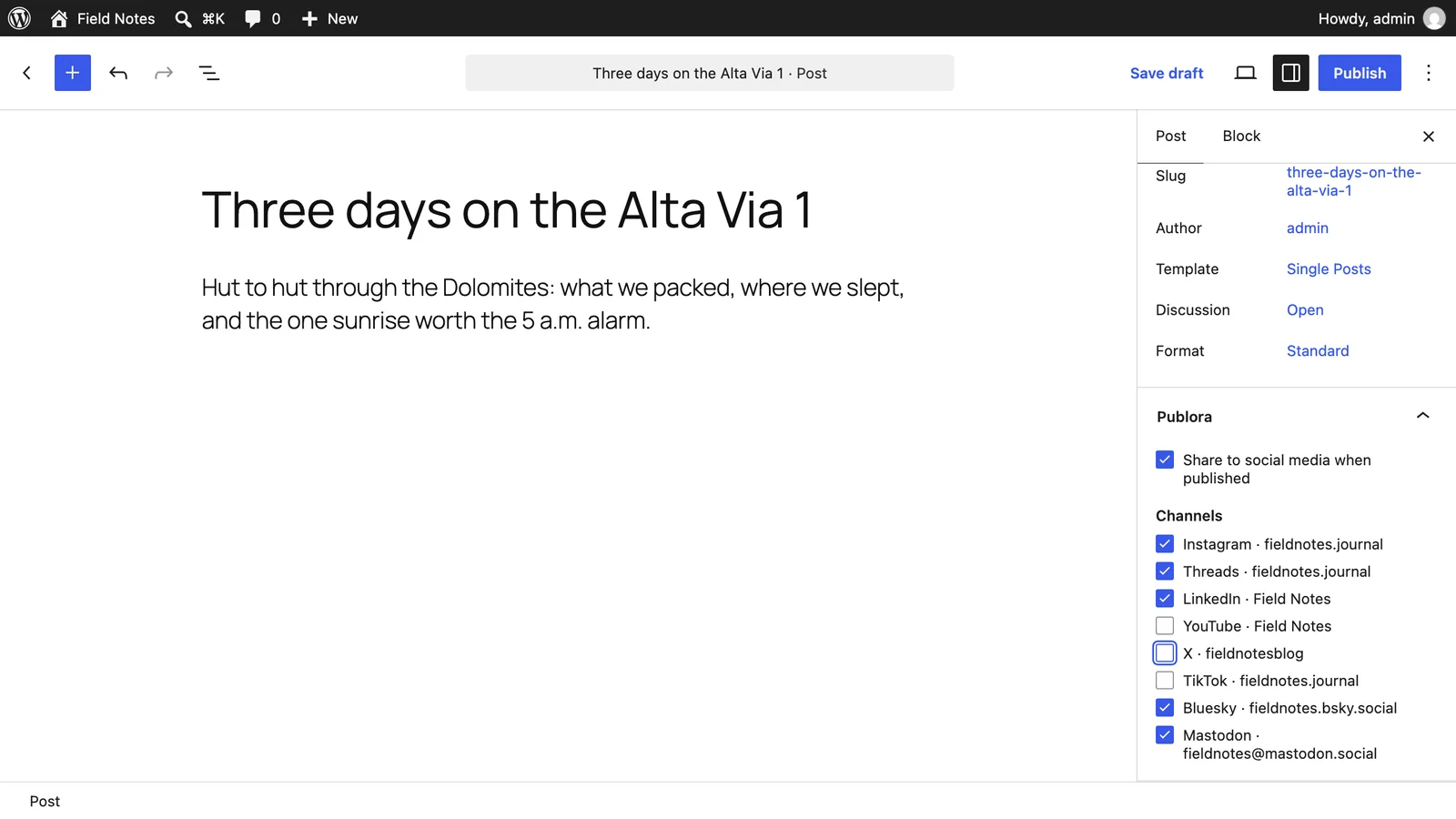
The Publora panel in the editor sidebar. It shows the default accounts for this post. Untick a network to leave it out this time, or untick "Share to social media when published" to keep this post off social media altogether.
Then publish.
What Happens After You Publish
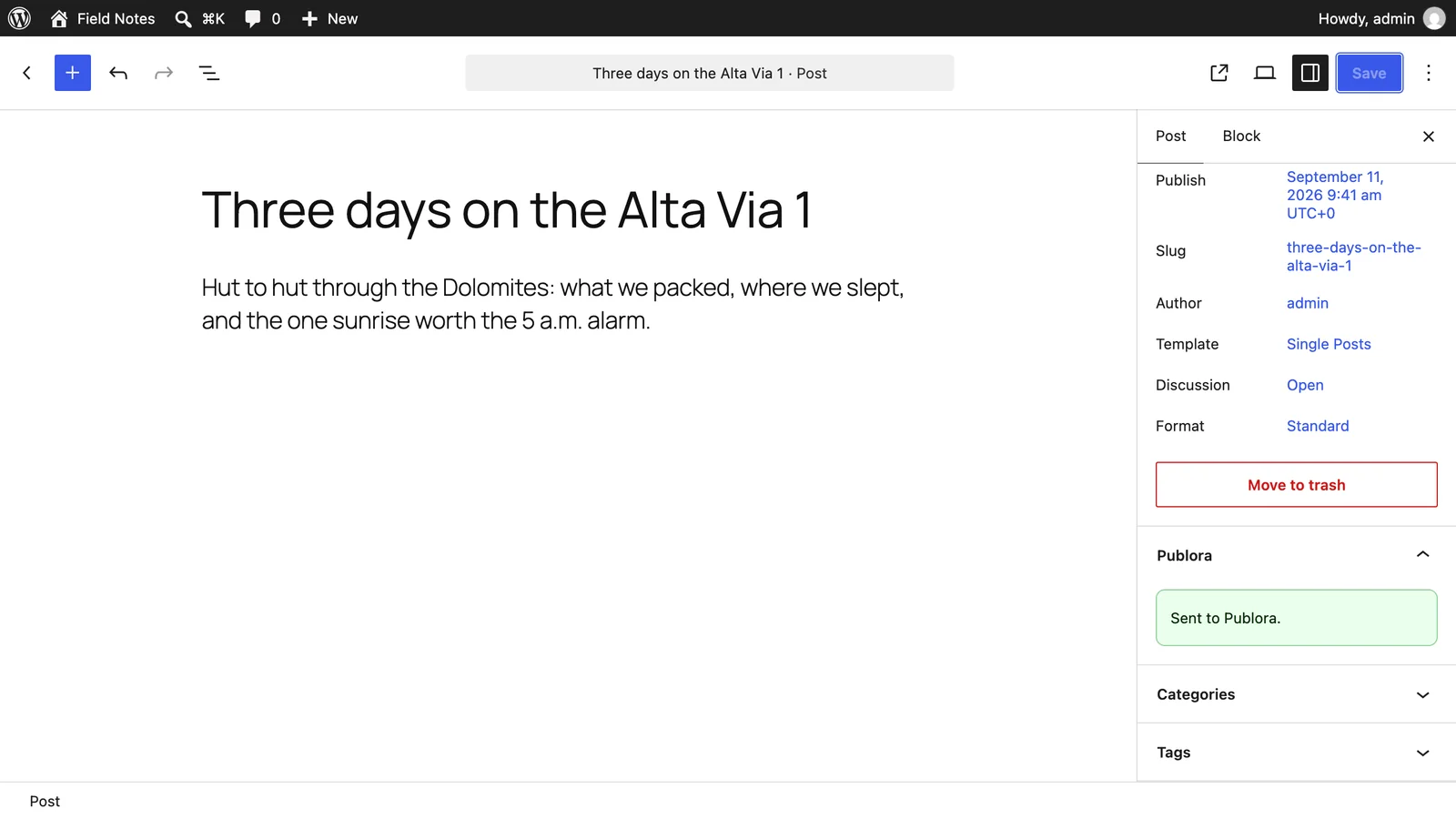
The plugin hands the announcement to Publora as soon as the post goes live, and Publora publishes it to your accounts a few minutes later. The panel shows "Sent to Publora" and lists any network it skipped. If Publora turns the announcement down, the panel tells you why.
A few rules keep things predictable:
- A post is shared once, the first time it goes public. Updating a published post does not announce it again.
- Posts published before you installed the plugin are not shared.
- A post you schedule in WordPress is shared when it goes live, not when you schedule it.
- If the announcement is too long for a network (280 characters on X, 300 on Bluesky, 500 on Threads and Mastodon), the plugin shortens the excerpt. The title and the link stay whole.
What the Plugin Sends to Publora
When you connect: your site name and address, so you can recognize the connection in Publora. When a post is shared: the announcement text, the featured image URL and the accounts you picked. When you open the settings or the editor: a request for the list of accounts connected to your Publora account.
Nothing is sent before you connect, and no post is shared unless sharing is on for it. If you uninstall the plugin, its settings are removed from your site. Posts already sent stay in your Publora account.
Let your blog do the posting
The plugin is free. So is the Starter plan: three accounts, 15 posts a month, no card.
Start FreeQuestions People Ask
Is the plugin free? Yes. It needs a Publora account, and Publora's Starter plan is free for three social accounts and 15 posts a month, on every network except X.
Which networks can it post to? Instagram, TikTok, YouTube, Facebook, Threads, Bluesky, X, Mastodon, LinkedIn and Telegram. You will see whichever of them you have connected in Publora.
Can some posts go to different accounts? Yes. The Publora panel in the editor overrides the site-wide choice for that post.
Will my old posts be shared when I install it? No. Only posts published after setup are shared, and only when sharing is on for them.
How quickly does the announcement go out? A few minutes after the post goes live.
Does it work with the classic editor? Yes. In the classic editor the Publora box sits in the right-hand sidebar, below the Publish box.
My site does not have HTTPS. Can I still connect? Yes. Generate an API key in your Publora dashboard and paste it into the API key field in Settings → Publora.
Further Reading
- The same thing from Obsidian
- The same thing from Adobe Express
- The same thing from ChatGPT
- Social Media API: The Complete Guide
Get Publora for WordPress. The plugin is free on wordpress.org/plugins/publora.
About this article. Based on Publora for WordPress 1.0.2 as published on wordpress.org, installed from the directory into WordPress 7.1 and run through ten test scenarios in September 2026.
Related Articles
How to Publish to Social Media From Claude
Add the Publora connector from the Claude directory, then ask Claude to draft, schedule or publish to LinkedIn, X, Instagram and seven more networks.
How to Post a Figma Design to Social Media
Send a Figma frame to LinkedIn, Instagram, X and seven more networks without leaving Figma. Free plugin, works in Figma Design and Figma Slides.
How to Publish to Social Media From IFTTT
Connect Publora to IFTTT once, and anything IFTTT watches can go out to LinkedIn, X, Instagram and seven more networks. A feed, a webhook, your own code.
How to Publish to Social Media From ChatGPT
Connect the Publora plugin once, then ask ChatGPT in plain language to draft, schedule or publish to LinkedIn, X, Instagram and seven more networks.