How to Publish to Social Media From Obsidian

· Updated
TL;DR
Install the Publora plugin, connect your account in the browser, and send any Obsidian note to LinkedIn, X, Instagram and seven more networks. No API key.
Install the Publora plugin, connect your account in the browser, and send any note to LinkedIn, X, Instagram and seven more networks without leaving your vault. There is no API key to copy.
If you draft in Obsidian, publishing normally means copying the note into a browser tab. The Publora community plugin skips that step: write the note, run one command, pick the channels, and either save a draft or set a time.
Before You Start
You need an Obsidian vault, a Publora account, and at least one social account connected inside Publora. The plugin publishes through your existing connections, it does not create them. The free plan covers 15 posts a month and does not ask for a card, so you can test the whole path before deciding anything.
Install the Plugin
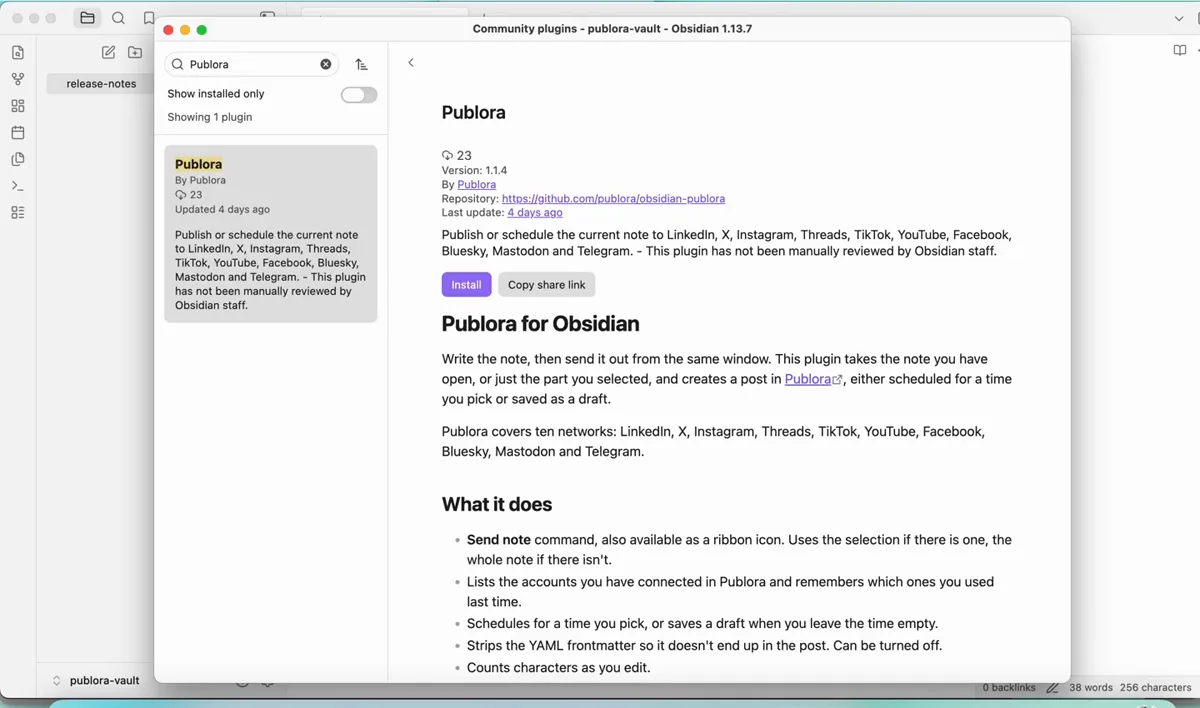
Obsidian ships with third-party plugins switched off, so the first step is turning the system on.
- Open
Settings → Community pluginsand click Exit Restricted mode. - Click Browse, type
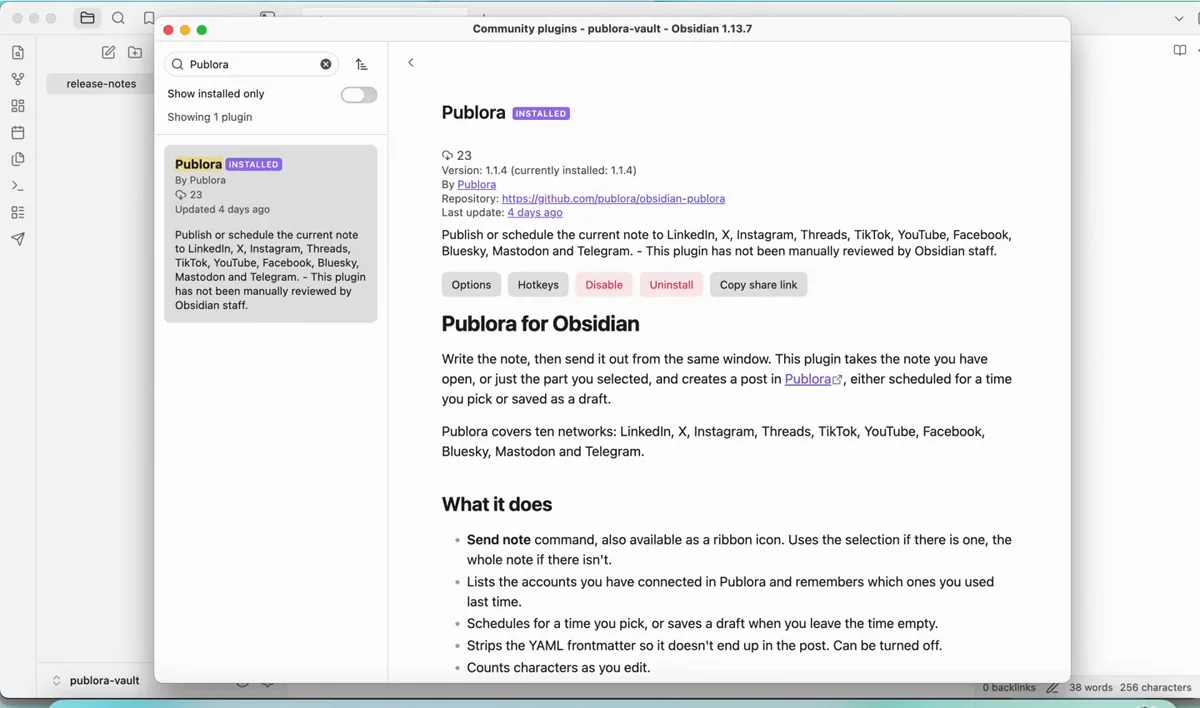
Publora, and open the result. - Click Install, then Enable.
A paper-plane icon appears in the left ribbon once the plugin is enabled. That icon is the fastest way to send a note, though there is a command for it too.
Connect Your Account
Open the plugin's Options and click Connect. Your browser opens a Publora consent screen showing which account you are authorising. Click Approve, and Obsidian confirms the connection.
The settings also accept an API key if you would rather not sign in through a browser. You can find one at publora.com → Settings → API. Otherwise, leave the field empty and use Connect.
Send a Note
Open any note and either click the ribbon icon or run Send note from the command palette. If you select part of the note first, only the selection is used; with nothing selected the plugin takes the whole thing.
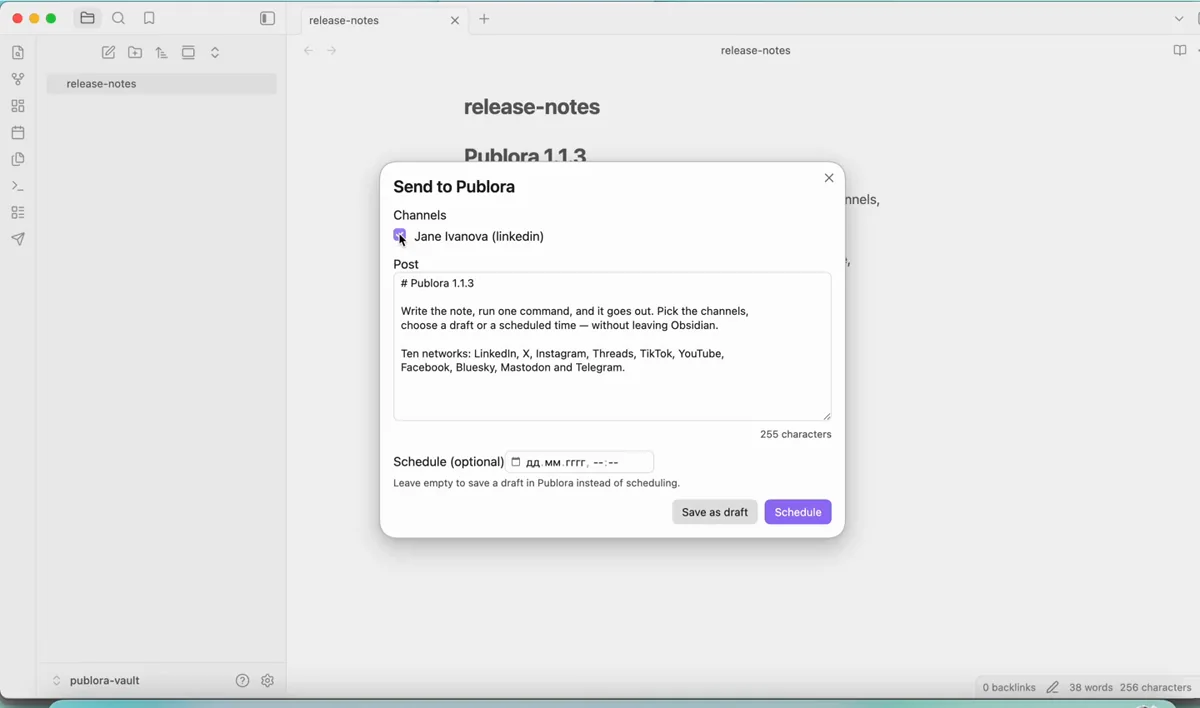
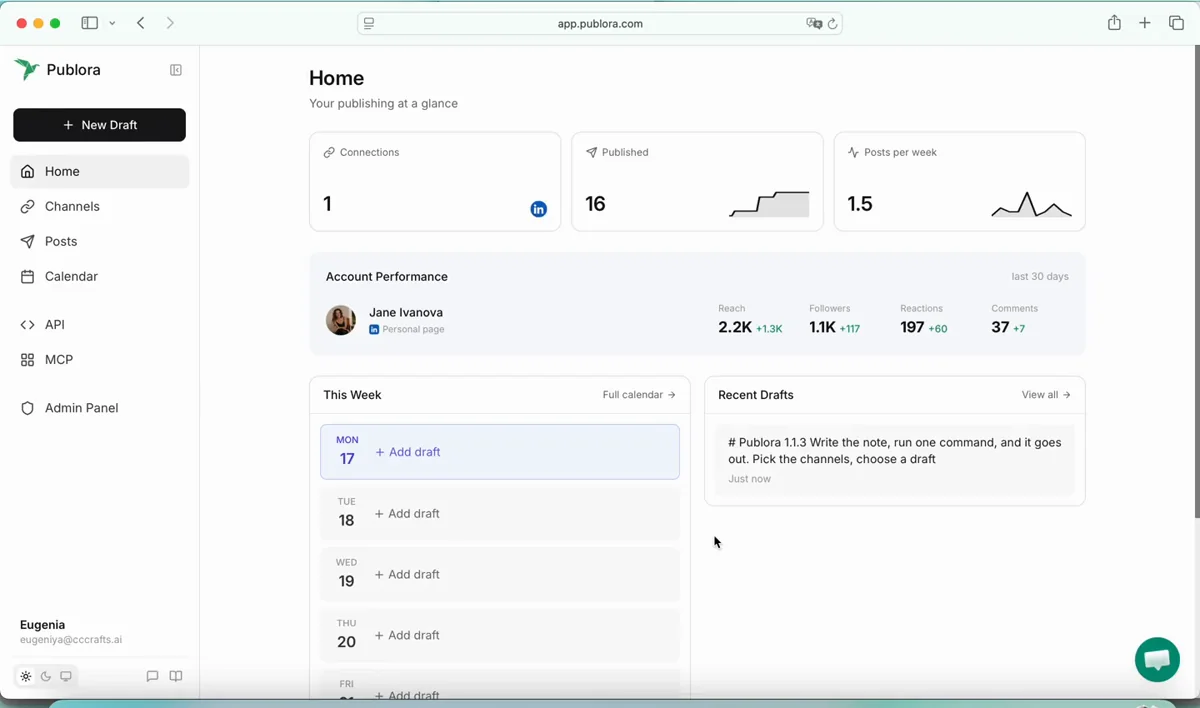
The dialog shows your connected channels as checkboxes, the text that will be published, in an editable box, and a live character count so you find out the post is too long before the network tells you. At the bottom there is an optional time field. Fill it in and the post is scheduled; leave it empty and Publora saves a draft.
Either way the post shows up in your Publora dashboard straight away, where you can edit it, move it, or delete it before it goes out.
Two Settings Worth Knowing
Strip frontmatter is on by default and keeps the YAML block at the top of a note out of the post. If your notes carry properties, leave this on.
Test connection asks Publora how many accounts it can currently see. It is a quick way to tell whether a problem is the connection or the post itself.
When Something Does Not Work
Two things are worth checking first. If the plugin does not appear in Browse, make sure you have left Restricted mode. If the dialog opens but reports no connected accounts, connect a social account in the Publora dashboard and run the command again.
# and ** out of the text in the dialog before sending. Instagram, TikTok and YouTube require an image or video. Scheduling uses UTC, so check the time before you queue a post.Questions People Ask
Does it work on mobile?
The plugin is not desktop-only, but browser sign-in is easier on a computer.
Which networks does it cover?
Ten: LinkedIn, X, Instagram, Threads, TikTok, YouTube, Facebook, Bluesky, Mastodon and Telegram. Pinterest can be connected to Publora but cannot be published to from anywhere.
Where does my note go?
Only the post text reaches Publora. The note itself stays in your vault.
Does it cost anything?
The plugin is free and the Publora free plan covers 15 posts a month.
Send notes straight from your vault
Publora reaches 10 platforms from Obsidian, your editor, or one API call. Free plan, no card.
Start FreeFurther Reading
About the author. Written by the Publora team from a live walkthrough of the published publora plugin (v1.1.4) in the Obsidian community catalogue, recorded August 2026.
Related Articles
How to Publish to Social Media From Claude
Add the Publora connector from the Claude directory, then ask Claude to draft, schedule or publish to LinkedIn, X, Instagram and seven more networks.
How to Post a Figma Design to Social Media
Send a Figma frame to LinkedIn, Instagram, X and seven more networks without leaving Figma. Free plugin, works in Figma Design and Figma Slides.
How to Publish to Social Media From IFTTT
Connect Publora to IFTTT once, and anything IFTTT watches can go out to LinkedIn, X, Instagram and seven more networks. A feed, a webhook, your own code.
How to Auto-Share WordPress Posts to Social Media
Share every new WordPress post to Instagram, LinkedIn, X, Threads, Bluesky and five more networks automatically. Free plugin, about five minutes to set up.