How to Share Framer CMS Posts on Social Media (Free Framer Plugin)

Reviewed by Jane Ivanova, CEO, Publora
TL;DR
Share a Framer CMS post on LinkedIn, X, Instagram and 7 more networks from inside Framer. Free plugin: pick the item, check the text, publish or schedule.
You publish a blog post in the Framer CMS, and then the same post has to go to LinkedIn, X and Instagram. Usually that means copying the title, writing a caption, downloading the cover image and posting it in each app.
The Publora plugin does this inside Framer. You pick a CMS item, and the plugin writes a first draft from its title, summary and cover image, with a link to the post on your live site. You check the text, tick the accounts, and publish now, schedule it or save a draft.
- Find Publora in the Framer Marketplace under Plugins and press Open Plugin.
- Sign in with your Publora account in the browser window that opens.
- Choose CMS item and pick the post. The plugin fills in the text, the cover image and the link.
- Tick the accounts, then choose Now, Later or Draft.
- Networks: LinkedIn (profiles and company pages), X, Threads, Facebook, Bluesky, Mastodon, Telegram, Instagram and TikTok.
What You Need
- A Framer site with a CMS collection, published at least once, so posts can link to it.
- A Publora account with your social accounts connected in the Publora dashboard.
The free Starter plan has three social accounts, 15 posts a month and every network except X. It schedules up to 7 days ahead and keeps three scheduled posts at a time. Pro has no limits on posts or dates and costs $5.99 per account per month for the first five accounts. See pricing.
Step 1. Find the Plugin in the Framer Marketplace
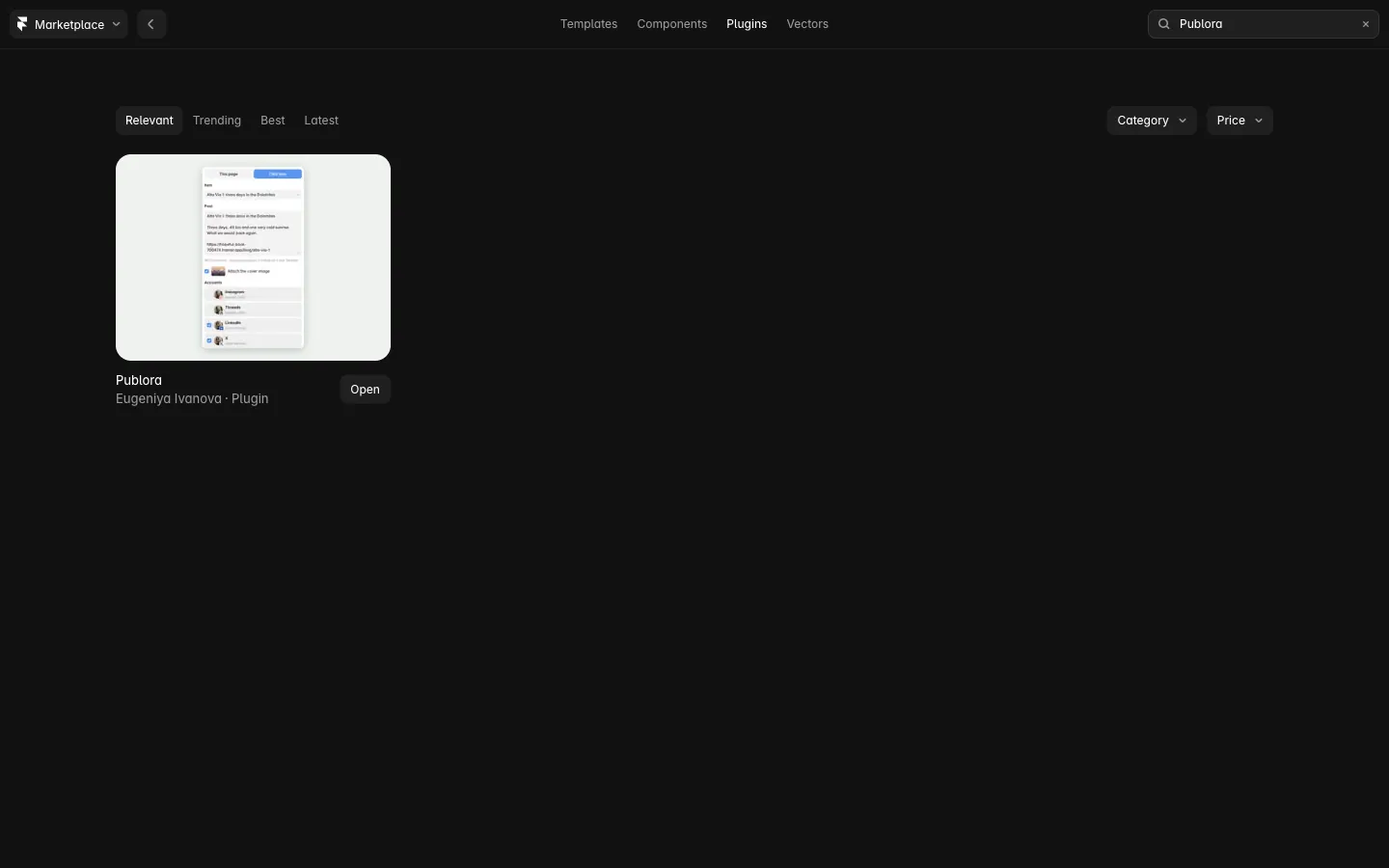
Open framer.com/marketplace/plugins and search for "Publora".
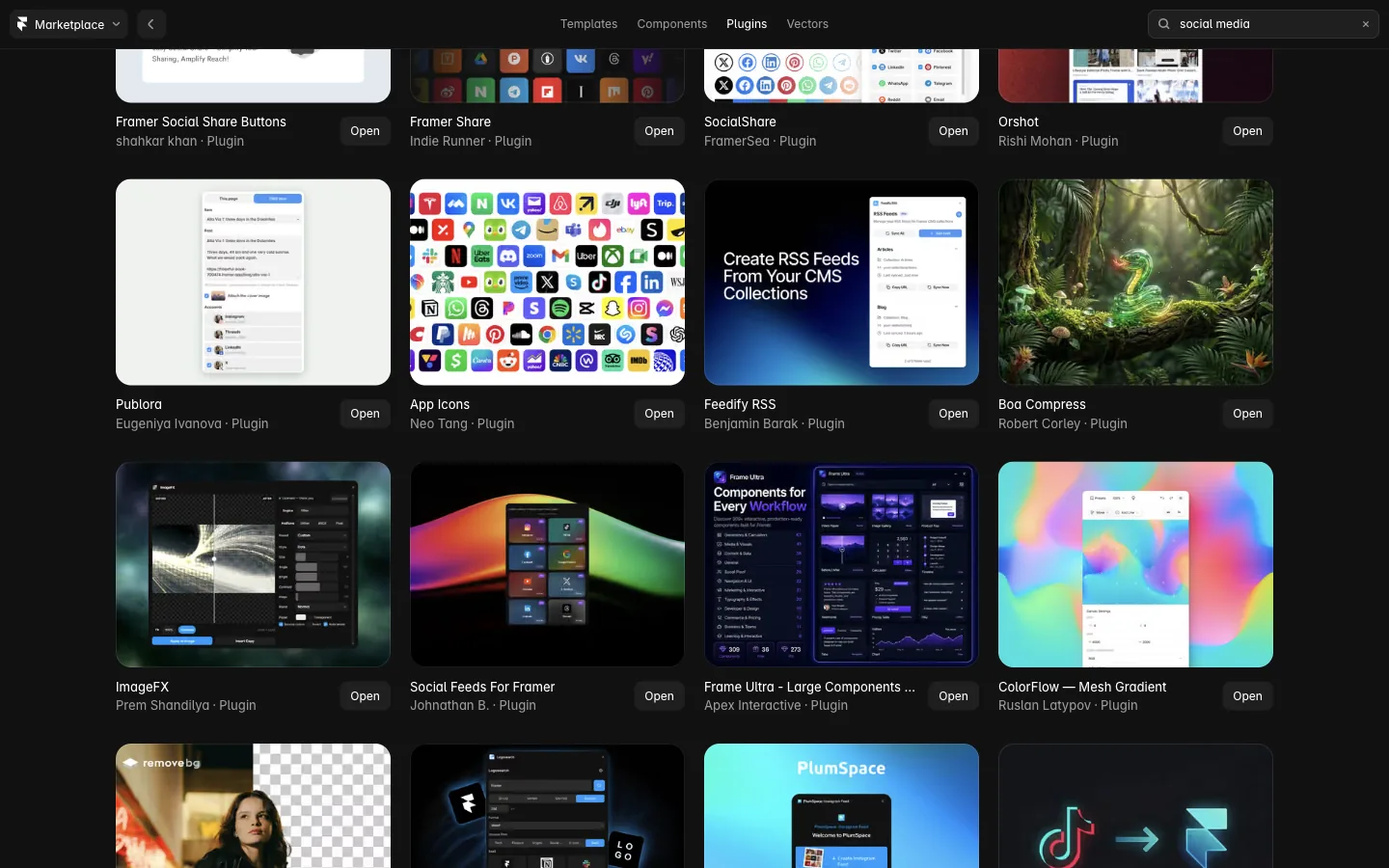
If you search for "social media", Publora is in the results too, among the share buttons and icon packs.
The plugin page is at framer.com/marketplace/plugins/publora. It shows what the plugin does, the networks and the account requirements.
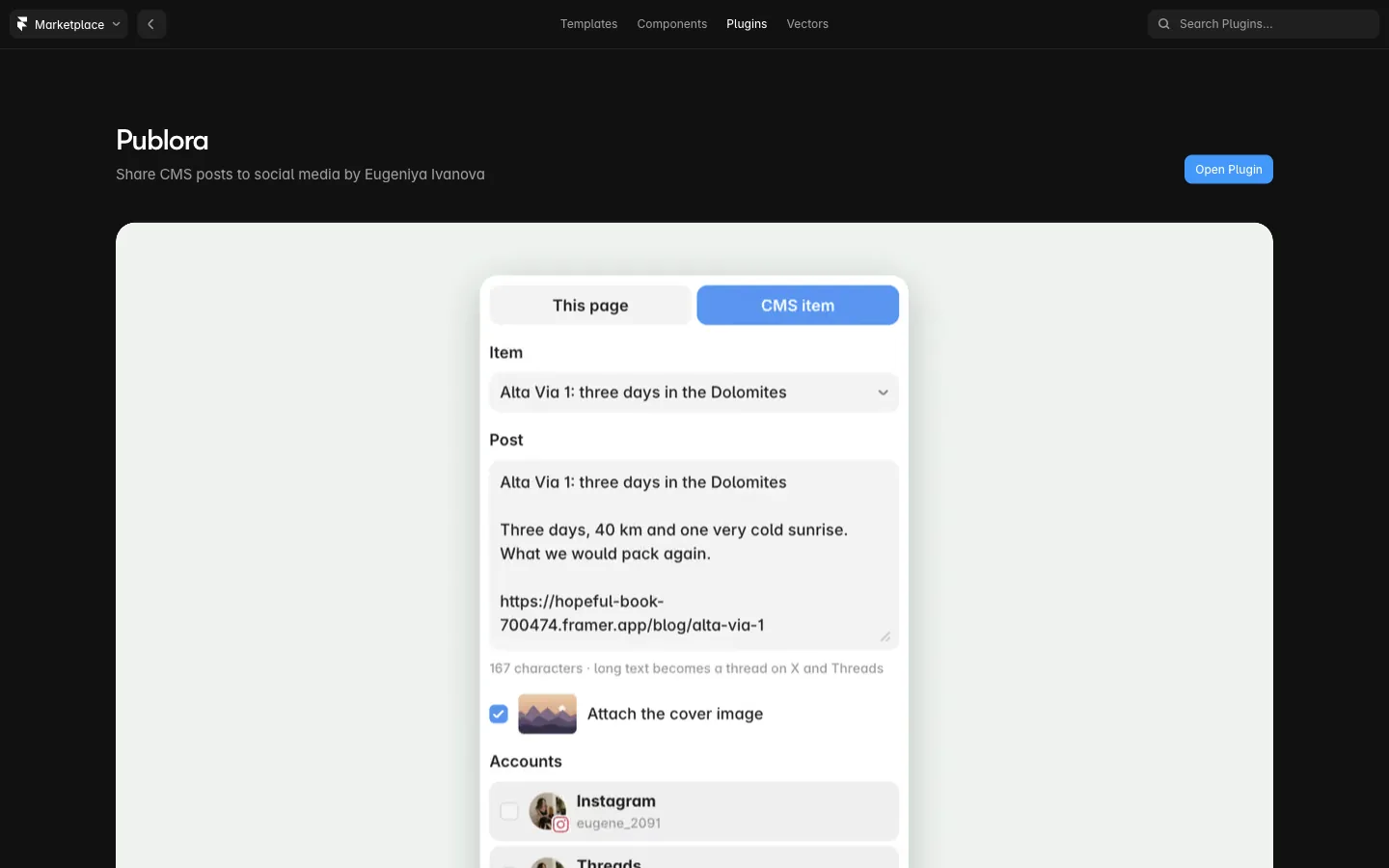
Press Open Plugin and choose the project.
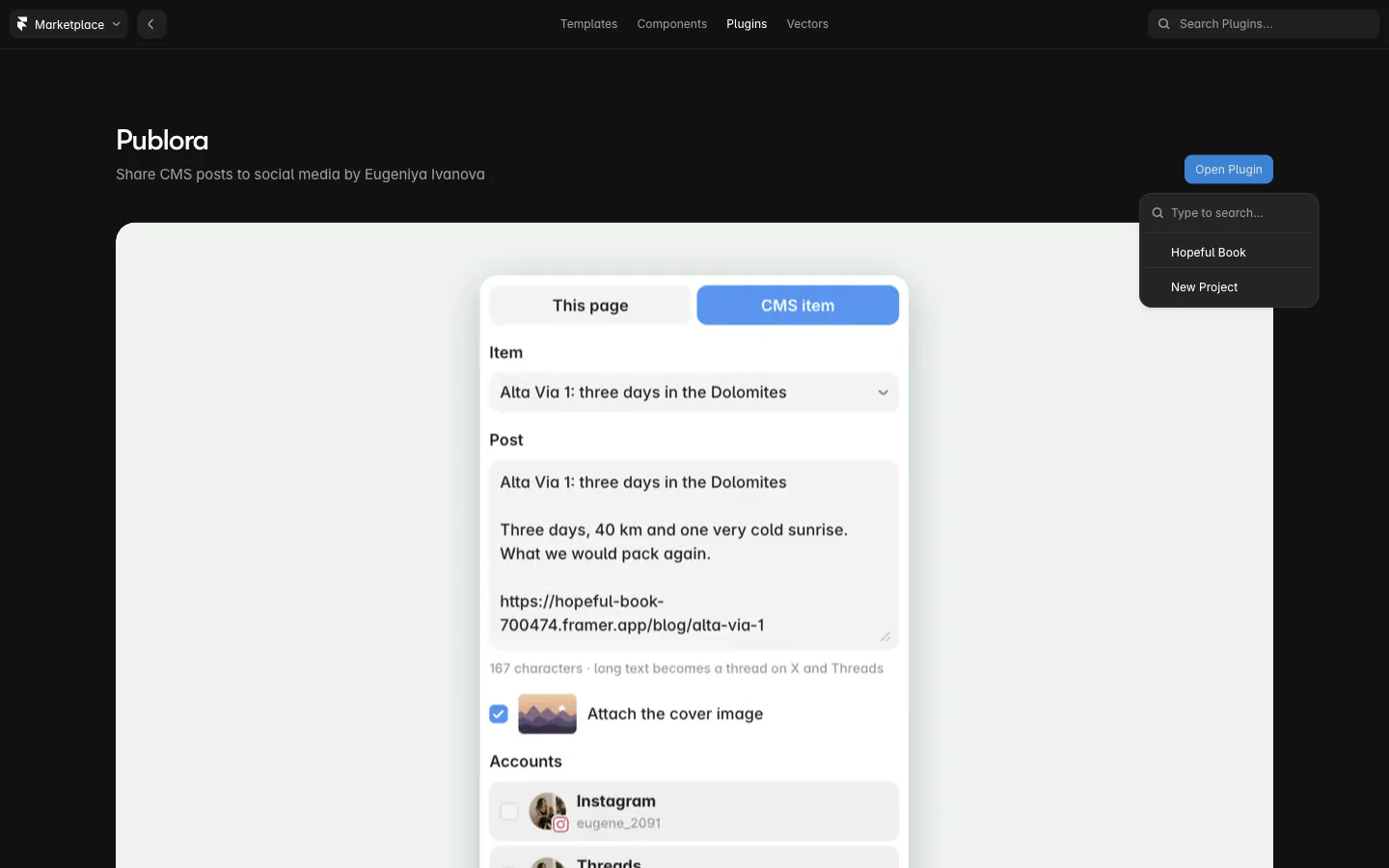
Framer opens the project with the plugin on the right. Next time you can open it from the Plugins menu in the editor.
Step 2. Sign In to Publora
Press Sign in to Publora.
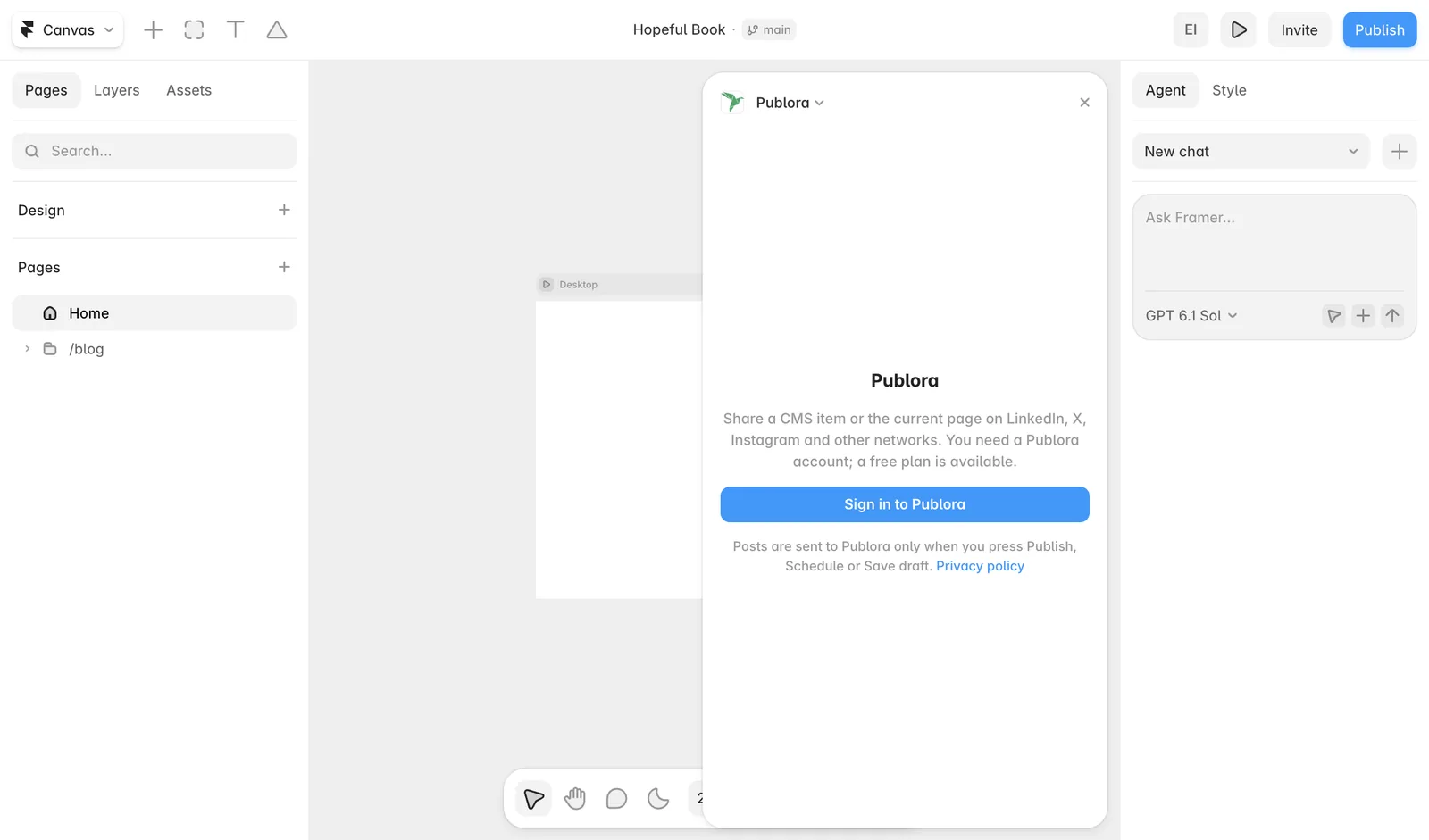
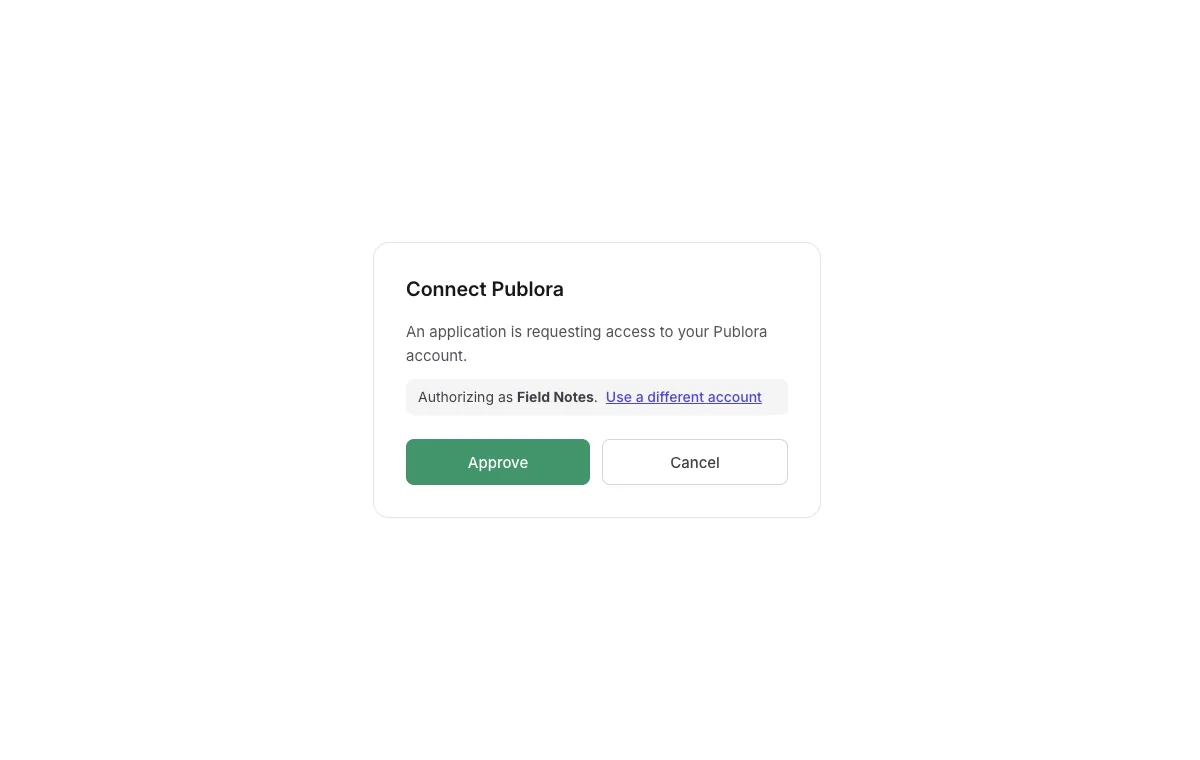
A Publora window opens in your browser. If you're signed in to Publora there, press Approve. If not, sign in or create an account first. There is no API key to copy. When you approve, the plugin shows your accounts. You sign in once; the plugin remembers it.
Step 3. Pick a CMS Item or the Current Page
The plugin has two modes at the top. This page shares the page that's open on the canvas: the post starts with its live link. CMS item shares a post from a collection.
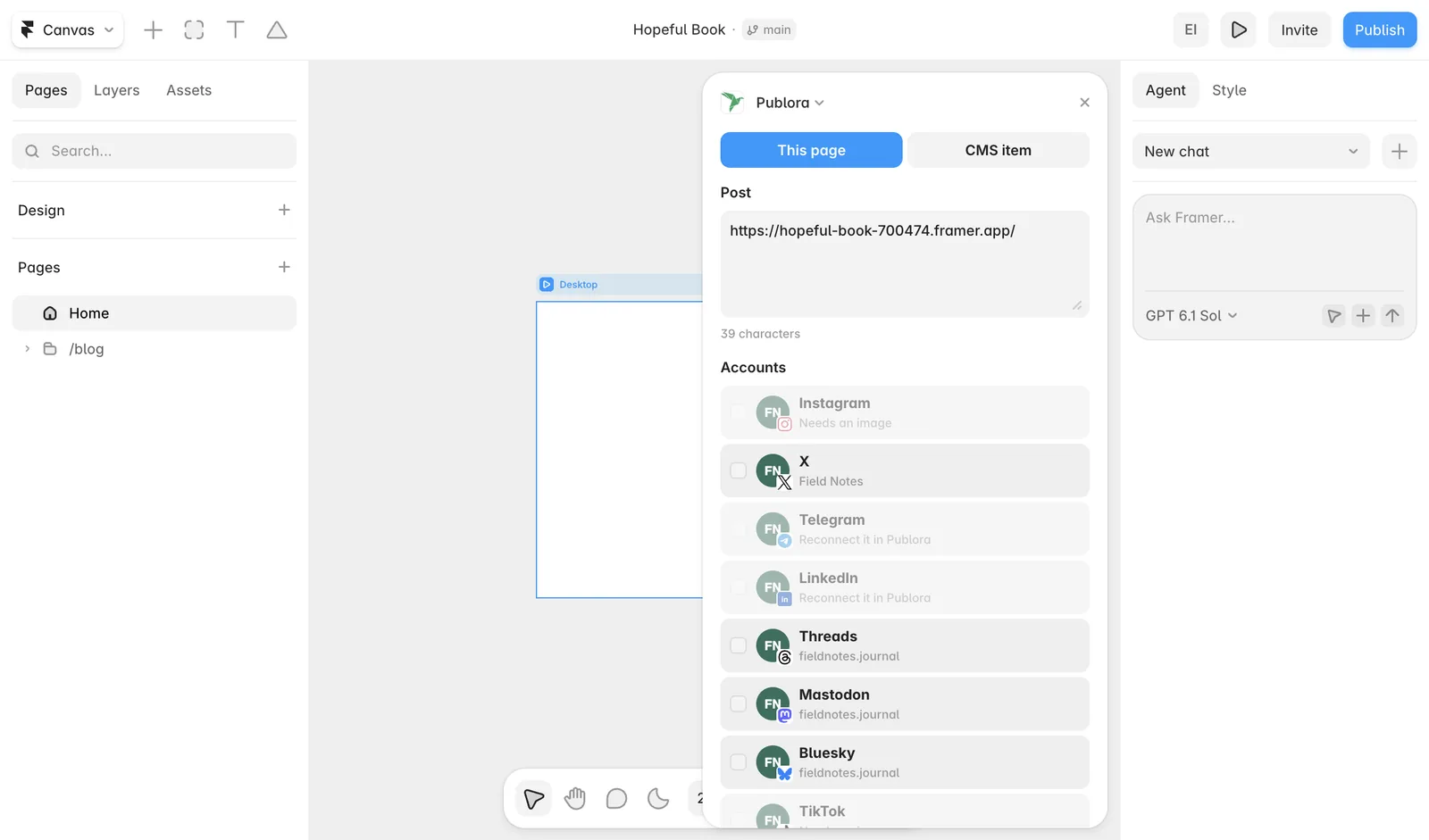
Choose CMS item and pick the post in the Item list. The plugin fills in the draft:
- the title and the summary (or the first part of the text field) from the item;
- the link to the item's page on your live site;
- the cover image, which you can untick.
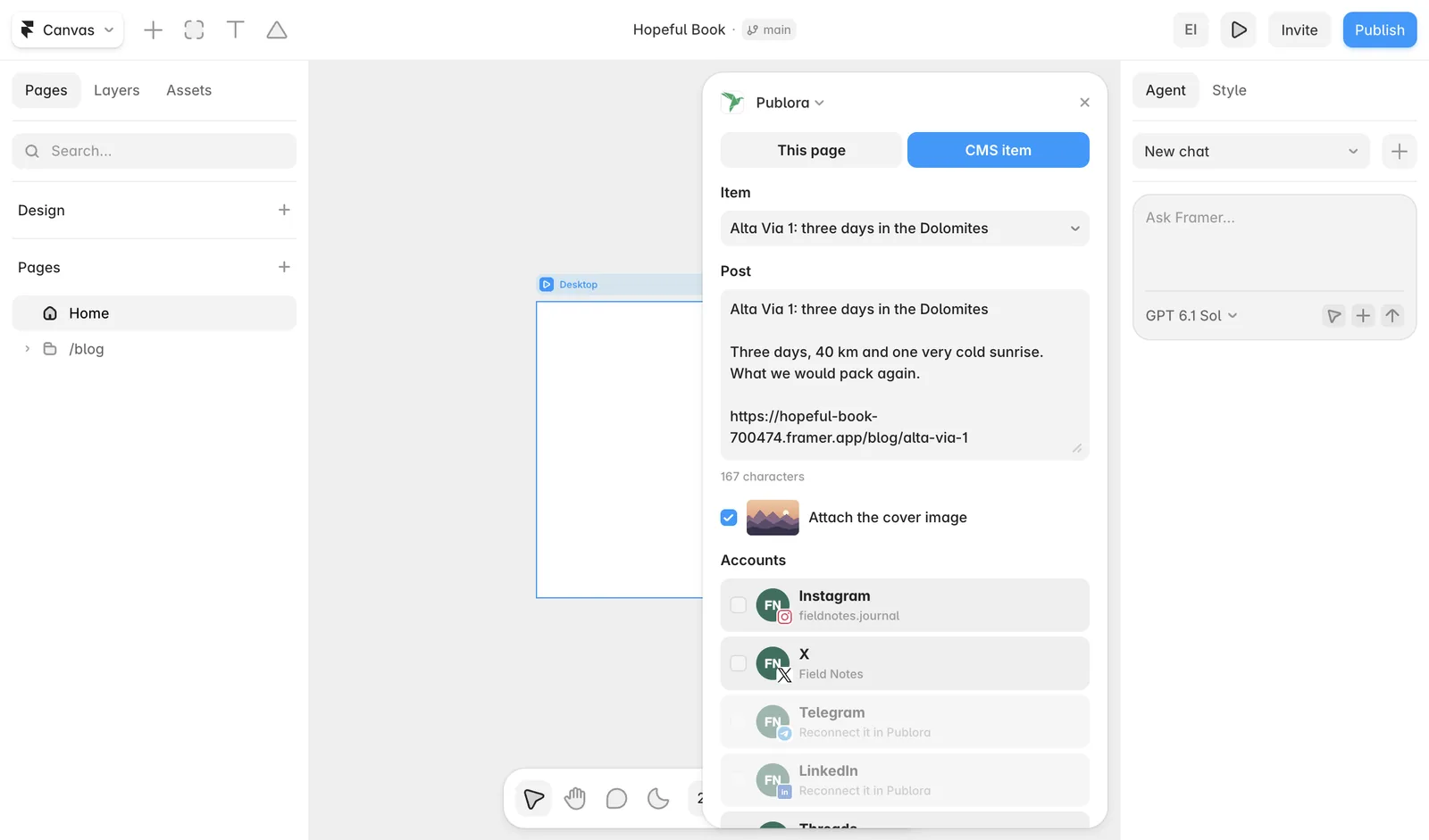
The plugin finds the fields by type and by usual names such as Title, Excerpt, Summary and Cover. If an item has no summary or cover image, the plugin says so under the text, and you can write the rest yourself. CMS drafts aren't listed, because they don't have a page on the site yet. If you open Publora from a collection in the CMS view, it shows that collection's items.
Edit the text as you like. The counter under it counts the way Publora does, and on X and Threads a long post goes out as a thread.
Step 4. Choose the Accounts and When to Publish
Accounts lists the social accounts connected in Publora. Some of them may be greyed out with a reason:
- Instagram and TikTok need an image, so they're available only with the cover image attached.
- YouTube takes only video, so it isn't offered here.
- An account whose access expired says "Reconnect it in Publora".
If the text is too long for one of the networks you ticked, the plugin names the network and its limit before you send. For TikTok, choose who can see the post. Below the accounts there is an optional First comment, posted under the post on LinkedIn, X, Threads, Bluesky and Mastodon.
Then choose When:
- Now publishes right away.
- Later schedules it for a date and time you pick.
- Draft saves it in Publora without a time.
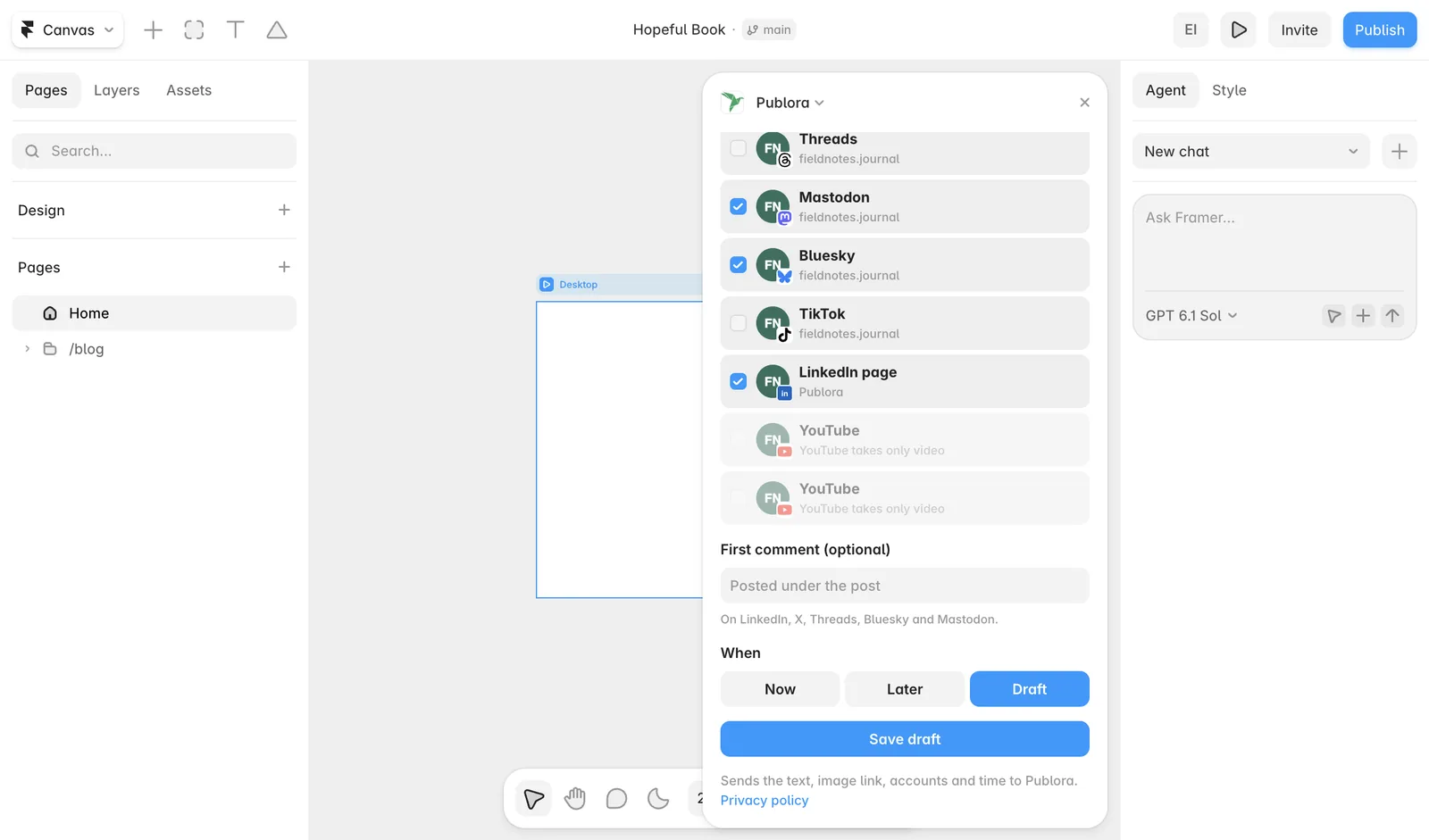
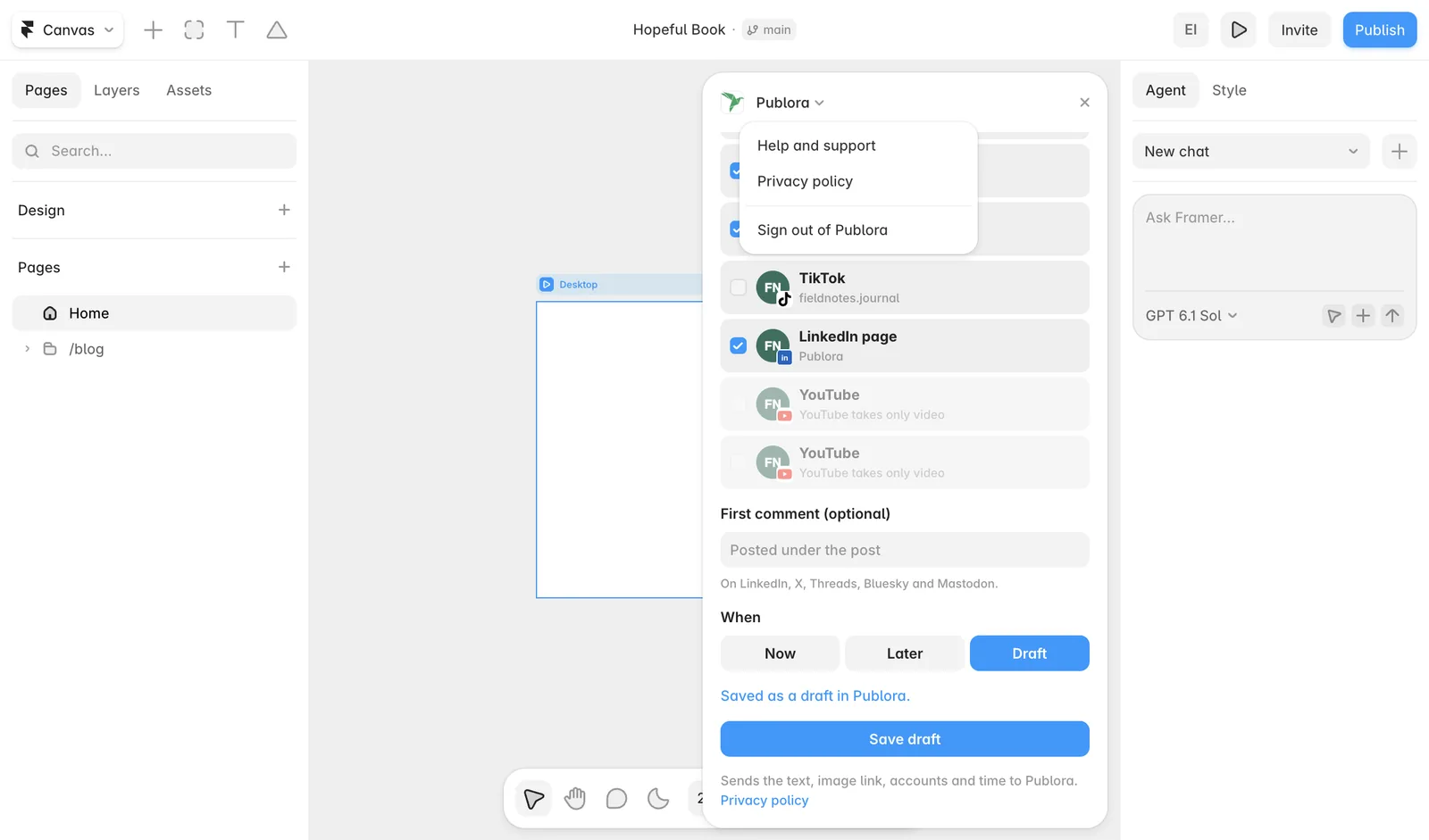
Press the button at the bottom: Publish now, Schedule or Save draft.
Step 5. Confirm What Is Sent, Once
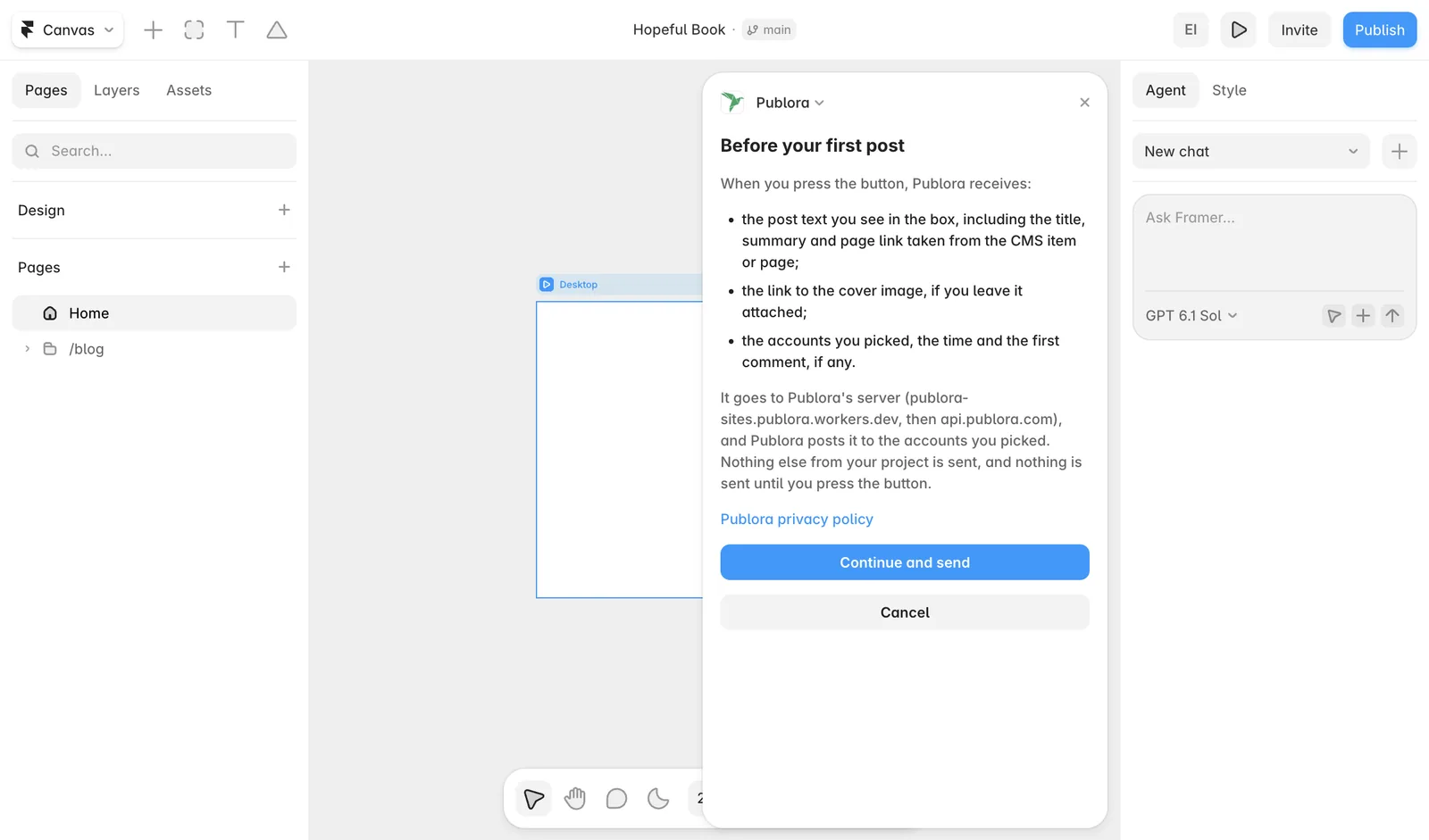
Before your first post, the plugin shows what it sends and where: the post text, the cover image link, the accounts, the time and the first comment go to Publora, and Publora posts them to the accounts you picked. Nothing else from your project is sent. Press Continue and send, and the plugin won't ask again.
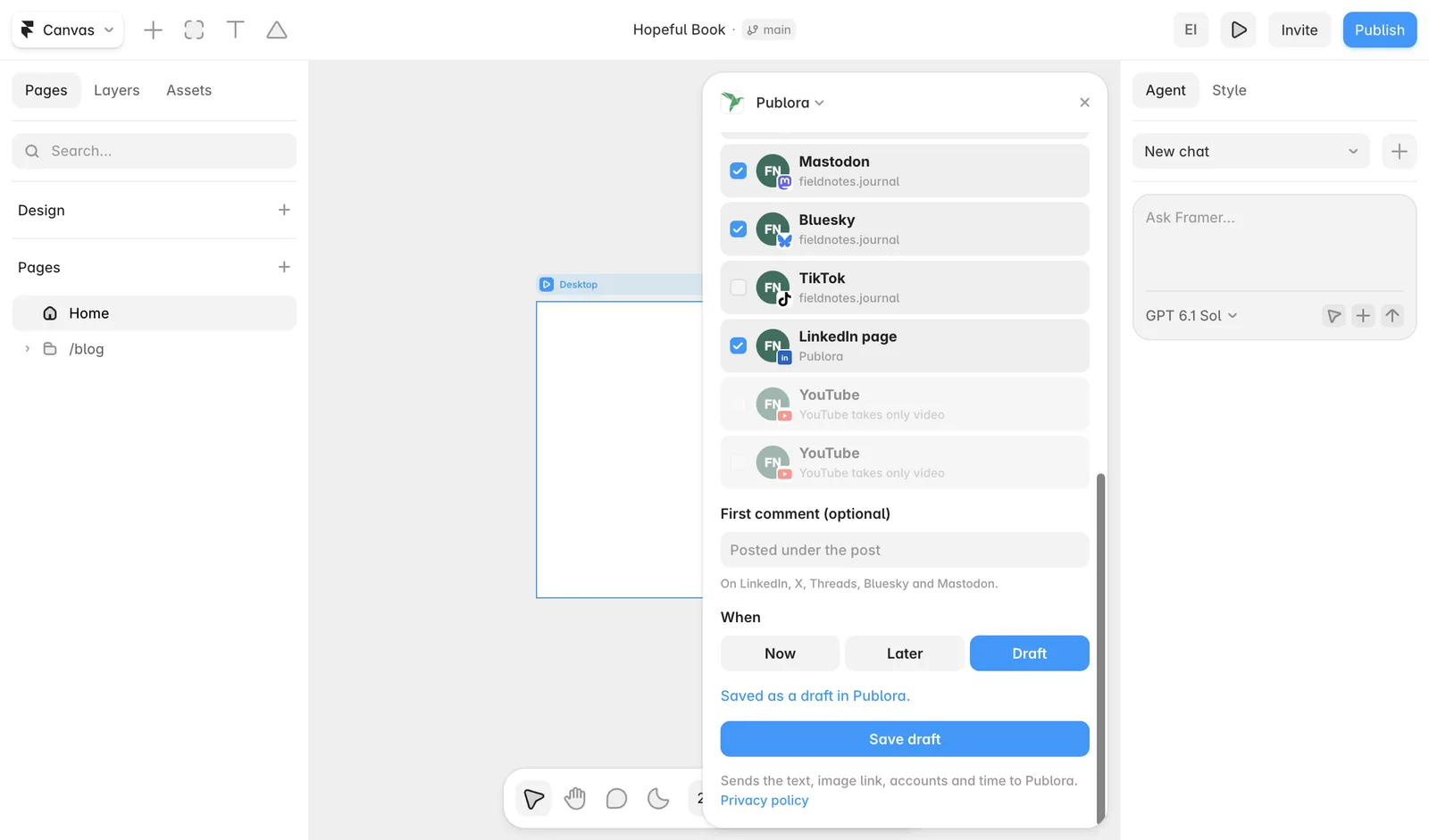
When it's done, you see "Saved as a draft in Publora.", "Scheduled for ..." or "Sent to Publora for publishing right away."
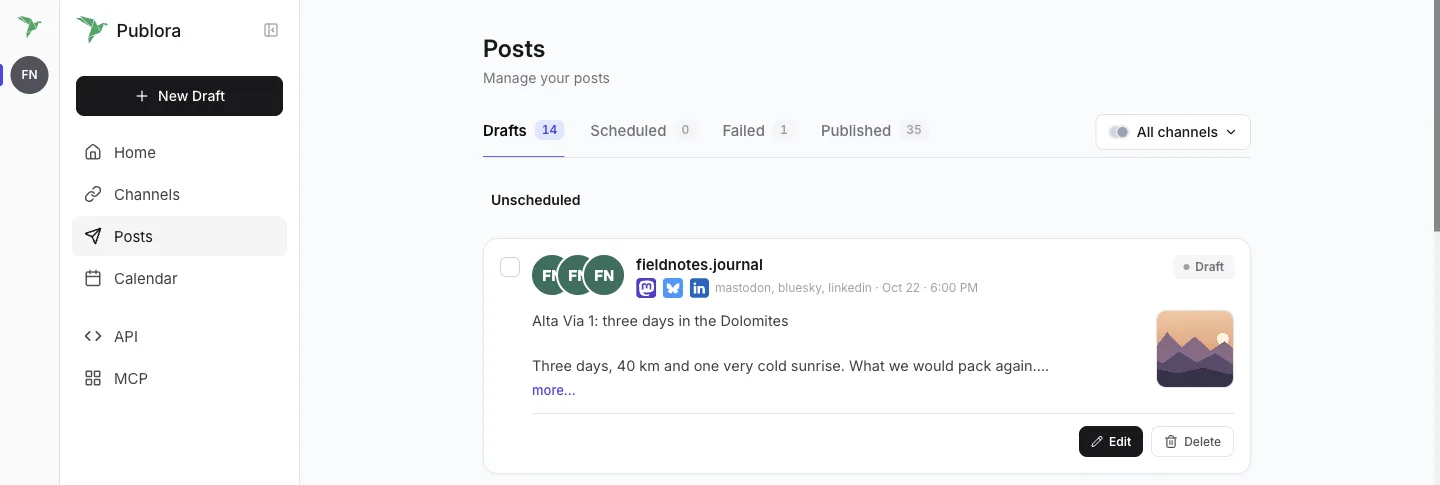
The post appears in the Publora dashboard under Posts, with the cover image attached. You can edit it, schedule it or delete it there.
Signing Out
Click Publora in the plugin's header to open its menu. It has Help and support, Privacy policy and Sign out of Publora.
Signing out removes the sign-in from the plugin. To remove access completely, also disconnect Publora for Framer in the Publora dashboard under MCP → Connections.
What the Plugin Sends, and Where
The plugin reads your project only to fill in the draft. When you press Publish now, Schedule or Save draft, it sends the post text, the cover image link, the accounts you picked, the time and the first comment to Publora (publora-sites.publora.workers.dev and api.publora.com). Publora then posts it to those accounts. Your sign-in is kept in the plugin's own browser storage, not in the project. See the privacy policy.
Get Publora for Framer
Open it from the Framer Marketplace. No Publora account yet? The free plan covers three accounts and 15 posts a month.
Get Started FreeFAQ
Is the Publora plugin for Framer free?
Yes. You need a Publora account, and the Starter plan is free for three social accounts and 15 posts a month, on every network except X.
Where do I find the plugin?
In the Framer Marketplace under Plugins: search for "Publora" or open framer.com/marketplace/plugins/publora and press Open Plugin.
Can I share a page that isn't in the CMS?
Yes. Choose This page, and the post starts with the live link of the page open on the canvas.
Why is there no link in my post?
The site isn't published yet, or the collection has no page on the site. Publish the site, or add the link to the text yourself.
Why are Instagram and TikTok greyed out?
They need an image. Keep the cover image attached, or pick an item that has one.
Can I schedule a post for later?
Yes. Choose Later and pick a date and time in the future. On the free plan you can schedule up to 7 days ahead.
Does the plugin change my Framer project?
It doesn't change your pages or CMS items. It reads them to fill in the draft, and saves only your site's address and page paths in the project's plugin data, so the CMS view can build links.
Further Reading
- How to Schedule Canva Designs to Social Media
- How to Post a Figma Design to Social Media
- How to Publish to Social Media From Adobe Express
If something behaves differently than described here, write to support@publora.com.