Trello Content Calendar: Post Cards to Social Media (Free Power-Up)

Reviewed by Jane Ivanova, CEO, Publora
TL;DR
Run your content calendar in Trello and send each card to Instagram, LinkedIn, X and 7 more networks at its due date. Free Power-Up, set up in minutes.
A Trello content calendar usually works like this: one card per post, lists for each stage, a due date for the day it goes out. Then, on that day, someone copies the text from the card, downloads the photo and posts it by hand in each app.
The Publora Power-Up does that last part. You open the card, check the text, tick the photo and the accounts, and the post is scheduled for the card's due date. It can also go out right away or wait as a draft in Publora. I tested it on a board like the one below: five cards, a photo on one of them, three accounts.
- Add Publora to your board from the Trello Power-Ups directory.
- Open a card, click Power-ups → Publora and sign in with your Publora account.
- The card's title and description become the post text. Tick the photos or video to attach.
- Pick the accounts and the time: the card's due date, now, or a draft. The card then shows the post's status.
- Networks: Instagram, LinkedIn (profiles and pages), X, Threads, Facebook, TikTok, YouTube, Bluesky, Mastodon and Telegram.
How to Set Up a Content Calendar in Trello
If you don't have a board yet, this layout is enough to start:
- Four lists: Ideas, Drafting, Ready to publish, Published.
- One card per post. The card title is the first line of the post, the description is the rest.
- The photo or video goes into the card's attachments.
- The due date is the day and time the post should go out.
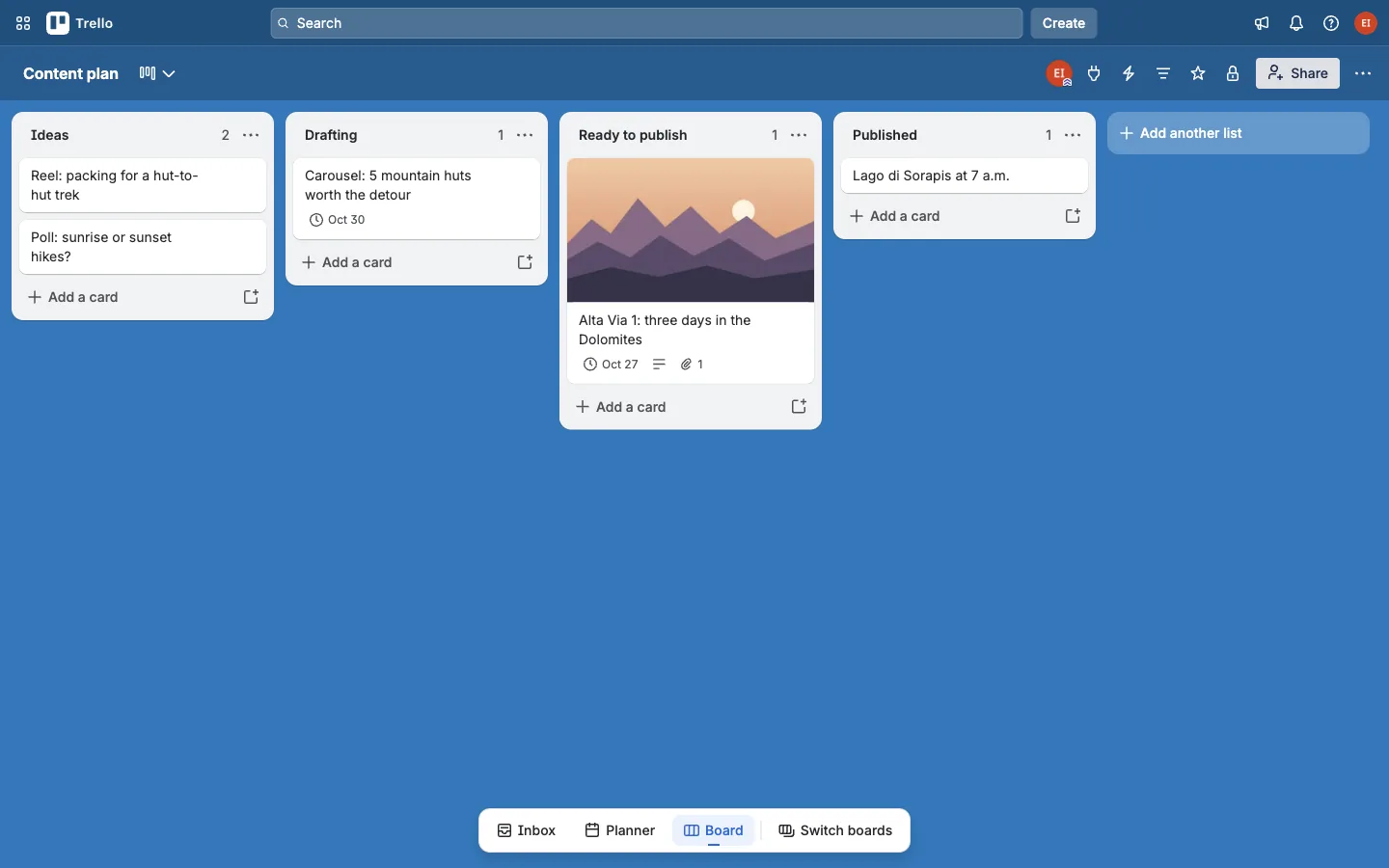
A card moves left to right as the post gets written. When it reaches Ready to publish, you send it to Publora from the card itself. For more board layouts, see our content calendar template.
What You Need
- A Trello board. The free Trello plan works.
- A Publora account with your social accounts connected in the Publora dashboard.
The free Starter plan has three social accounts, 15 posts a month and every network except X. It schedules up to 7 days ahead and keeps three scheduled posts at a time. So if a card is due in two weeks, you either wait or move to Pro, which has no limits on posts or dates. Pro costs $5.99 per account per month for the first five accounts. See pricing.
Step 1. Add the Power-Up to Your Board
On the board, click Power-Ups in the header, then Add Power-Ups. Type "Publora" in the search box on the left. You can also open the Publora page in the Power-Ups directory directly.
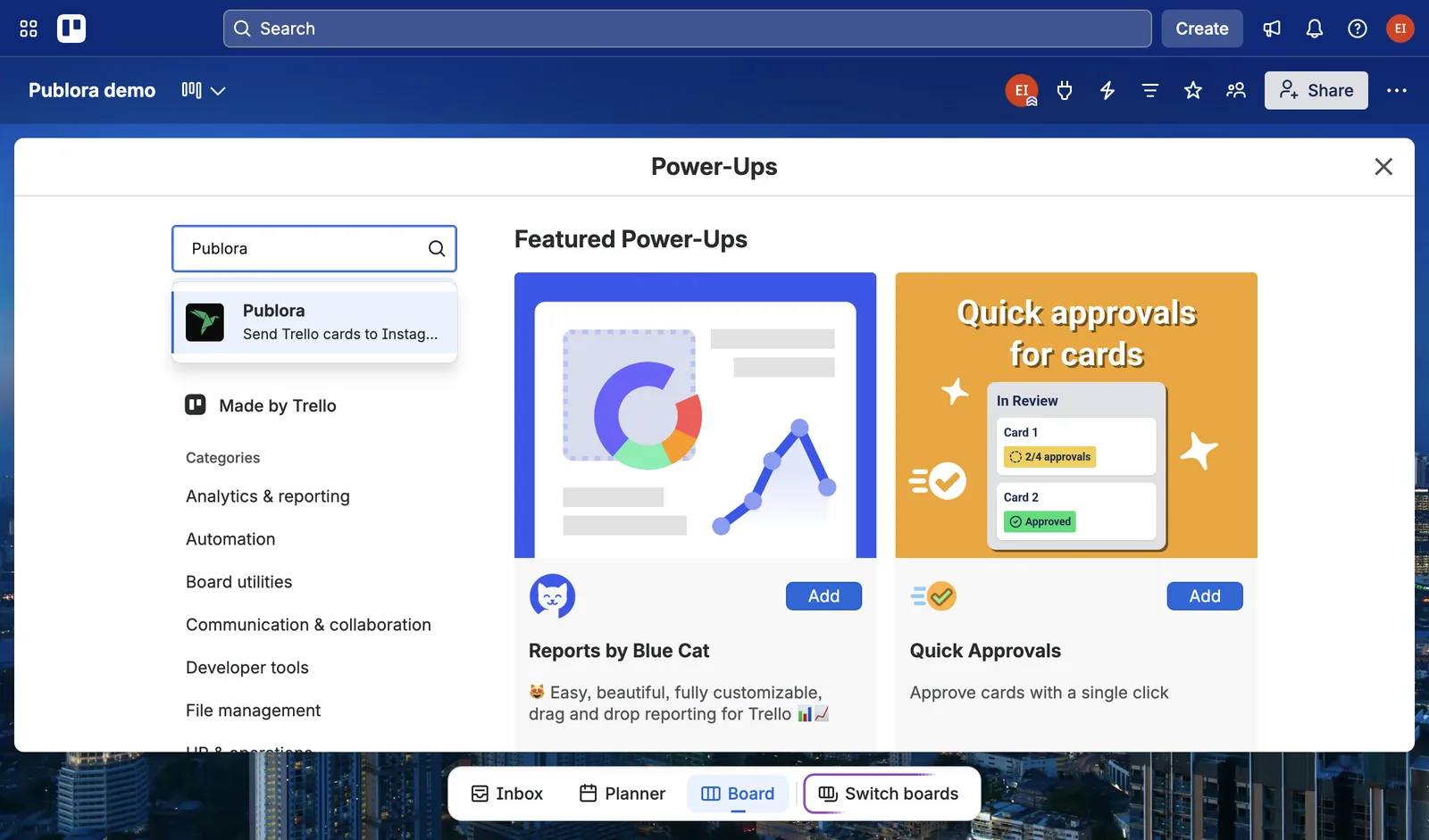
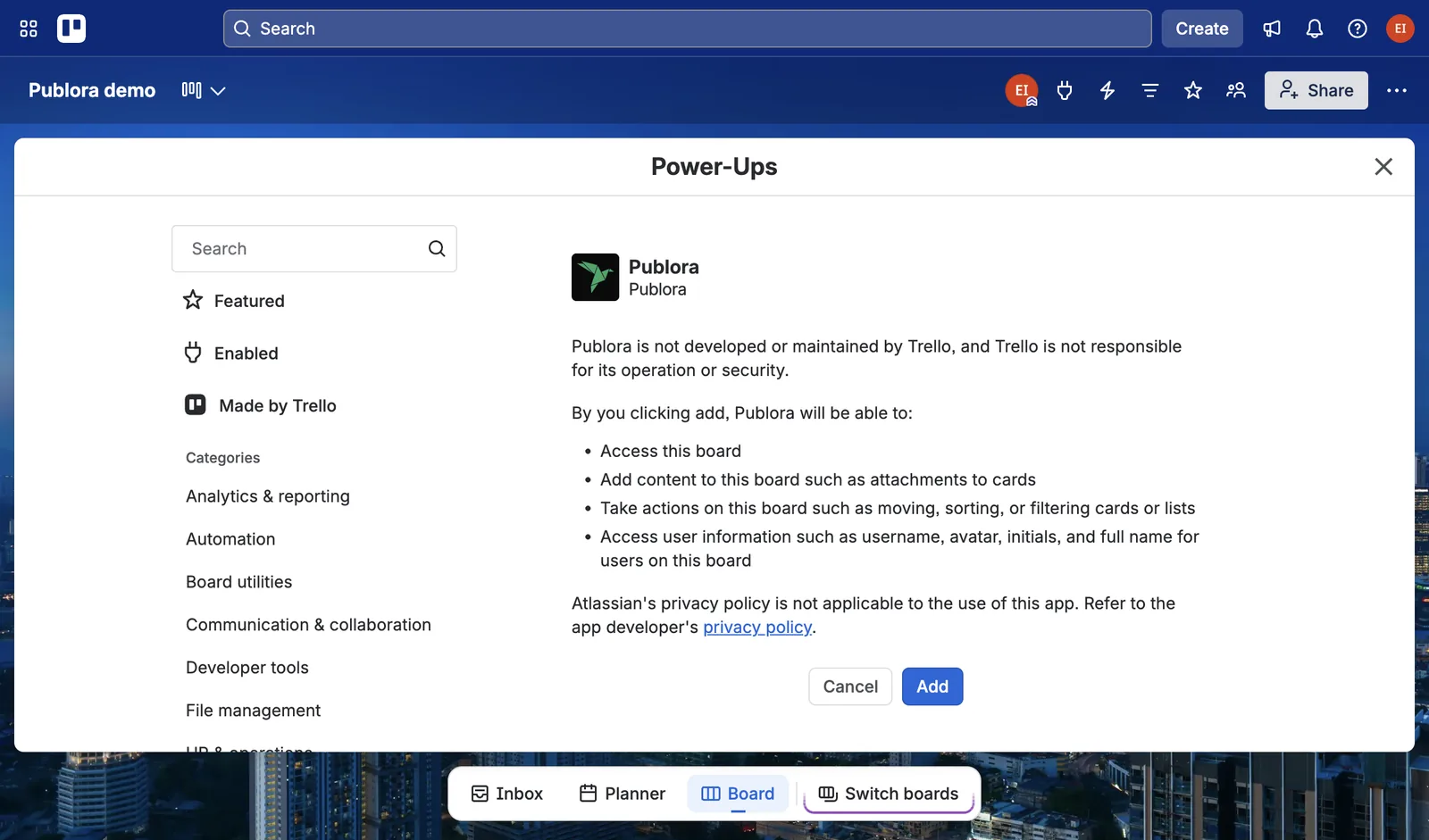
Click Publora, then Add. Before adding it, Trello lists what the Power-Up will be able to do on this board. Trello shows the same list for every Power-Up. Publora reads the card and saves only the post's status on it. Click Add again.
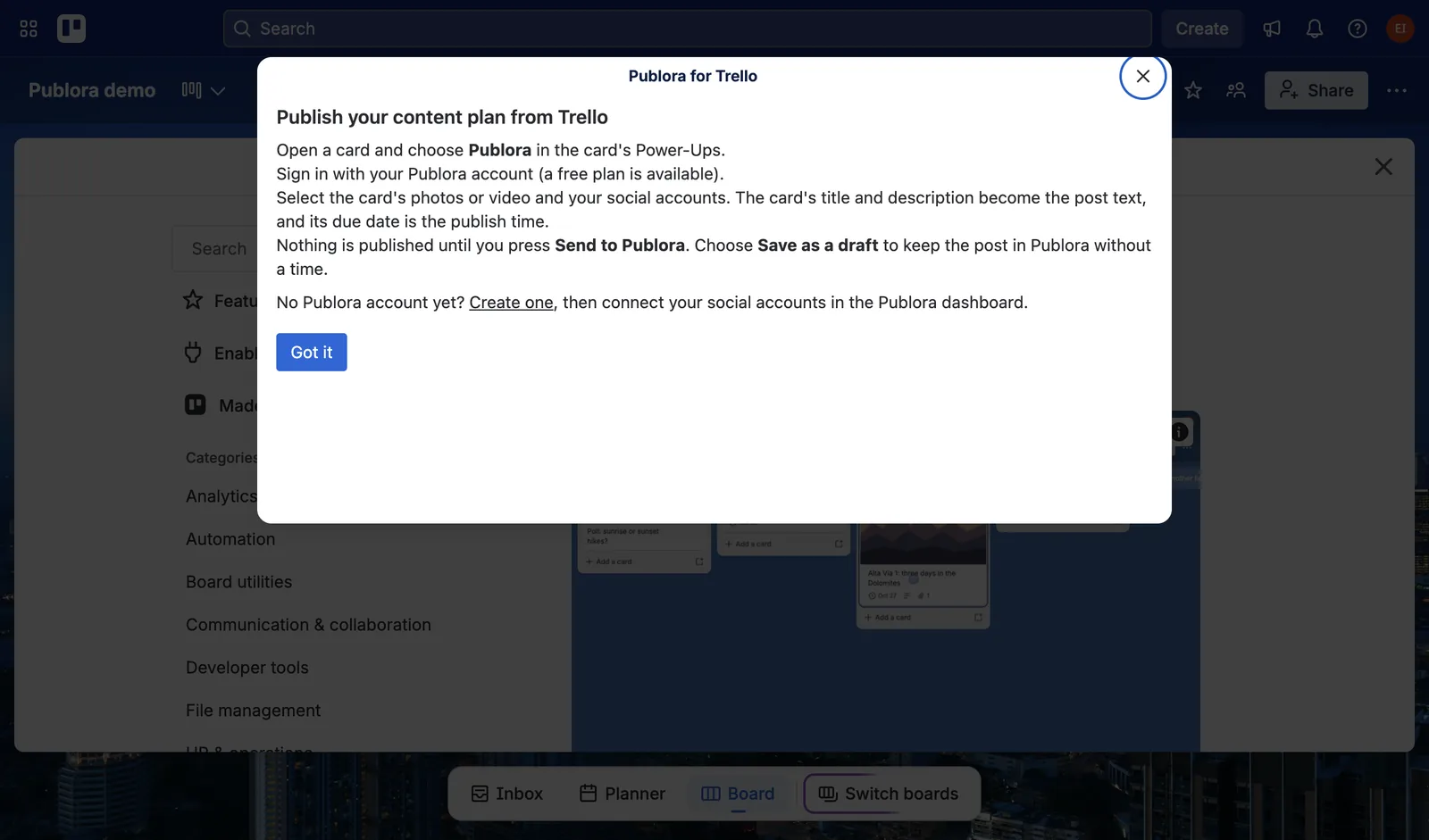
Trello then shows a short window with the steps below. Click Got it.
Step 2. Open a Card and Sign In
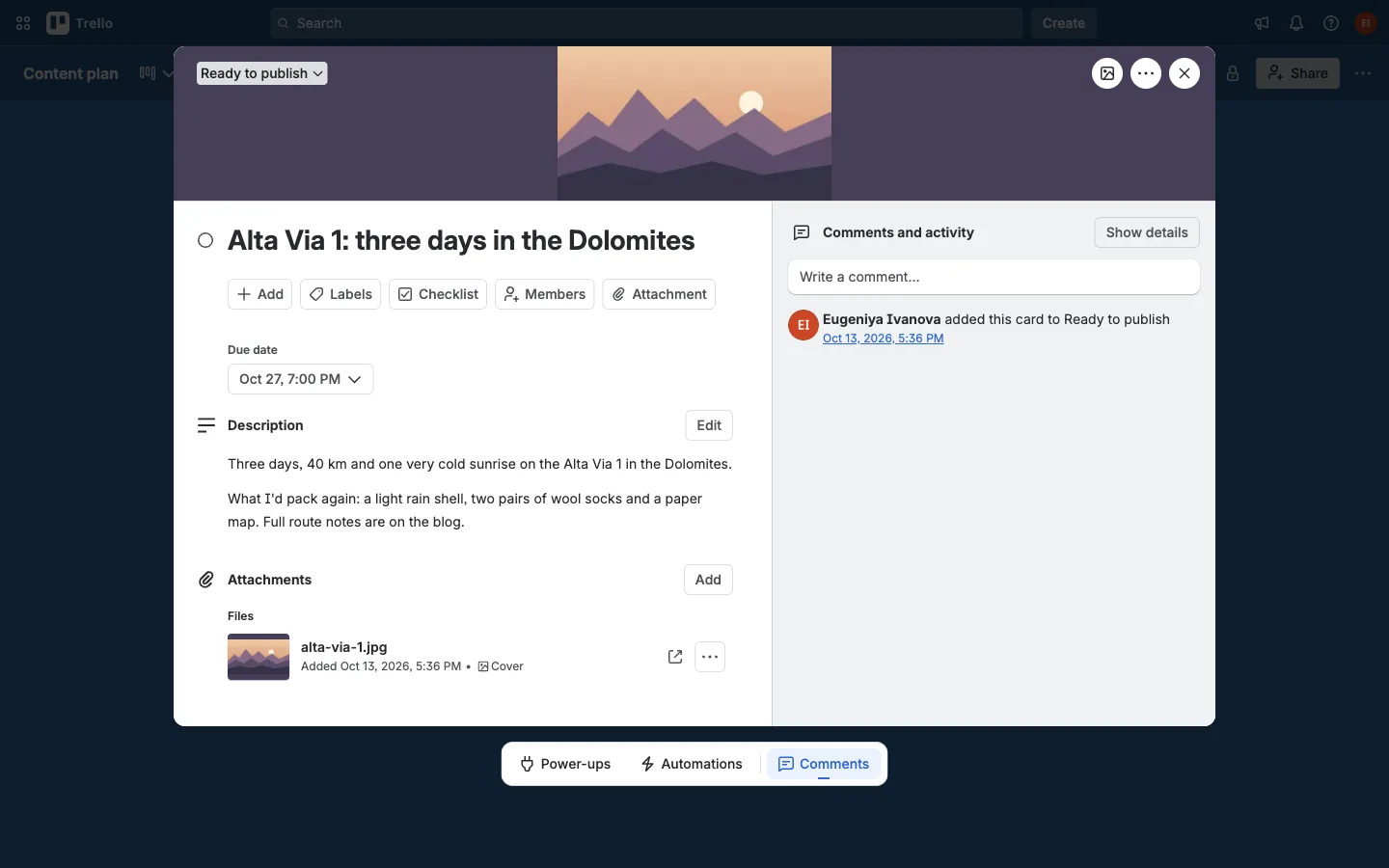
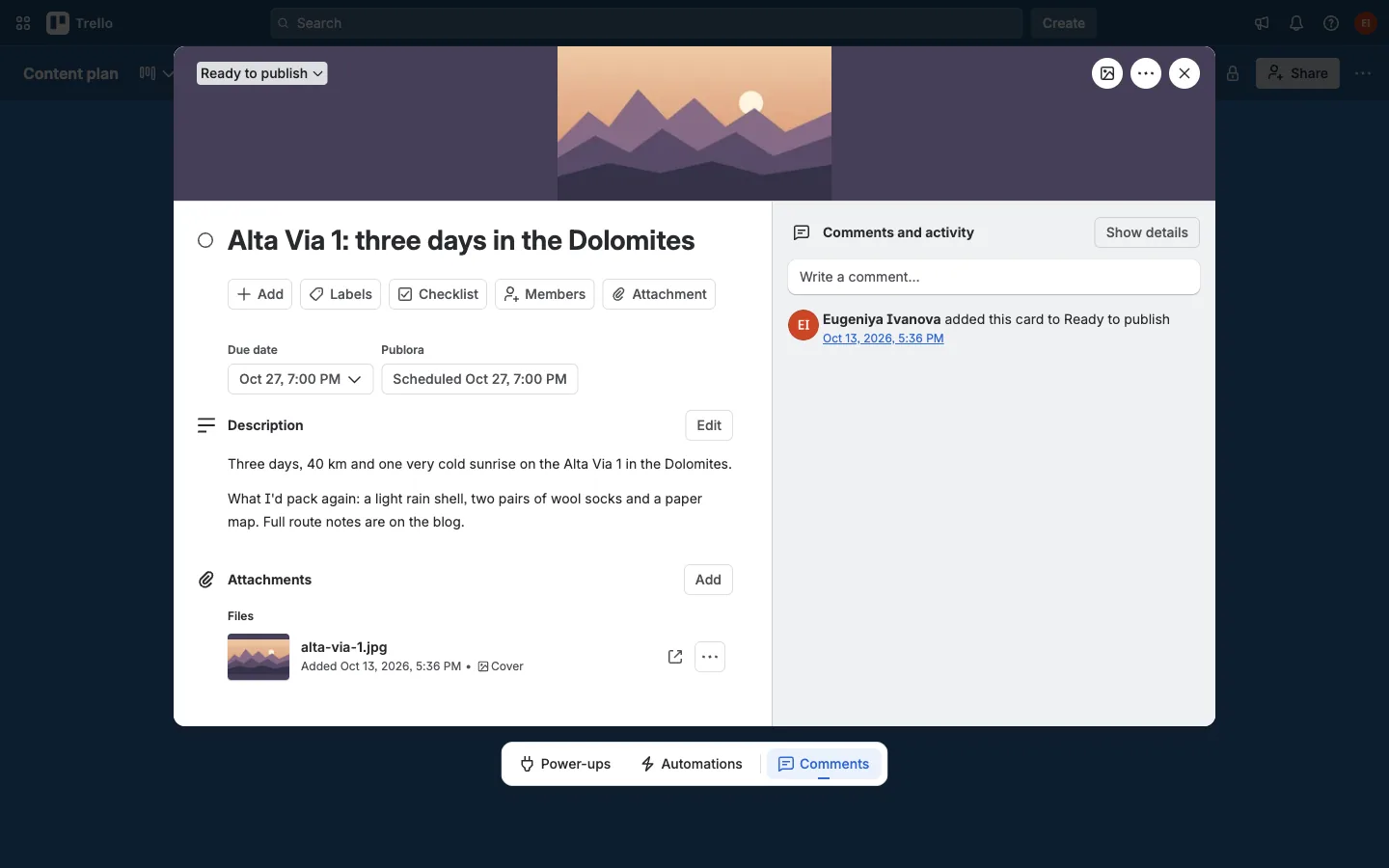
This is the card from the video: a title, two short paragraphs in the description, one photo, due October 27 at 7 PM.
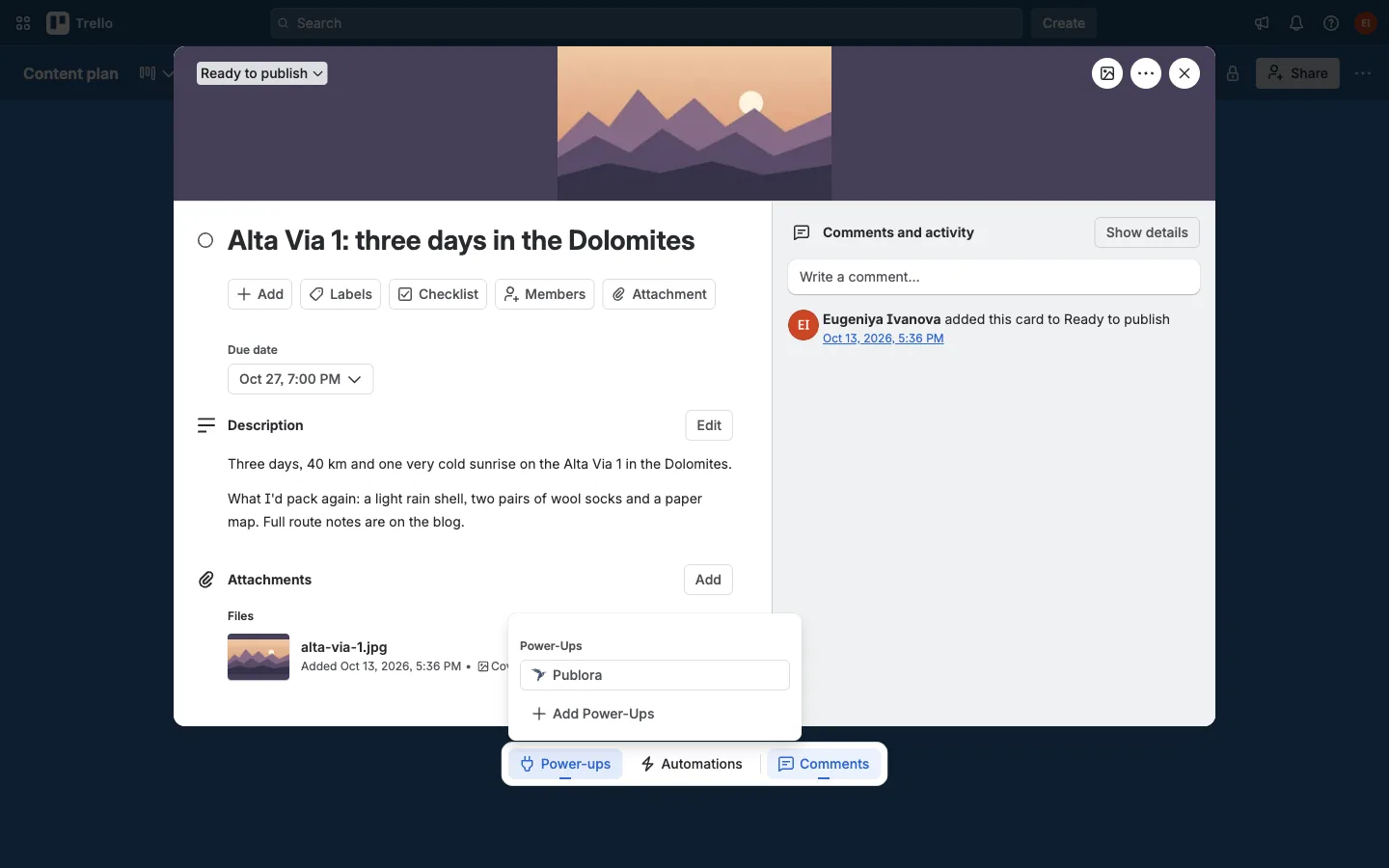
Click Power-ups at the bottom of the card and choose Publora.
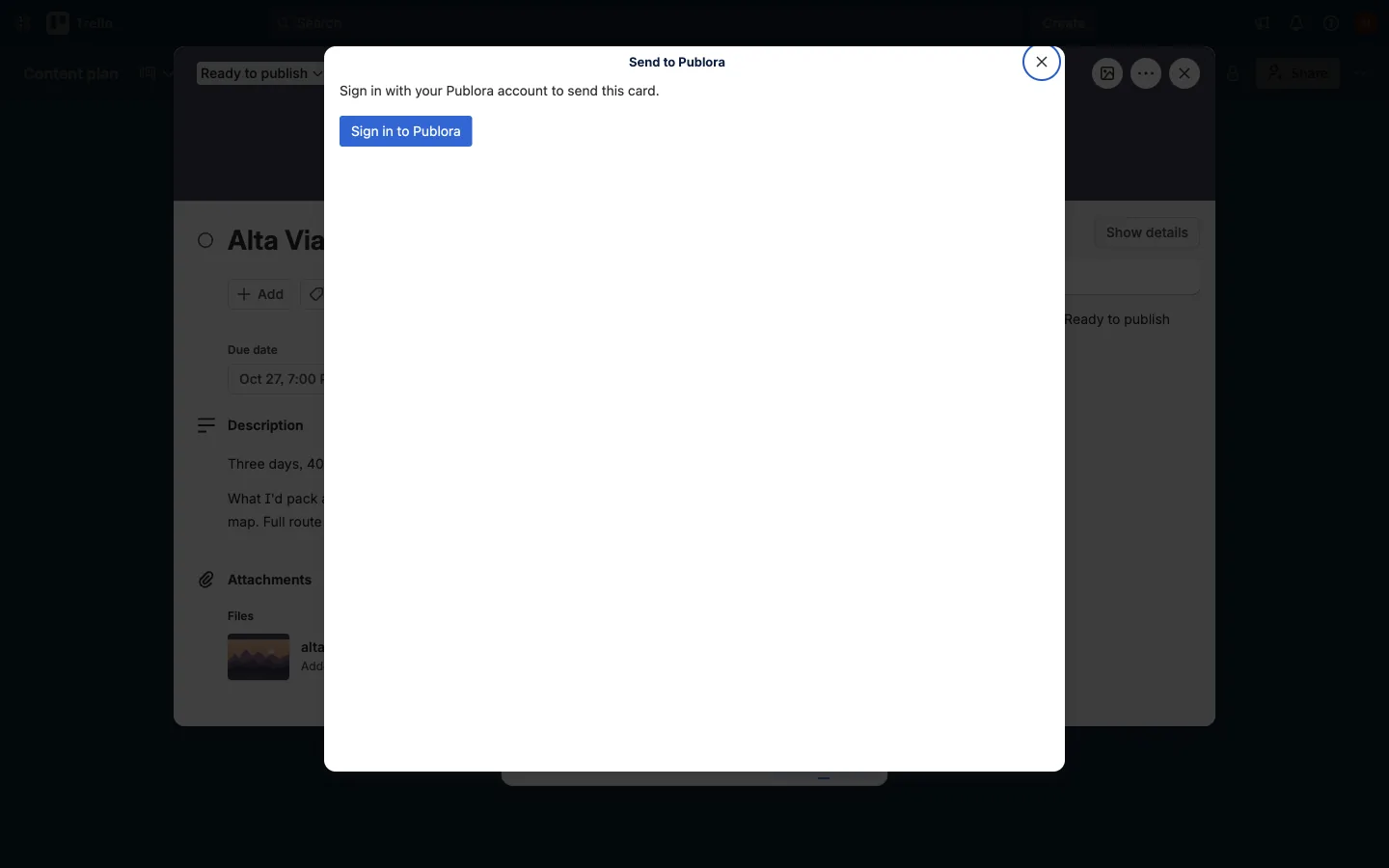
The first time, you'll see a Sign in to Publora button.
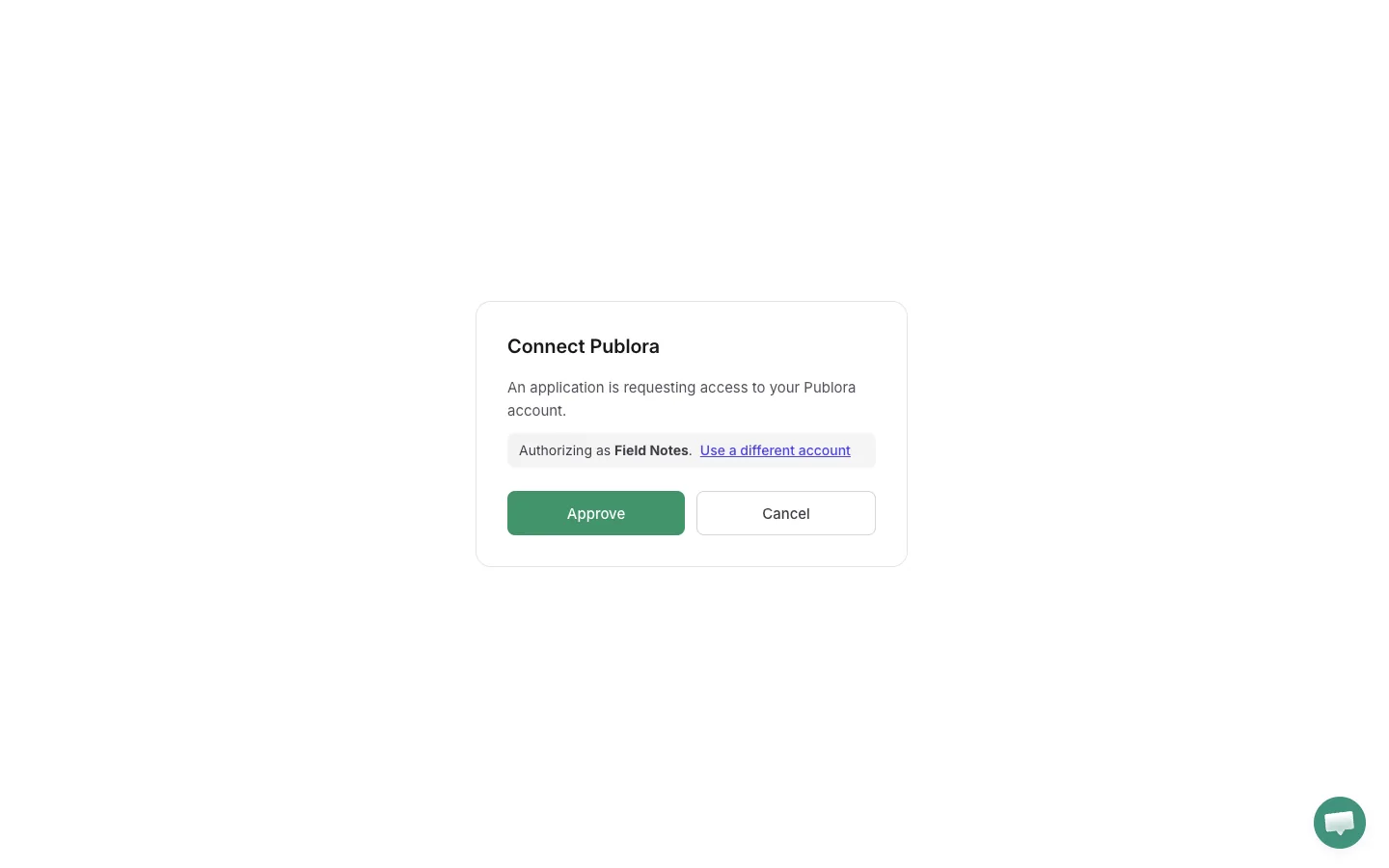
It opens Publora in a new window. If you're signed in to Publora in this browser, click Approve. If not, sign in or create an account there first. The window closes on its own. You do this once per browser.
Step 3. Check the Text and Attach the Photo
The text comes from the card: the title, a blank line, the description. You can change it here without touching the card. Under the text there's a counter. If the post is too long for one of the networks you tick, it says which one, for example X at 280 characters.
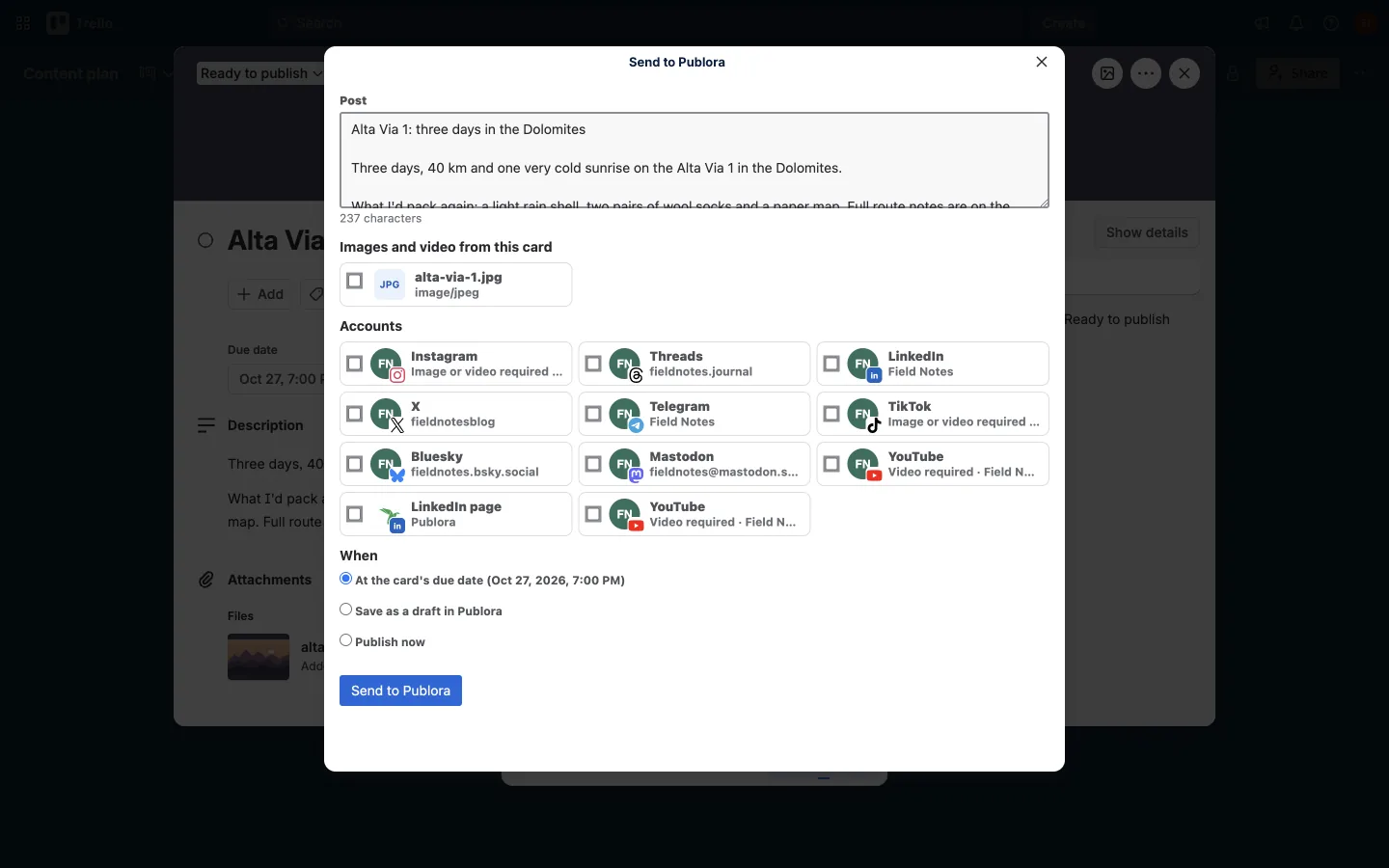
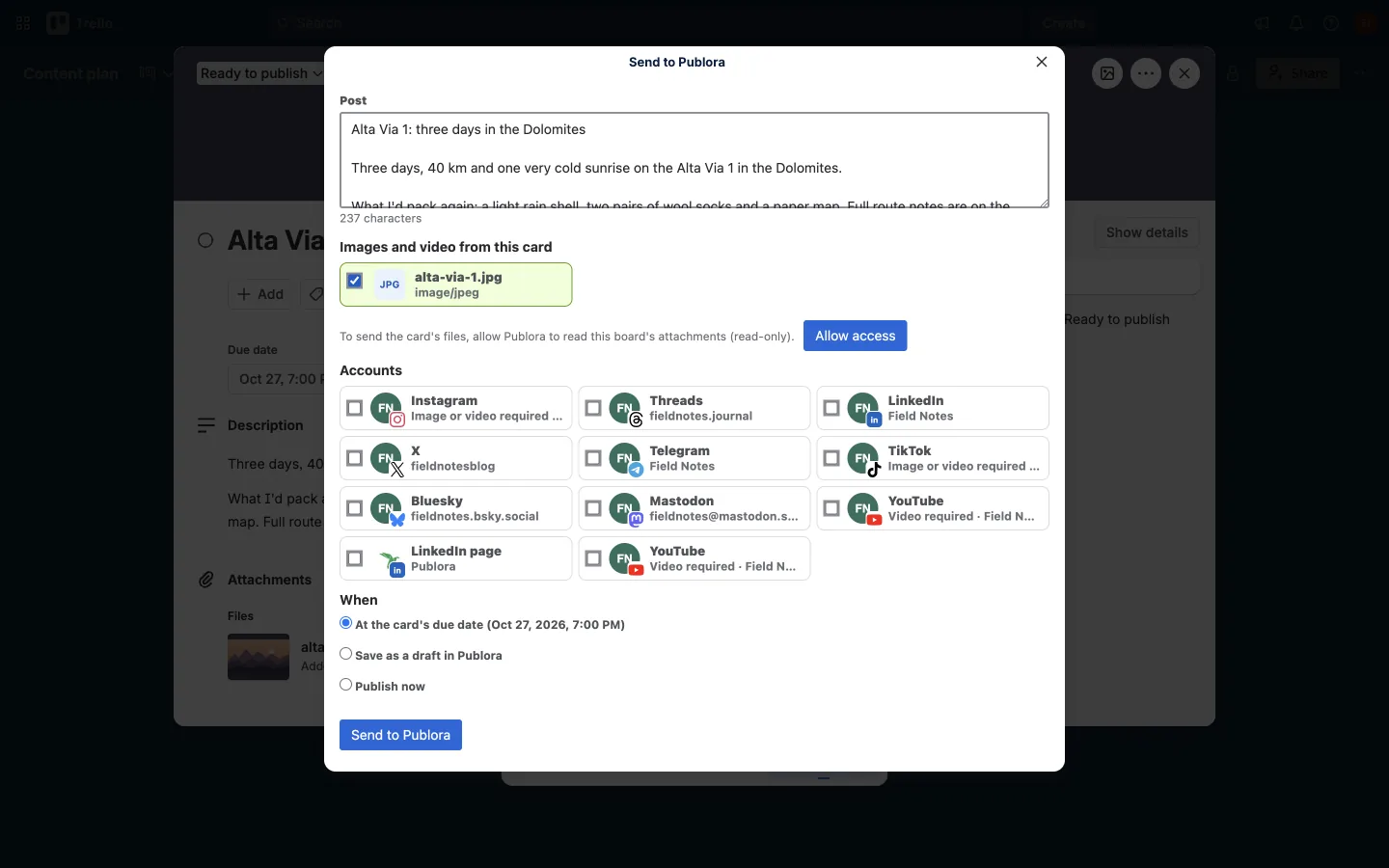
Images and video from this card lists the card's attachments. Tick what goes with the post: several images or one video.
The first time you tick a file, Publora asks for access to the board's attachments. Click Allow access.
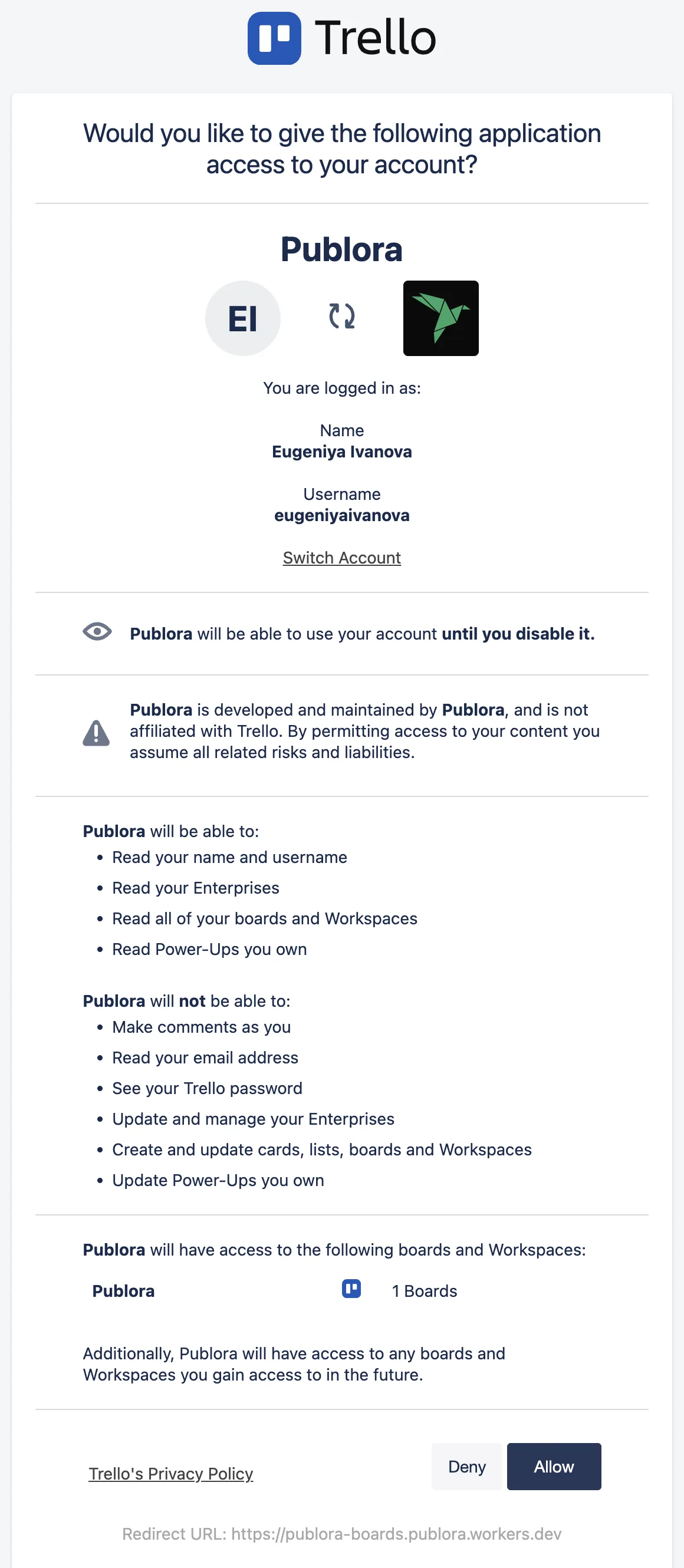
Trello opens its own permission screen. Publora gets read-only access: it can read your boards and their attachments. It can't create or edit cards, comment or see your email address. Click Allow. Trello will send you an email about the new connected app.
Step 4. Pick the Accounts and the Time
Accounts shows the social accounts connected in Publora. Tick the ones for this post. Instagram and TikTok need an image or a video, and YouTube needs a video. If you tick one of them without a file, the window tells you before anything is sent.
Then pick When:
- At the card's due date. Publora schedules the post for the time on the card. The option is greyed out if the card has no due date or the date has passed.
- Save as a draft in Publora. The post goes to your Publora dashboard without a time.
- Publish now. Publora publishes it right away.
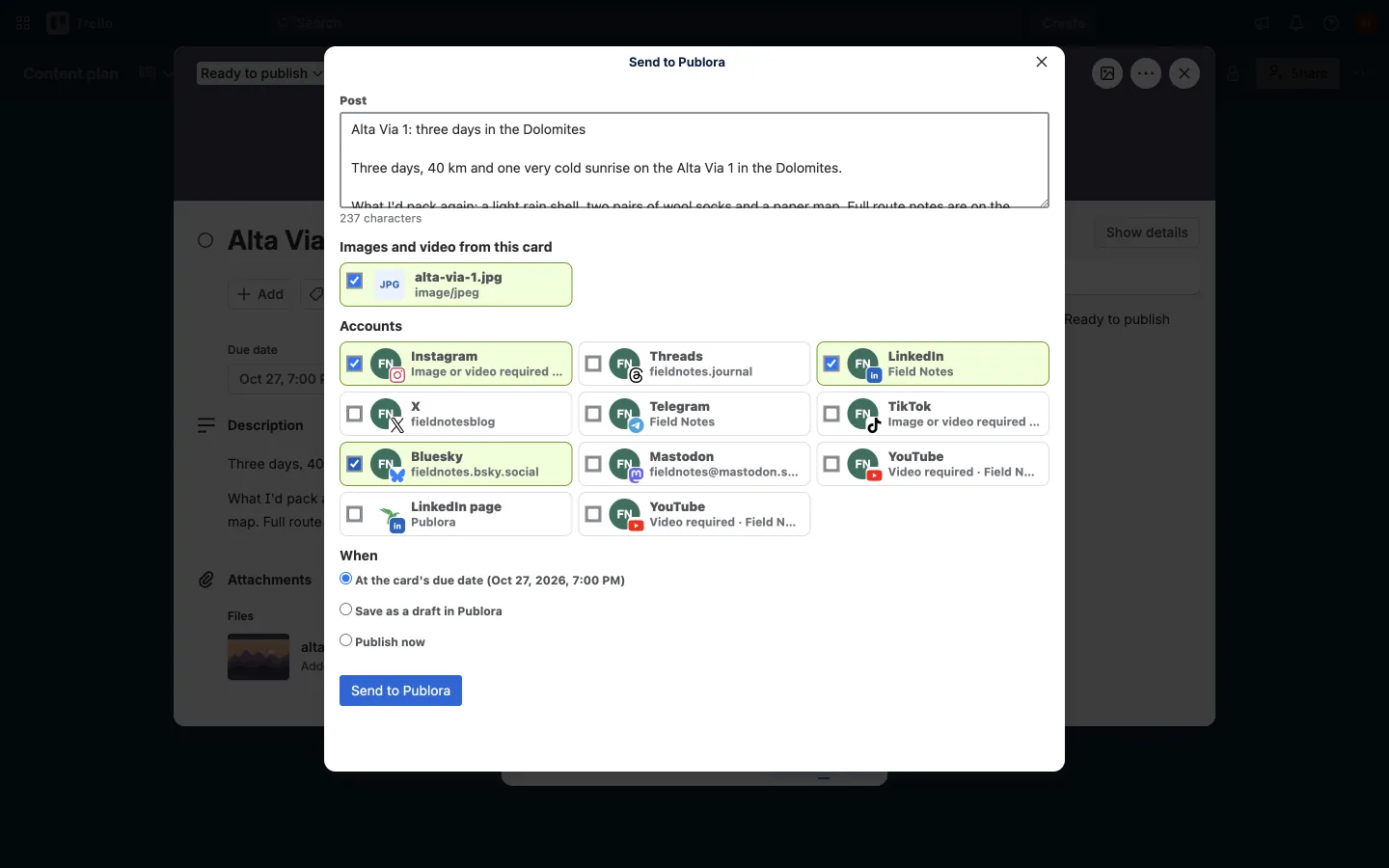
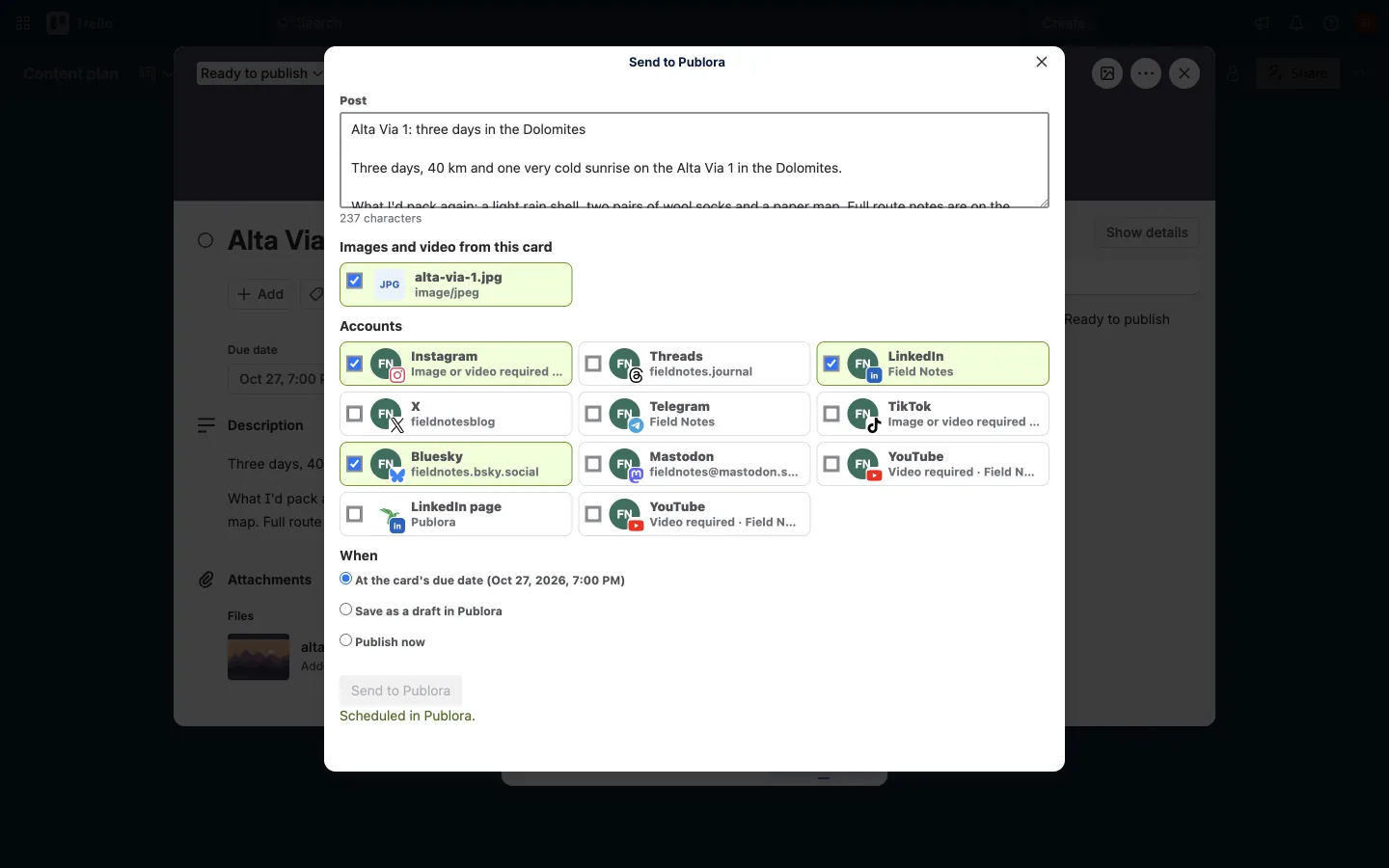
Click Send to Publora. Until you click it, nothing leaves Trello. If you attached files, the window uploads them one at a time and shows the count. Then you see "Scheduled in Publora", "Saved as a draft in Publora" or "Sent to publish", and the window closes.
If a step fails, for example a file won't upload, the window shows the error and nothing is published.
Step 5. Check the Status on the Card
The card gets a Publora field next to the due date. It shows what happened to the post: "Scheduled Oct 27, 7:00 PM", "Draft in Publora", "Published", "Partly published" when some networks failed, "Failed in Publora", or "Removed in Publora" when the post was deleted in the dashboard.
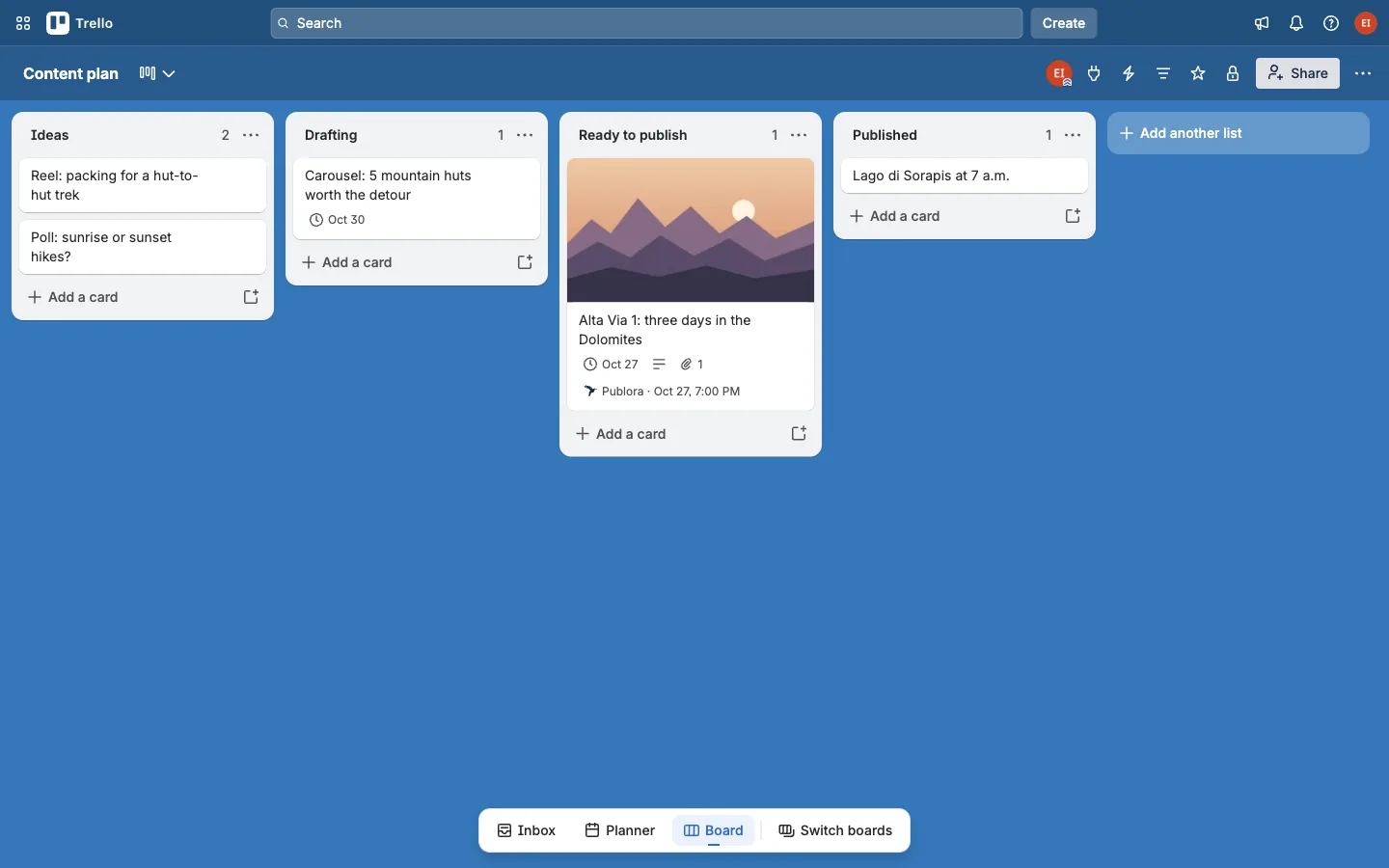
The same line is on the front of the card, so the board shows which posts are already scheduled.
The status updates when the person who sent the card opens it. Other people on the board see what it said at that moment.
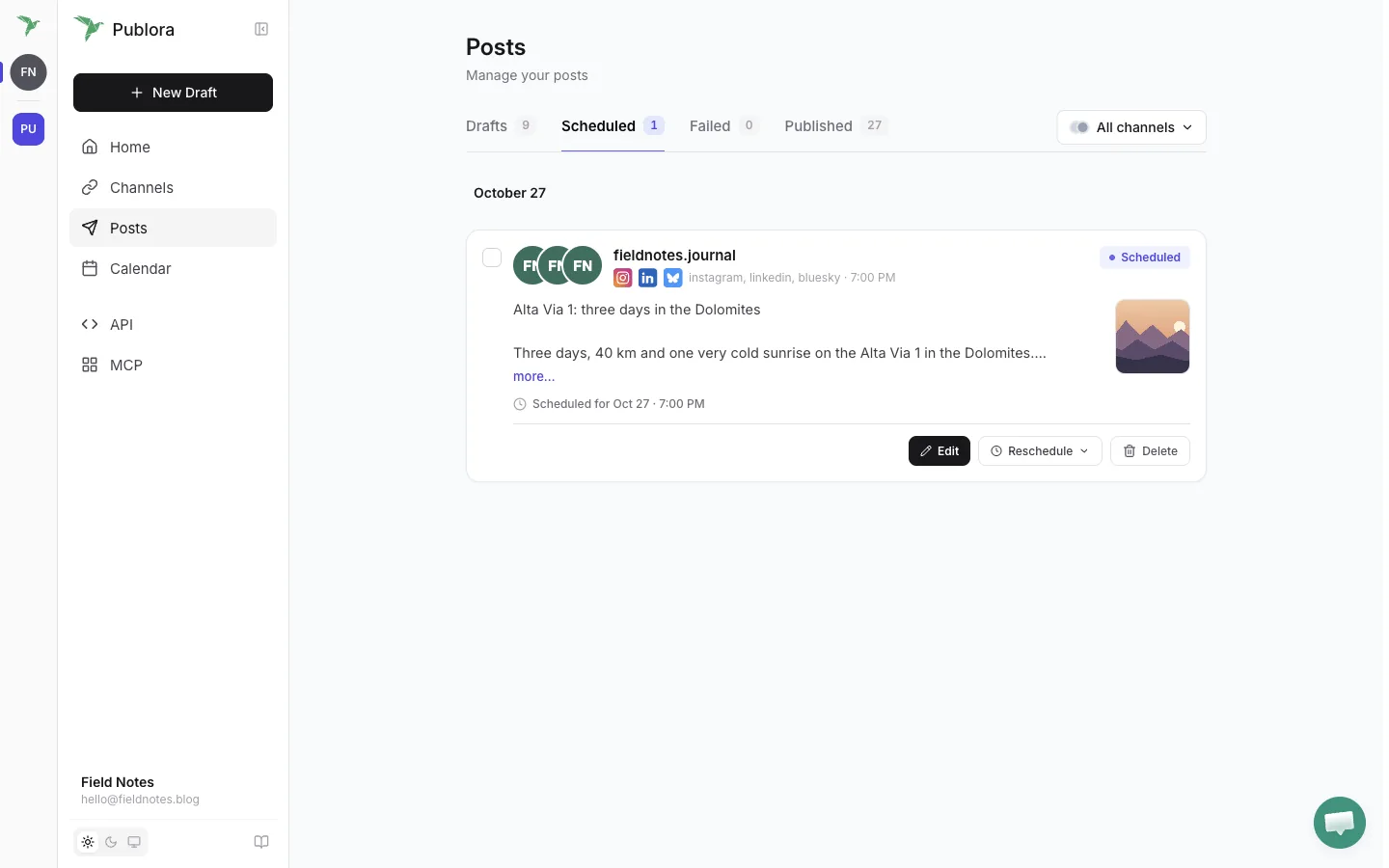
In the Publora dashboard the post is under Posts → Scheduled with the photo attached. If you edit, reschedule or delete it there, the card shows the change.
Signing Out and Removing Access
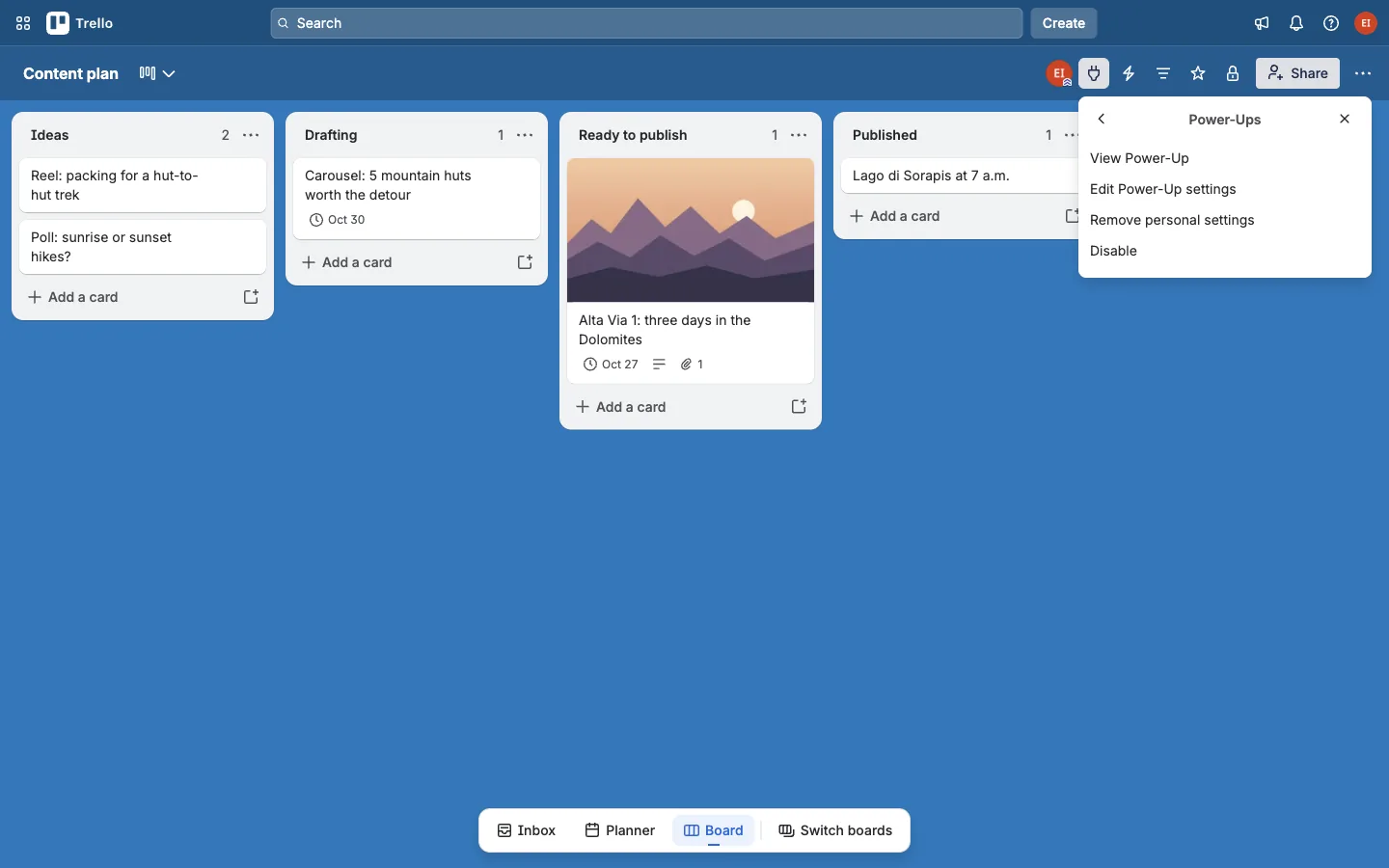
Click Power-Ups in the board header, then Settings next to Publora, then Edit Power-Up settings.
Sign out of Publora removes both sign-ins from this browser: Publora and the access to card files.
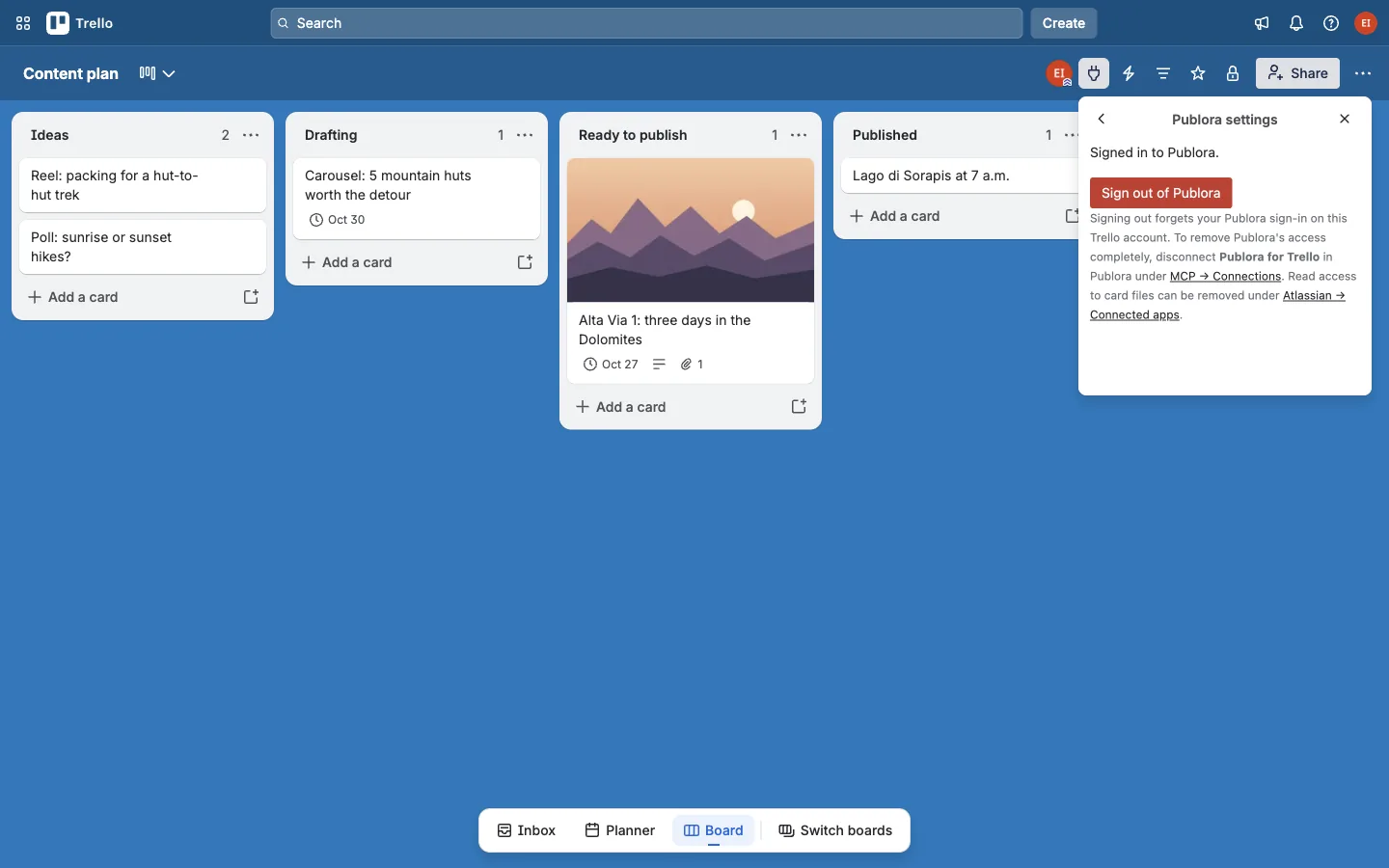
To remove access entirely, also disconnect Publora for Trello in the Publora dashboard under MCP → Connections, and remove Publora from Connected apps in your Atlassian account.
What the Power-Up Sends, and Where
- When you sign in, Publora gives the Power-Up a sign-in token. Trello stores it in your browser.
- When you open the window, the Power-Up asks Publora for the list of your connected social accounts.
- When you click Send to Publora, it sends the text, the accounts you ticked, the time and the files you ticked. Publora's server downloads those files from Trello and uploads them to Publora, so they don't go through your computer.
In Trello the Power-Up only reads. The one thing it saves on the card is the Publora post's ID and status, which is what the Publora field shows.
Get Publora for Trello
Add it from the Trello Power-Ups directory. No Publora account yet? The free plan covers three accounts and 15 posts a month.
Get Started FreeFAQ
Can Trello post to social media?
Not by itself. Trello has no built-in publishing to social networks. The Publora Power-Up sends a card to Instagram, LinkedIn, X, Threads, Facebook, TikTok, YouTube, Bluesky, Mastodon and Telegram.
Is the Power-Up free?
Yes. You need a Publora account, and the Starter plan is free for three social accounts and 15 posts a month, on every network except X. It works on the free Trello plan too.
Can I post a card that has no due date?
Yes. Save it as a draft or publish it now. To schedule it from Trello, give the card a future due date first.
What size can the files be?
Images up to 25 MB, and one video up to 150 MB per post. Your Publora plan can lower that: Starter takes videos up to 50 MB. The free Trello plan limits attachments to 10 MB.
If I change the due date after sending, does the post move?
No. The post keeps the time it was scheduled for. Reschedule it in the Publora dashboard, or delete it there and send the card again.
Does it work in the Trello mobile app?
No. The Trello apps for iOS and Android don't run third-party Power-Ups. Trello in a mobile browser works.
Can my teammates use it on the same board?
Yes. Each person signs in with their own Publora account and posts to their own social accounts. Each of you signs in once per browser.
Further Reading
- How to Share Framer CMS Posts on Social Media
- How to Schedule Canva Designs to Social Media
- 10 Content Calendar Examples to Plan Your Posts
If something behaves differently than described here, write to support@publora.com.